


 Zornitsa Stefanova
 Zornitsa Stefanova is a Financial Research and Platform Testing Analyst at BestBrokers.com, specialising in hands-on reviews of forex, cryptocurrency and stock trading platforms. She evaluates brokerage companies from a user-focused perspective, testing key areas such as account setup, trading conditions, platform usability, available markets and overall reliability.
 | Expert Editor
  Eugene Lee, CFA
 Eugene Lee, CFA, is the Head of Research at BestBrokers.com, where he draws on more than two decades of experience in global markets, portfolio management, derivatives, and fintech to evaluate online brokers. His background in institutional investing and quantitative research helps ensure that broker reviews are based on data, risk assessment, and real-world trading conditions.
  | Updated:
 Introduction to MetaTrader 5
What This Guide Covers
MetaTrader 5 (MT5) is a widely used multi-asset trading platform designed for trading forex, stocks, indices, commodities, and futures, depending on what your broker offers and your local regulations. This comprehensive guide explains how to download, install, and start using MT5 across its desktop, web, and mobile versions. Traders will learn how to log in to their trading account, configure charts and timeframes, add indicators, place and manage orders, set alerts, and handle basic platform settings. The aim is to give readers a practical reference they can follow from the first download through to placing their first demo trade.
The guide also touches on more advanced tools built into MT5, such as the economic calendar, strategy tester for backtesting, and automated trading with Expert Advisors (EAs), so that you understand what is available even if you are not ready to use these features yet. Where a step can expose you to avoidable risk, such as downloading MT5 from unofficial websites, saving passwords on shared devices, or using one-click trading on a live account, the guide highlights that clearly. MT5 is powerful, but beginners are usually better served by taking a slow, methodical approach.
Who This Guide Is For
This guide is intended for complete beginners who are new to trading platforms in general. They may have recently opened a broker account and been told to use the MT5. Such readers may need a step-by-step walkthrough from installation to placing a demo trade.
However, the guide may also be useful for traders moving from another platform, including MetaTrader 4. Alternatively, they may want to compare MT5 against other platforms before choosing a broker, so this walkthrough should help them understand what the software does and how to use it safely.
Those who switch between desktop, web, and mobile versions may only need specific steps, such as installing MT5 on Mac, logging in to your mobile app, or understanding order types and how to place them.
Readers who already know the basics can use the individual sections as a reference. For example, you may only need the Mac installation steps, the mobile login instructions, or the explanation of order types.
What Readers Will Learn
By the end of this guide, you should feel confident handling the MT5 basics without needing constant help from your broker. We can organize these new skills into three main groups:
- Basic MT5 skills
- What is MetaTrader 5, and what is it used for?
- How to install MT5 from trusted, official sources?
- How to log in to a demo or live trading account?
- How to navigate the main parts of the platform interface?
- Charting and trading basics
- How to open and customize charts?
- How to add and remove indicators?
- How to place and manage trades (modify, close, set stops/targets)?
- How to read key account figures such as balance, equity, and margin?
- Common mistakes to avoid
- Selecting the wrong broker server at login
- Confusing a demo password with a live account password
- Placing trades with the wrong volume/lot size
- Assuming good demo results will automatically translate into similar live performance
What Is MetaTrader 5?
MetaTrader 5 Explained
MetaTrader 5 is a trading platform developed for analyzing financial markets and placing trades. It provides charts, technical indicators, drawing tools, order entry, account monitoring, alerts, and support for automated trading through Expert Advisors (EAs). It is widely used because it combines market analysis and trade execution in one application, and is available on desktop, web, and mobile, so traders can access their accounts from multiple devices.
MT5 is a multi-asset platform, which means it can be used for different kinds of financial instruments, such as forex, stocks, indices, commodities, and futures, depending on how each broker configures it. The exact markets, symbols, contract specifications, and even some features, such as hedging vs netting, leverage, and minimum lot sizes, depend on the broker and account type connected to the platform, not on the platform alone. Therefore, two traders using MT5 at different brokers may see different instrument lists and trading conditions.
MT5 as a Platform, Not a Broker
A common beginner mistake is to treat MT5 as if it were a broker. It is not. MetaTrader 5 is a platform, not a broker.
-
MT5 provides:
- The interface: charts, watchlists, order tickets, and trade history
- Tools: indicators, drawing tools, alerts, strategy tester, and Expert Advisors
- Connectivity: it connects to a broker’s servers so you can see prices and place trades
-
Your broker decides:
- Which instruments you can trade (forex, CFDs, stocks, etc.)
- Spreads, commissions, leverage, and minimum lot sizes
- Whether you trade CFDs or real shares, and what regulations apply
- How deposits/withdrawals, fees, and client protection work
This matters because many questions that seem like “MT5 issues” are actually broker issues. For example, missing symbols, invalid account errors, or differences in available markets usually come from the broker account and server you are connected to.
Demo Accounts vs Live Accounts
Demo and live accounts look similar inside MT5, but they behave very differently because only the latter involves real money.
| Feature | Demo Account | Live Account |
|---|---|---|
| Funding | Uses virtual funds provided by the broker | Uses real money that traders deposit |
| Financial Risk | No real financial risk; losses are simulated | Real profits and losses that affect your account balance |
| Platform Layout | Almost identical to live, good for practicing the interface | Almost identical to demo, but linked to a real trading account |
| Execution Conditions | Often close to live but may have minor differences in spreads/liquidity | Reflects real market conditions and broker execution |
| Emotions and Psychology | Easier to stay calm because nothing real is at stake | More emotional pressure when real money and leverage are involved |
| Typical Use | Learning the platform, testing basic ideas, practicing order placement | Trading a real strategy with real capital, usually after demo practice |
| Recommended Approach | Start here to understand MT5 and build basic confidence | Move cautiously, with small sizes, once you know how the platform works |
Markets Available through MT5
MT5 can be used for markets such as forex, indices, shares, commodities, and futures, and some brokers may also provide access to other instruments (for example, bonds, ETFs, or cryptocurrencies) through the platform. However, platform capability should not be confused with broker availability. MT5 can support many asset classes, but each broker decides which symbols, contract types (CFDs or exchange‑traded), and trading hours to make available.
One broker may offer a very wide list of symbols on MT5, while another may only offer a limited selection, or only certain asset classes. Trading conditions such as leverage, minimum lot size, margin requirements, and whether hedging or netting is used are also set by the broker at the server level, not by MT5 itself. Checking these details is essential before you place any trade.
Instrument names can also vary. For example, a broker may add prefixes or suffixes to a symbol name, so the exact instrument label in Market Watch may not look the same across brokers. Always open the symbol specifications to confirm key details, such as contract size, tick size, trading sessions, and margin requirements, before trading.
MT5 Desktop, Web and Mobile Versions
MT5 is available in three main forms, each suited to a different style of use. The desktop version is the most complete and is generally the best choice for full chart analysis, custom indicators, Expert Advisors, and backtesting. The web version runs in a browser and is useful when you cannot install software. The mobile app is convenient for monitoring, basic charting, and trade management on the move.
- Desktop (Windows/macOS)
- Most complete feature set and best choice for full technical analysis.
- Supports custom indicators, scripts, and Expert Advisors (EAs).
- Includes the Strategy Tester for backtesting and optimizing automated strategies.
- Allows more detailed chart layouts, multiple monitors, and heavier customization.
- Web (MT5 WebTrader)
- Runs in a browser with no installation, useful on shared or temporary devices.
- Lets you log in to your trading account, view prices, open and manage trades.
- Offers basic charting and indicators but fewer advanced tools than desktop.
- Depends on an internet connection and browser performance, not your local setup.
- Mobile (Android/iOS app)
- Designed for quick access on the move: checking prices, charts, and positions.
- Supports basic technical analysis and order placement/management.
- Smaller screen and simplified layout make detailed analysis and EA use impractical.
- Best used for monitoring and minor adjustments rather than building a full trading plan.
MetaTrader 5 Download Options
Downloading MT5 for Windows
The Windows version is the most commonly used MT5 download. You can normally get it either from the official MetaTrader website or from a broker that supports MT5. In many cases, the core platform is the same, but a broker download may include the broker’s server list or shortcuts that make the first login simpler.
For most users, Windows is the easiest platform on which to run MT5 because the full desktop feature set is available. If you plan to use advanced chart tools, custom indicators, Expert Advisors, or the Strategy Tester, this is usually the version to start with.
Downloading MT5 for macOS
MT5 is also available for Mac users, though the exact installation package can vary depending on the source. Some brokers provide a Mac-specific download, while some users rely on the official MetaTrader package where available. Installation prompts may differ slightly from Windows, especially around security permissions and application approval.
Before downloading, check that the version offered is intended for your version of macOS and that it comes from a trusted source. If you run into compatibility issues or performance problems, the web version can be a useful fallback or a temporary solution.
Downloading MT5 for Linux
Linux users should be aware that MT5 availability can be less straightforward than on Windows. In practice, many traders run MT5 on Linux through compatibility tools such as Wine, or use a broker-provided installation method if one is offered. The exact steps vary by distribution, which is why many Linux users choose the browser-based WebTerminal instead for a simpler setup.
If you decide to use a Linux setup, only follow instructions from the official MetaTrader website, your broker’s genuine support pages, or a technically trusted source. Unofficial scripts and third-party packages can create security or stability problems.
Using MetaTrader 5 WebTerminal
MT5 WebTerminal lets you use the platform through a web browser without installing the desktop application. This is useful if you are on a work machine, a temporary device, or a computer where software installation is restricted. You simply open the WebTerminal page and log in with your broker account details.
While the Webterminal is convenient, it is not identical to the desktop platform. Some advanced features, custom tools, and local automation options may not be available, and performance depends on your browser and internet connection. It is better thought of as a practical alternative or backup rather than a full replacement for every use case.
Downloading MT5 for Android
The Android version is normally downloaded from Google Play. It is designed for trade monitoring, chart access, price checking, and basic order placement from a phone or tablet. It is useful when you need access away from your main computer, but the smaller screen means you should be careful with order entry and trade size.
Only download the app from the official store listing or from a direct link on your broker’s genuine website. Avoid APK files from random websites, as modified mobile apps can present serious security risks. Where supported, enable push notifications so you can receive alerts from your desktop or broker directly on your device.
Downloading MT5 for iPhone and iPad
For Apple devices, MT5 is available through the App Store for iPhone and iPad. The app is suitable for checking prices, reviewing trades, making adjustments to stop loss or take profit, and carrying out basic analysis. It can be very useful for monitoring positions, but many traders still prefer a desktop for detailed chart work and strategy testing.
As with Android, it is sensible to start from the App Store link on the official MetaTrader website or your broker’s secure website. This reduces the chance of downloading the wrong app or a lookalike product. If the app is temporarily unavailable in your region, the WebTerminal may be the safest interim solution.
Official Downloads vs Broker Downloads
In many cases, the official MT5 download and a broker-provided MT5 download are both valid, but they serve slightly different purposes. An official download gives you the generic platform with no pre-set broker connection. A broker download may include the same platform with the broker’s servers already integrated, custom branding, or easier account connection options.
The important point is trust. Use the official MetaTrader website, the official app stores, or the genuine website of a broker you have already verified. Do not treat every download page that mentions MT5 as safe. Fake brokers and cloned websites often rely on that assumption, so always double-check URLs, certificates, and contact details before installing anything.
Before You Install MetaTrader 5
Device and System Requirements
MT5 is not usually demanding by modern software standards, but the desktop version still works best on an up-to-date system with adequate memory and storage. If you plan to run many charts, use several indicators, or backtest Expert Advisors, more system resources (RAM, CPU, and disk space) will help. Older devices may still run MT5, but performance can become slow or unstable as you add more data and tools.
Traders can find further information on the MetaTrader 5 Platform Installation topic on the official website of the trading platform, under the Help section.
It is also worth checking that your operating system is still supported and up to date. Installation or launch problems are more common on outdated systems, heavily locked-down work devices, or machines with restrictive security settings, antivirus rules, or missing permissions.
Internet Connection and Storage Requirements
MT5 needs a reliable internet connection to receive prices, sync charts, and communicate with the broker’s server. A poor connection can lead to missing price updates, delayed charts, or failed login attempts. This matters even more if you are managing live positions, because an unstable connection can make quick trade management harder and increase the risk of slippage.
Storage needs are modest at first, but they grow over time. Historical price data, logs, templates, profiles, and testing files can accumulate. If you use the Strategy Tester, download many tools, or store a lot of chart history, make sure the device has spare space and that you occasionally tidy old files that you no longer use.
Choosing a Broker before Installation
You do not always need to choose a broker before downloading MT5, but you do need a broker that supports MT5 before you can use the platform for live trading. If you already have a broker account, check that the broker supports MT5 rather than only MT4 or another platform, and whether MT5 is available for your specific account type and region. If you do not have one yet, confirm platform support before spending time on setup.
This is also the stage to be careful about fake brokers. A genuine broker account should come through a secure website and a proper onboarding process, including clear contact details and regulatory information. Do not install a trading platform from a website you have not verified, even if the site uses familiar branding or redirects you to what looks like an MT5 download.
Preparing Login Details
Before installation, gather the account details you will need. These usually include your account number, trading password, and the correct server name. Some brokers provide separate details for demo and live accounts, and the server names may be different as well.
Make sure you know whether you have a trading password or an investor password. The investor password is read-only in many cases (mainly for safety and monitoring), which means you may be able to log in and view prices but not place trades. This is a very common cause of confusion for new users. Brokers and traders use the read-only mode to share account preferences with others without risking unauthorized trades or to allow third parties to monitor or analyze trading without exposing full control over the account.
Safety Checks Before Downloading
Before you click download, check that the website address is correct, uses a secure connection, and genuinely belongs to MetaTrader or your broker. Mistyped addresses and cloned pages are common methods used to trick traders into downloading the wrong software or entering login details into a fake page.
- Check the domain name carefully, not just the page design or logo.
- Use bookmarks for sites you trust instead of typing the address each time.
- Keep your operating system and security software updated.
- Avoid downloading on public Wi-Fi if possible, especially for live accounts.
- Do not install software sent through unsolicited messages, social media, or unknown contacts.
How to Download MetaTrader 5 Safely
Where to Download MT5
The safest places to download MT5 are the official MetaTrader website, the official Google Play or App Store listing, or the secure client area of a broker you have already verified. These are the sources most likely to provide a current, untampered version of the platform.
If a broker sends you directly to a download page, make sure the link really belongs to that broker or to the official MetaTrader site. It is worth taking a few seconds to check the web address before downloading or logging in, especially if the link arrived through social media, messaging apps, or unsolicited emails.
How to Identify the Official Installer
An official or legitimate installer should come from a recognized source and should not appear disguised, heavily compressed for no reason, or embedded inside a suspicious archive. On desktop systems, you can often review the file properties and publisher information before opening the installer. If the source is the official MetaTrader site, the publisher should align with MetaQuotes (the platform developer). If the source is a broker, the publisher may reflect the broker’s branded package.
If your browser or operating system displays an unexpected warning, stop and verify the file rather than dismissing the warning automatically. A genuine file can still trigger a prompt, but you should understand why you are proceeding and confirm that the warning is not due to a fake or modified installer.
Why You Should Avoid Unofficial Download Sites
Unofficial MT5 download sites can be risky for several reasons. The installer may be outdated, modified, bundled with unwanted software, or used as bait to capture your login details. Some fake websites look convincing and copy the branding of real brokers or the platform itself, making it easy to mistake them for genuine pages.
There is also a practical risk: even if the software installs, you may end up with an unreliable or unsupported build that creates problems later, such as crashes or connection issues. For a trading platform, that is an avoidable risk, so it is safer to avoid unofficial sites and use trusted sources only.
Checking App Store and Google Play Listings
Before installing MT5 on mobile, check the developer name, app icon, screenshots, and reviews carefully. A familiar app name alone is not enough. Fake or copycat apps often use similar names or logos in an attempt to look legitimate, and in some regions, the genuine MetaTrader may even be temporarily unavailable, increasing the risk of confusion.
If you found the app through a broker link, compare the store page with the one you reach through your own search in the official store. If anything looks inconsistent, stop and verify it before continuing. Also, be cautious with reviews that appear overly repetitive, unnatural, or that mention withdrawal problems tied to obviously fake brokers.
Security Tips Before Opening the Installer
Once the file has downloaded, slow down and review it before opening. Confirm that it came from the source you intended, that the filename looks reasonable, and that your system security tools are active. If possible, avoid opening installers while connected to public networks or while using a shared machine.
It is also sensible to close other unnecessary applications before installation. This reduces system conflicts and helps you notice any unusual prompts more clearly. If you are unsure whether a file is genuine, it is safer to re-download it from a verified source than to take a chance with a questionable installer.
How to Install MetaTrader 5 on Windows
Downloading the Windows Installer
Start by visiting the official MetaTrader website or the verified website of a broker that supports MT5. Find the Windows download page to download the mt5setup.exe file and save the installer to a known location, such as the Downloads folder. If the browser offers multiple copies because you retried the download, delete the extras so you know which file you are opening. The software works on Windows 7, 8, 10, and 11, but a modern 64-bit system with a recent processor is recommended for smoother performance.
- Open the download page from a trusted source.
- Choose the MT5 version for Windows.
- Save the installer locally.
- Check that the download completed fully before opening it.
Running the MT5 Setup File
Open the downloaded setup file by double-clicking it. Windows may ask whether you want to allow the application to make changes to your device. Only click to continue if you are satisfied that the file came from a trusted source. If you are not sure, stop and verify the download first.
Some systems may display SmartScreen or antivirus prompts. This does not always mean the file is unsafe, but it does mean you should confirm the publisher and source rather than rushing ahead.
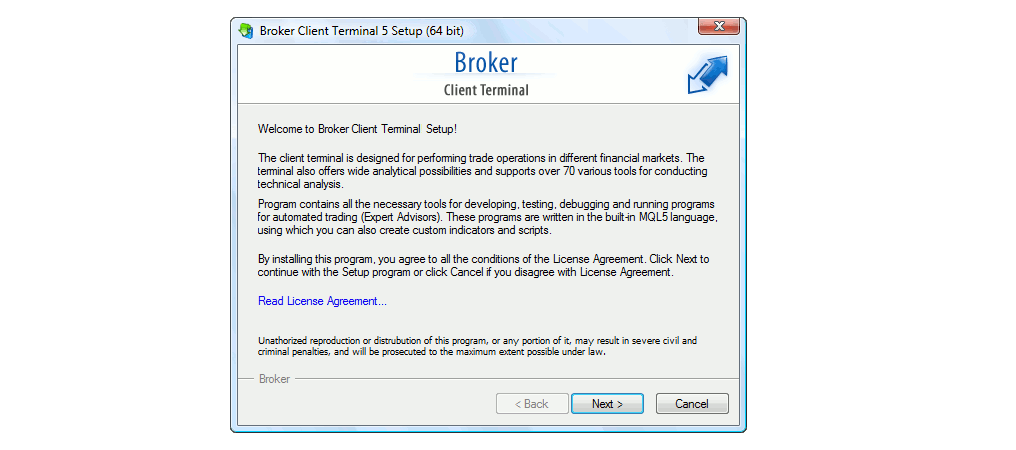
Review the end-user license agreement and make sure the installer name, publisher information, and origin match what you expect.
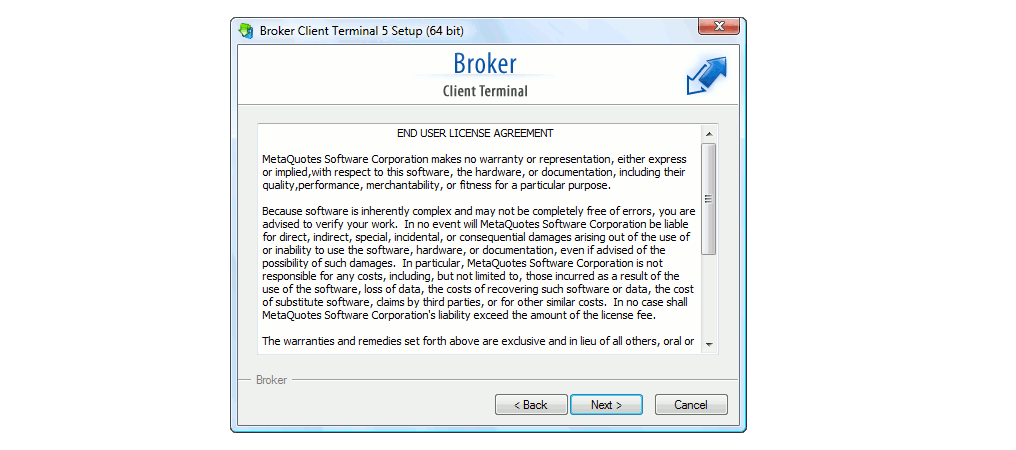
Choosing Installation Settings
Most beginners can safely use the default installation settings. The standard install location is usually fine, and choosing the default options reduces the chance of path or permission errors later. Advanced users who run multiple platform instances may choose a different folder, but that is not necessary for a first setup. Click “Next” to begin the installation.
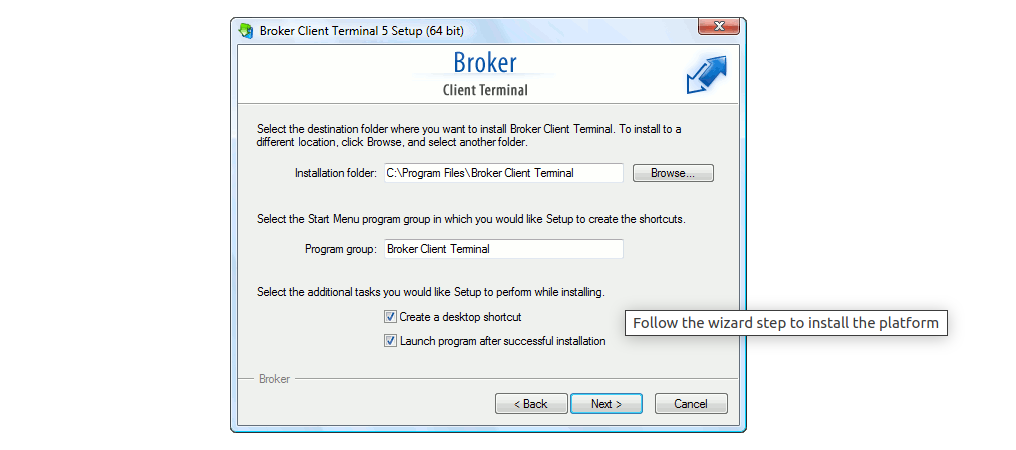
If the installer offers shortcut options, keeping a desktop shortcut is usually practical. If you share the computer, however, remember that visible shortcuts can make it easier for others to open the platform, so consider who else has access to the device.
Completing the Installation
Once the installer has copied the files, you should see a finish or complete message. Some installers offer to launch the platform immediately. If so, you can usually leave that option ticked. If the installation finishes unusually fast and nothing appears to happen, check whether your security software quarantined the program.
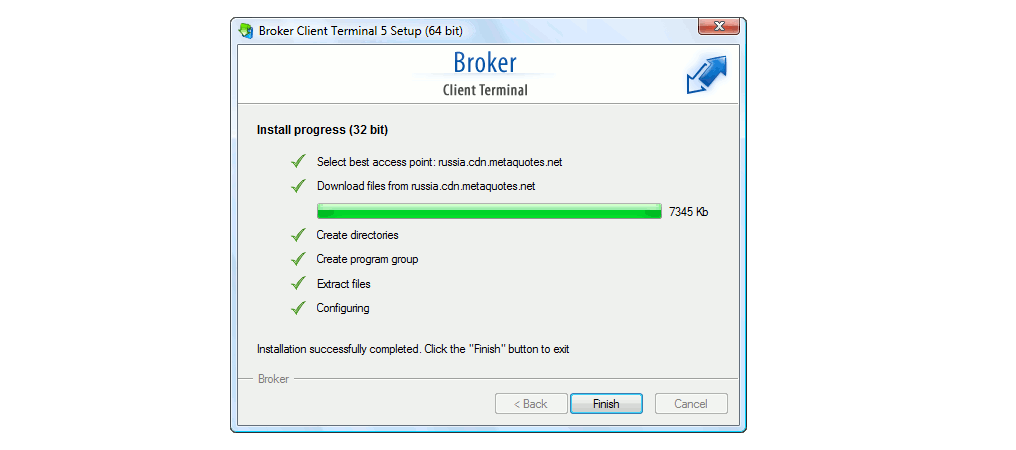
It is sensible to wait a moment on first launch because MT5 may initialize files, prepare data folders, and check for updates. A brief delay is normal, especially on older or slower machines.
Launching MT5 for the First Time
On first launch, MT5 may present options to open a new account or log in to an existing one. If you are learning the platform, a demo account is normally the safest place to begin. If you already have broker login details, select the option to log in and enter your account number, password, and correct server.
Double-check whether you are entering a demo login or a live login. Accidentally signing in to a live account when you intend to practice can lead to costly mistakes if you place real orders or use one-click trading without realizing it.
Common Windows Installation Problems
The most common Windows installation issues are a lack of administrator permission, antivirus or SmartScreen blocks, corrupted downloads, and unsupported system settings. A failed installation can often be fixed by deleting the installer, downloading a fresh copy from a trusted source, and trying again with administrator rights.
- If the installer will not run, right-click and choose to run with the necessary permissions if appropriate.
- If security software blocks it, verify the source first, then review the security message carefully.
- If MT5 installs but does not launch, restart the computer and try again.
- If you are on a locked work device, installation restrictions may be the cause.
How we troubleshooted MT5 on Windows
During installation, Windows Defender quarantined mt5setup.exe and blocked terminal64.exe from reaching our broker’s servers. We fixed this by temporarily pausing our antivirus program, restoring the quarantined installer, and adding the MetaTrader application folder to our antivirus exclusion list before completing the setup.
How to Install MetaTrader 5 on macOS
Downloading the macOS Version
To install MT5 on a Mac, download the macOS version from the official MetaTrader website or your broker’s verified download page. Make sure the package matches your system and comes from a trusted source. Mac users should pay particular attention to security prompts because macOS is strict about application origin.
If your broker does not offer a Mac package, check whether it recommends the official MetaTrader version or suggests using WebTerminal instead. This varies between brokers and system setups.
Running the macOS Installer
To run the platform, your Mac must be operating on macOS Catalina (10.15.7) or a more recent version.
After downloading, open the file and follow the installation steps shown on screen. Depending on the package format, this may involve dragging the application into the Applications folder or completing a package installer. The precise process can differ slightly depending on the version provided.
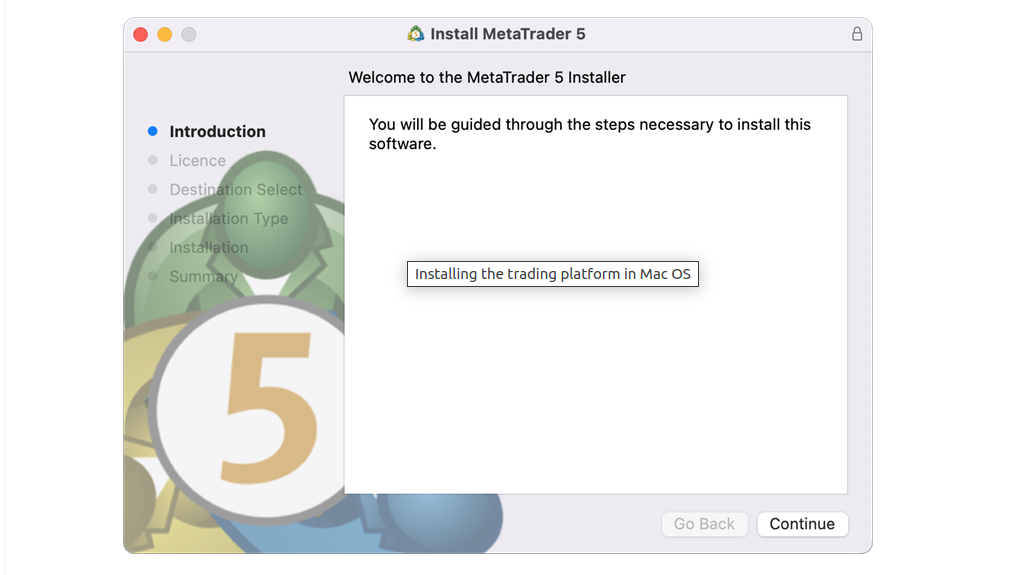
Take your time and read each prompt. If the installation process asks for your Mac password or administrator approval, only continue if you are certain the download is genuine. As the installation unfolds, users will be asked to install additional Wine packages, such as Mono and Gecko. They should agree to them as they are vital for the proper functioning of the platform.
Granting Permissions if Required
MacOS may block an app the first time you try to open it, especially if the system wants you to confirm that the source is trusted. In some cases, you may need to approve the application in your privacy or security settings before it will open properly. This is common behaviour on Mac and does not automatically mean the software is unsafe.
However, do not force permissions through for a file you did not verify. Read the message carefully and check whether the app came from the official source you intended to use. MT5 also needs network access to connect to broker servers.
Opening MT5 on Mac
Once installed, open MT5 from your Applications folder or Launchpad. The first launch may take slightly longer while the platform prepares its data files. You can then choose to open a new demo account or log in to an existing broker account using your account number, password, and server name.
If you see a blank or unresponsive window on first launch, wait briefly, then close and reopen the platform. If the problem continues, a fresh install or an updated package may be needed.
Common macOS Installation Problems
Typical Mac problems include security approval blocks, incompatible packages, incomplete downloads, and permissions issues. In some cases, a broker-supplied Mac version may behave differently from the generic version, especially if it relies on a special compatibility layer behind the scenes.
If installation becomes difficult, start with the simplest checks: confirm the download source, re-download the file, review macOS security settings, and restart the Mac. If the issue is specific to your device or OS version, WebTerminal can be a practical temporary alternative.
How we troubleshooted MT5 on macOS
During our testing, the macOS installer would not launch because system security settings blocked the unsigned software, and the background package download had not completed properly. We fixed the issue by removing the corrupted setup files, downloading a fresh copy directly from the broker’s official portal, and approving the required permissions in System Settings > Privacy & Security.
How to Install MetaTrader 5 on Mobile
Installing MT5 on Android
On Android, open Google Play, search for MetaTrader 5, verify the listing carefully, and tap install. During our testing, our editorial team confirmed that the MT5 Android app requires devices running Android 6.0 or higher to install and execute trades seamlessly.
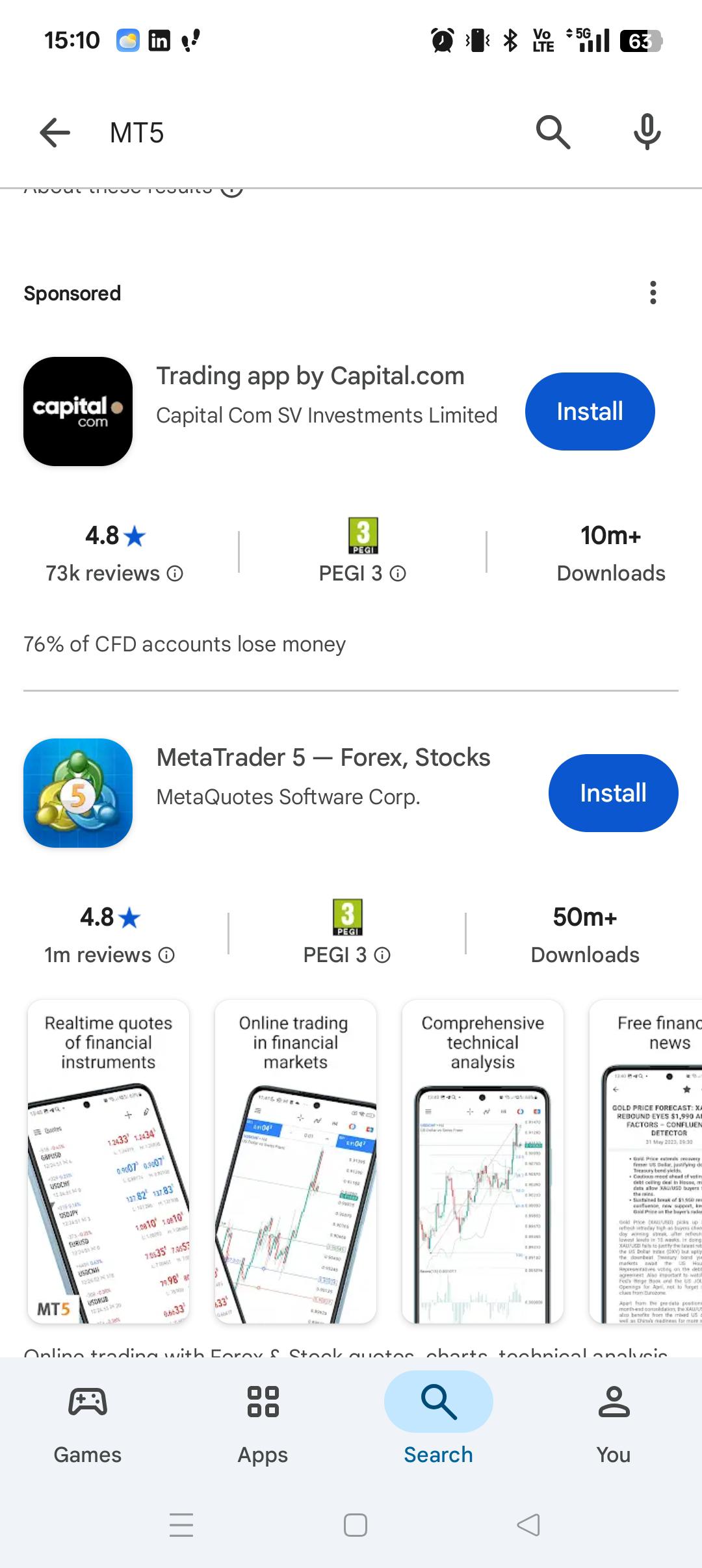
The app normally downloads and installs within a few moments.
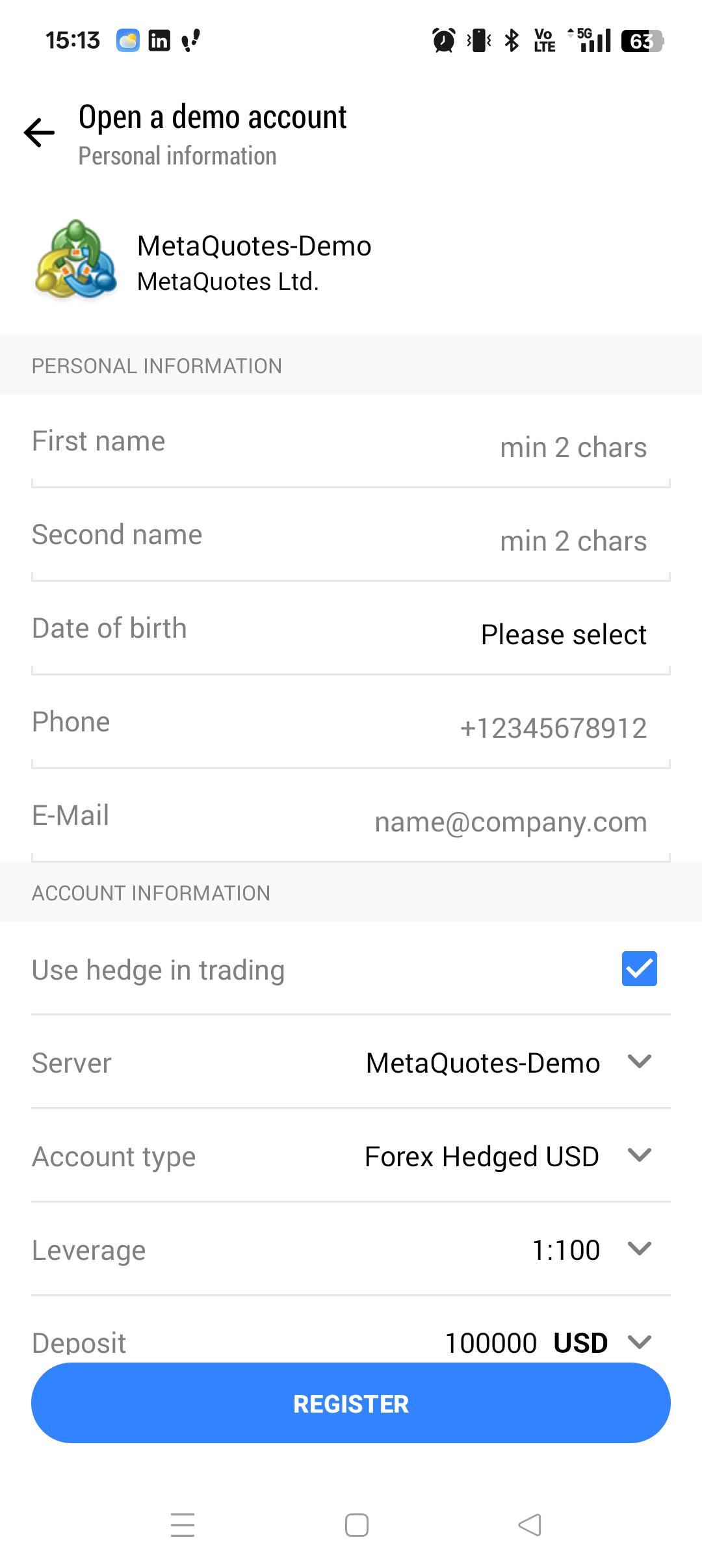
Once installed, it appears with your other apps and can be opened immediately.
Be cautious with third-party APK files found on websites, even if they promise a faster or “special” version. These can contain malware or modified code that compromises your trading security. A trading app should only come from a trusted store listing or a verified broker link that leads to Google Play.
Installing MT5 on iPhone and iPad
On an iPhone or iPad, open the App Store, search for MetaTrader 5, check the developer and screenshots, and install the app in the usual way. Apple devices may ask for Face ID, Touch ID, or your Apple ID password before the installation completes. Our team noted that Apple devices must run iOS 15.0 or later.
As with Android, avoid links that ask you to install outside the official App Store route. If the listing looks unusual or differs from what your broker links to, verify it before proceeding.
Opening the Mobile App for the First Time
When you open MT5 on mobile for the first time, the app may ask for permission to send notifications. These can be useful for trade and price alerts, but you should choose them deliberately rather than accepting every prompt automatically. On a shared device, lock-screen notifications can expose account information.
The app may also open to a default watchlist or login screen. Spend a moment identifying the main tabs before entering account details, especially if this is your first time using the platform on a small screen.
Finding Your Broker in the App
To log in, the mobile app needs the correct broker and server. Usually, you can search by broker name from the login area. If the broker has multiple servers, choose the one that matches your account type, such as demo or live. Even correct account details will fail if the wrong server is selected.
If you cannot find your broker, check the exact spelling and any regional variation in the broker name. Some servers also include extra labels such as “Live”, “Demo”, numbers, or branch names.
Logging in on Mobile
Once you have found the right broker server, enter your account number and password. Take care when copying and pasting details, because mobile keyboards can introduce spaces or change characters. If the account logs in but you cannot trade, check whether you accidentally used an investor password instead of the trading password.
Mobile apps are convenient, but they can also encourage rushed actions. Before placing any live trade from a phone, double-check the account name, symbol, volume, and order direction.
Mobile App Limitations Compared with Desktop
In our team’s hands-on evaluations, we found that while the mobile app is useful, it cannot fully match desktop MT5. The smaller display makes detailed multi-chart analysis harder, and some advanced features, custom tools, and automation functions are more limited or completely unavailable. From our testing, we concluded that mobile is generally better suited for monitoring and account management than for building complex trading workflows.
That does not make mobile unsuitable. It simply means traders need to understand its specific role. In our review process, we frequently observe that the most effective strategy is to conduct in-depth analysis on desktop platforms and rely on mobile mainly to watch prices, respond to alerts, and adjust existing trades carefully on the go.
How to Use MetaTrader 5 WebTerminal
What MT5 WebTerminal Is
WebTerminal is the browser-based version of MT5. It allows you to access a trading account through a supported web browser without installing the desktop platform, and it works on major operating systems such as Windows, Linux, and macOS. This can be useful on machines where software installation is restricted, or when you need temporary access from another location.
WebTerminal still lets you view quotes, open charts, and manage trades, but it does not usually match the full desktop platform for advanced analysis, backtesting, or local add-ons such as custom Expert Advisors.
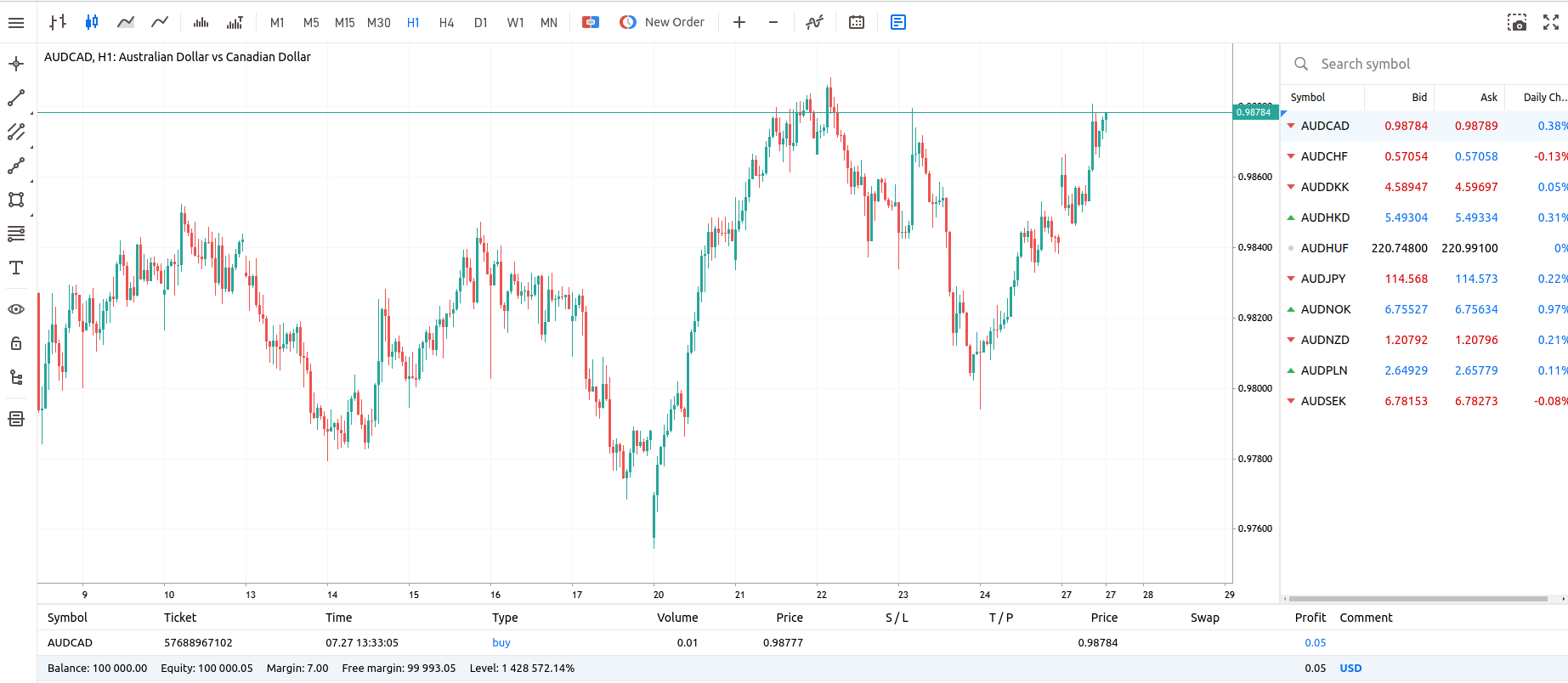
We took this screenshot of the MetaTrader 5 WebTrader interface, showing an AUD/CAD H1 chart, the Market Watch list on the right, and the Trade panel below displaying our live position and account balance.
How to Access WebTerminal
You can usually access WebTerminal either from the official MetaTrader website or from your broker’s secure web platform area. In many cases, the broker provides a direct launch page that opens the MT5 interface in the browser. Use your own bookmarks or the broker’s official navigation rather than links sent through informal channels.
Because browser trading depends on the website session being genuine, this is one area where careful checking of the URL, security certificate, and domain spelling is especially important.
Logging in through a Browser
To log in, enter the same account details you would use on a desktop: account number, password, and the correct server. Some brokers may pre-fill the server if you open WebTerminal through the client portal. If not, select it manually and make sure it matches the account type.
Do not save passwords in a browser on a public or shared device. Browser convenience features are useful on a private computer, but they can expose your account if someone else later uses the same machine or if your browser profile is compromised.
WebTerminal vs Desktop MT5
The main advantage of WebTerminal is convenience. There is nothing to install; updates happen on the web side, and you can access your account from almost anywhere with a browser. The trade-off is that desktop MT5 remains stronger for deep chart analysis, automation, backtesting, local file access, and custom tools.
If you only need to check a position, adjust a stop loss, or place a simple order, WebTerminal may be enough. If you need Expert Advisors, extensive chart customisation, or strategy testing, the desktop version is usually the better choice.
| Feature | WebTerminal | Desktop MT5 |
|---|---|---|
| Installation | None (Runs directly in a web browser) | Local installation required on macOS or Windows |
| Updates | Automatic (Managed on the web side) | Managed via the software |
| Access | Flexible (Access from almost any browser) | Restricted to the device where it is installed |
| Automation | Not supported | Full support for EAs |
| Analysis Tools | Basic charting capabilities | Deep chart analysis and custom tools |
| Testing | Not available | Advanced strategy testing and backtesting |
| File Management | Server-side only | Local file access allowed |
| Primary Use Case | Quick position checks and simple orders | Complex workflows, automation, and customization |
Security Tips for Browser-Based Trading
When using WebTerminal, only log in through a trusted browser on a device you control. Avoid public computers, internet cafés, and shared office terminals where credentials or sessions may be stored. Always confirm the site address carefully before entering any account details and check that the connection is secure.
Use a strong, unique password for your trading account and enable two-factor authentication (2FA) in your broker’s client area if it is available. This adds an extra layer of protection in case someone learns or guesses your password.
Log out when finished, especially on shared devices. Closing the browser tab alone is not always enough if the session remains active. Also, keep your browser and operating system updated, as security patches matter when using any financial platform online, and consider using reputable antivirus and antimalware tools on devices you trade from.
Setting Up Your MT5 Account
Creating a Demo Account
A demo account lets you learn the platform without risking real money. In some cases, you can open a demo account directly from within MT5 by selecting the option to open a new account and then choosing a broker that offers demo access. Other brokers require you to create the demo through their website first and then log in with the details they send you.
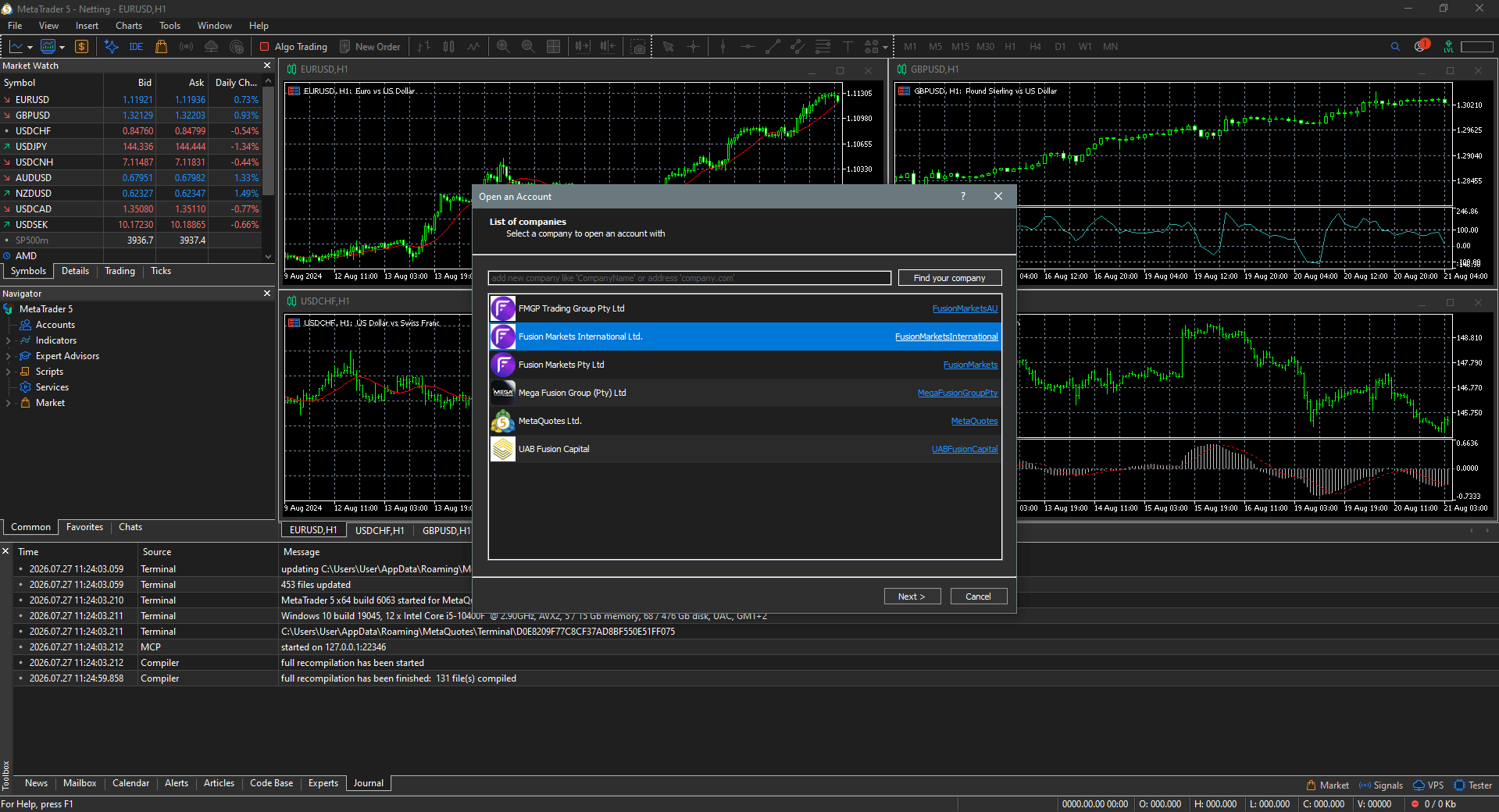
Tip on demo balance:
- If possible, choose a realistic demo balance rather than an oversized one.
- A very large demo account can encourage unrealistic position sizing and habits that do not translate well to live trading.
Logging in to an Existing Account
If you already have account details, open the login window and enter the account number, password, and correct server. These details usually come from your broker after account creation. Enter them exactly as provided. A single wrong digit in the account number or an incorrect server choice is enough to block access.
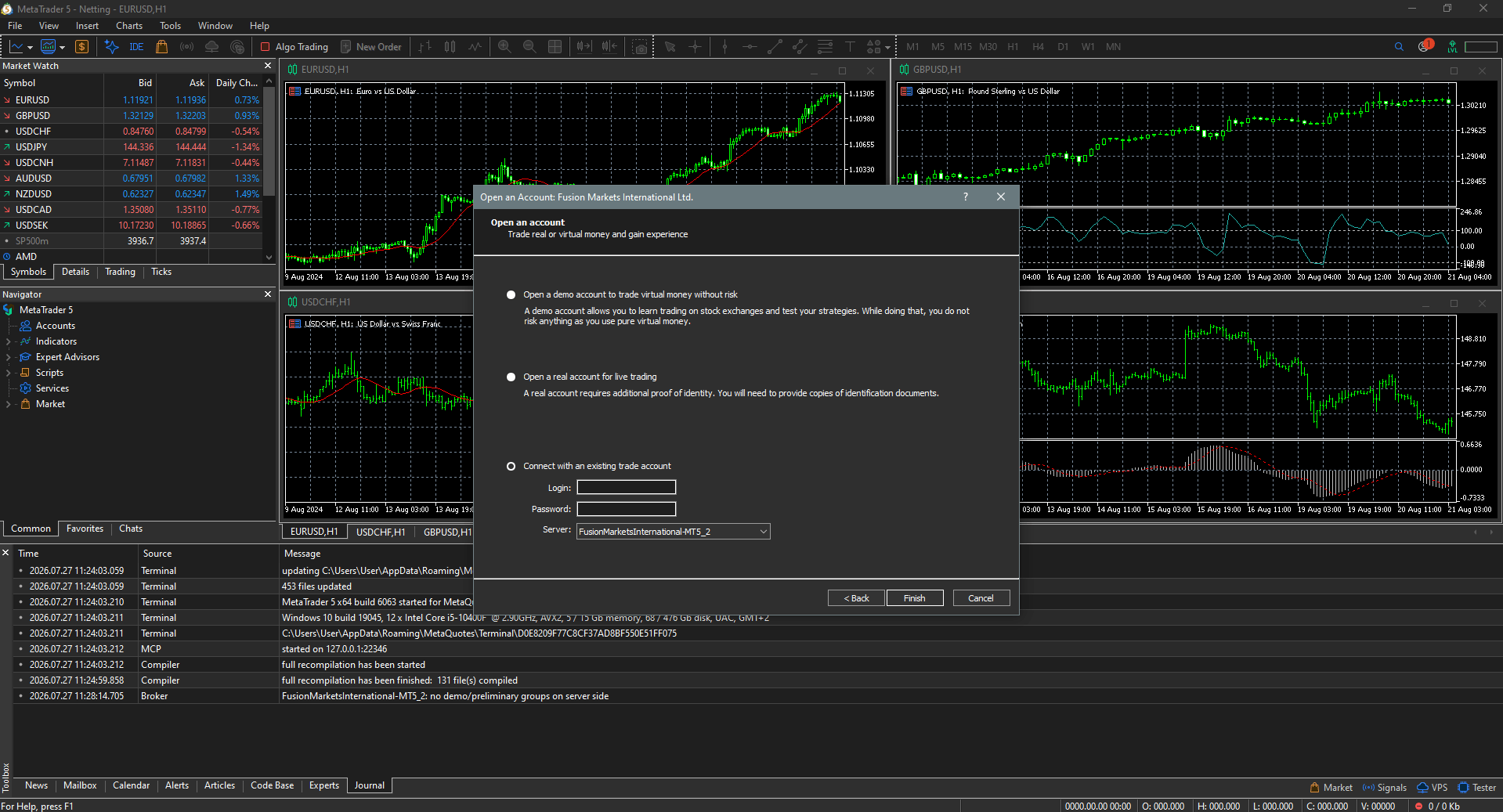
Enter:
- Account number
- Trading password
- Correct server
If login fails, do not keep retrying the same details without checking them. Repeated errors can waste time when the real issue is simply that you selected the demo server instead of the live server, or used a portal password rather than a trading password.
Selecting the Correct Broker Server
The server selection is critical. Brokers often use several servers, and the same broker may have separate servers for live accounts, demo accounts, and different regions or account groups. MT5 can only authenticate your login against the exact server that holds your account.
If your credentials seem correct but the login still fails, the server is one of the first things to re-check. Many traders spend too long looking for a password problem when the real issue is the server name.
Switching between Accounts
MT5 allows you to keep more than one account in the platform and switch between them. This is useful if you use both demo and live accounts, or if you have accounts with different brokers. The convenience is helpful, but it also creates a risk: you can place an order on the wrong account if you do not check carefully first.
Get into the habit of confirming the account name and server before sending any order, especially when moving between demo and live environments. The interface can look almost identical.
Understanding Connection Status
MT5 provides connection information in the platform status area. If you are connected properly, quotes should update, and the platform should not show a “No connection” message. If the connection drops, prices may freeze, charts may stop moving, and orders may not be sent successfully until the link is restored.
Connection problems can come from your internet, the broker server, firewalls, VPN conflicts, or local security settings. When troubleshooting, first decide whether the issue is on your device or on the broker side.
Fixing Login and Server Errors
Most login problems come from five common causes:
- Wrong account number
- Wrong password
- Wrong server
- Inactive or expired account
- Using an investor password instead of a trading password
Step-by-step fix:
- Re-enter the account number carefully.
- Paste the password and check for hidden spaces when pasting passwords.
- Verify the exact server name in your broker email or portal.
- Confirm whether the account is demo or live.
- If necessary, reset the trading password through the broker.
MetaTrader 5 Interface Overview
Main Menu
The main menu runs across the top of the desktop platform and organizes nearly all commands and functions that can be executed in the MT5 into seven distinct categories: File, View, Insert, Charts, Tools, Window, and Help. This is where you will usually find account options, chart settings, indicators, timeframes, platform tools, and help resources. Beginners often rely on toolbar buttons first, but the menu is useful because it reveals the full range of available commands.
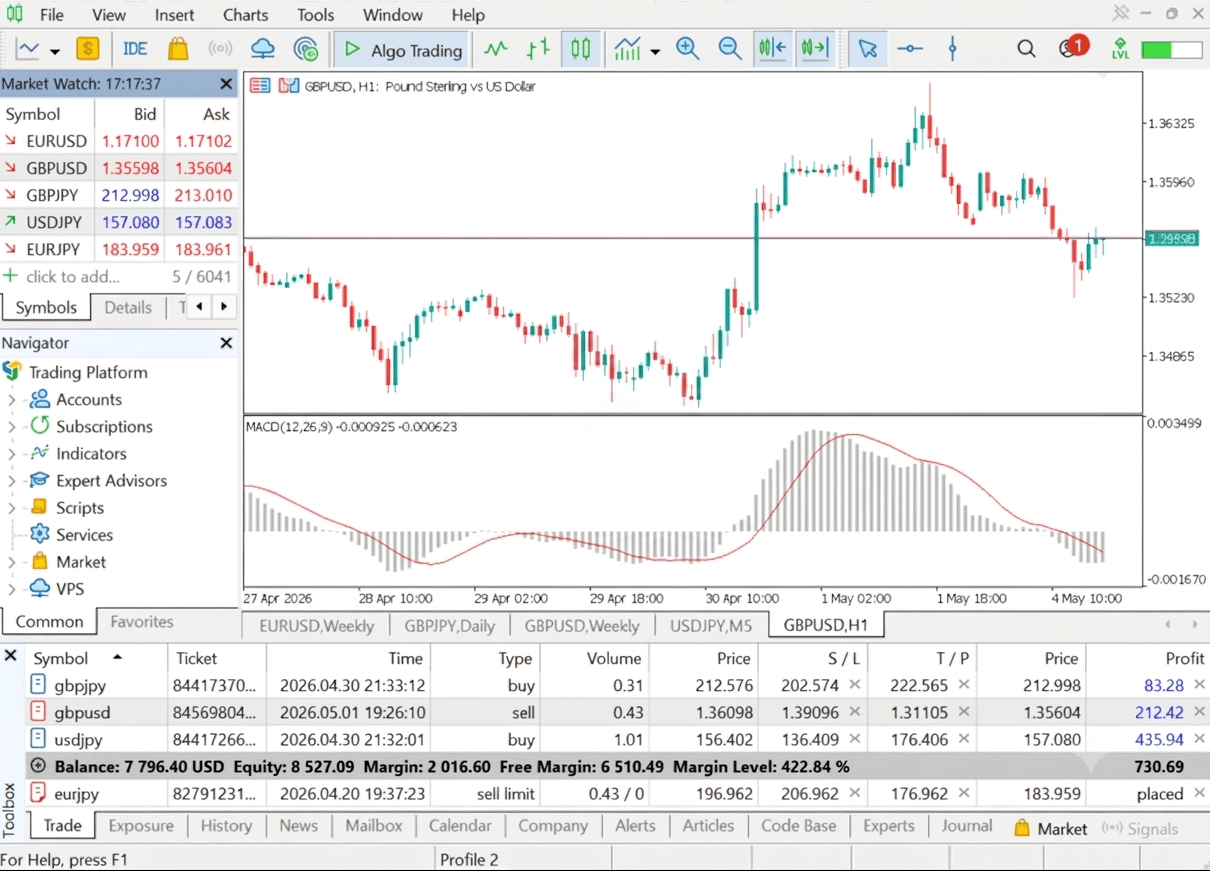
The default MT5 interface with the Market Watch panel in the upper left, showing forex quotes. The Navigator below is used to manage accounts, indicators, and Expert Advisors. The main Chart Window in the center displays price action and a MACD indicator. The Toolbox at the bottom shows active positions, account balances, and terminal logs.
Common menu groups include file actions, view settings, chart controls, insert tools, platform options, and help. If you cannot find a feature on a button, the menu is often the next place to look. Below is a breakdown of the Main Menu Dropdowns
| Main Menu | Key Commands Found Inside |
|---|---|
| File | New Chart, Open Data Folder, Login to Trade Account, Print |
| View | Languages, Toolbars, Market Watch (Ctrl+M), Navigator (Ctrl+N), Toolbox (Ctrl+T) |
| Insert | Indicators (Trend, Oscillators), Objects (Lines, Shapes), Experts, Scripts |
| Charts | Candlesticks, Timeframes, Templates, Grid, Properties (F8) |
| Tools | New Order (F9), MetaQuotes Language Editor (F4), Options (Ctrl+O). |
| Window | Tile Horizontally/Vertically, Cascade, switching between open charts |
| Help | Help Topics, Video Guides, MQL5.community, About. |
Toolbar
The toolbar provides quick-access buttons for common actions such as opening a new order, changing timeframes, switching chart type, applying drawing tools, and enabling algorithmic trading. It is designed to speed up routine tasks, especially when you use the same functions repeatedly. For beginners, the toolbar reduces the need to remember menu locations. However, it is worth learning what the buttons do before using them on a live account. A one-click order button, for example, should never be pressed casually.
Market Watch
Market Watch is the panel that lists trading instruments, their live prices, related statistics, and tick charts. This is where you typically see symbols, bid and ask quotes, and often the spread or related information, depending on the platform layout. It acts as your main instrument list and starting point for opening charts or order windows. This panel also provides details of contract specifications and the one-click trading feature. If a symbol does not appear in Market Watch, it does not necessarily mean the broker does not offer it. It may simply be hidden and need to be shown manually.
Navigator
The Navigator panel groups important platform items such as accounts, indicators, Expert Advisors, scripts, and sometimes services linked to the platform. It is one of the quickest ways to switch accounts or drag a tool onto a chart. For new users, Navigator is especially useful because it shows the platform structure clearly. You can see that account access, indicators, and automation are separate parts of the platform, which helps reduce confusion when setting things up.
Chart Window
The chart window is where price action is displayed. This is the centre of most analysis and trade decision-making in MT5. You can open one chart or many, switch timeframes, apply indicators, draw lines, and place trades directly from the chart depending on your settings. In the MT5, every chart can display 21 timeframes, from one minute to one month. A clean chart is often easier to work with than an overloaded one. Beginners often benefit from learning the basic chart controls before adding too many tools at once.
Toolbox
The Toolbox is the lower panel that shows trade information, history, messages, alerts, journal entries, and other account-related details. If you want to monitor open trades, review closed trades, check system messages, or read platform logs, this is usually where you will look. Because many important warnings appear here, it is a good habit to keep an eye on the Toolbox rather than focusing only on the chart.
Data Window
The Data Window displays detailed information for the bar or candle currently under your cursor, including open, high, low, and close values. If indicators are attached, it can also show their values at that point in time. This is especially useful when you want more precision than the chart alone provides visually. Beginners sometimes overlook the Data Window, but it is one of the easiest ways to move from general chart observation to exact price reading.
Depth of Market
Depth of Market, sometimes called DOM, shows available price levels and order book information where the broker and instrument support it. It can help traders see liquidity around the current market price, though its usefulness varies by market and broker feed. Not every symbol will support it, and beginners should not assume DOM is essential for basic trading. It is an additional tool, not a requirement for learning the platform.
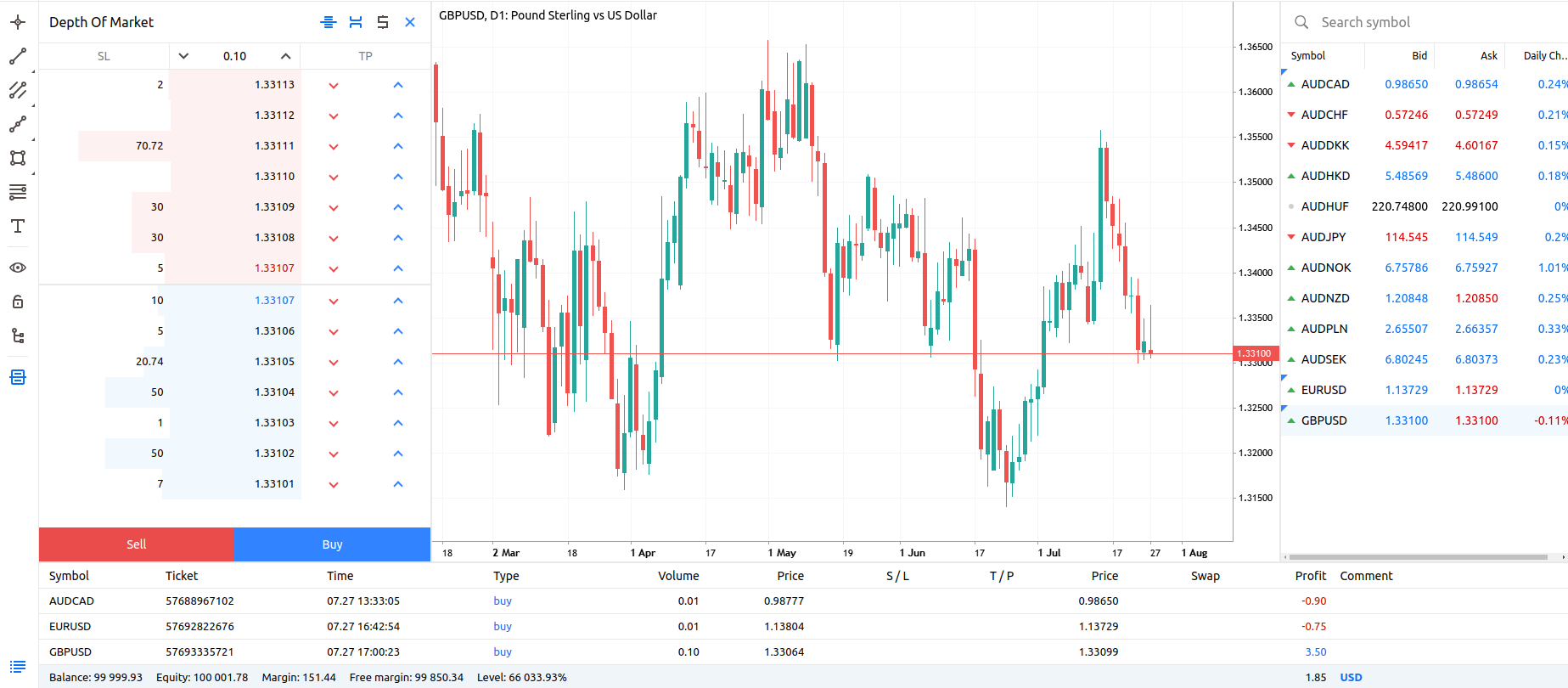
DoM feature showing real-time bid and ask order volumes and price levels for GBP/USD in MT5 WebTrader.
Strategy Tester
The Strategy Tester is MT5’s built-in environment for testing automated trading strategies against historical data. It is mainly used with Expert Advisors, though it can also help traders understand how a rules-based system might have behaved in past market conditions. It is important to treat test results carefully. Backtests are useful, but they are not the same as live trading. Historical performance does not guarantee future results, and over-optimized systems can look far stronger in tests than they behave in reality.
Status Bar
The status bar provides quick information about platform state, including connection status and sometimes chart-related details. It is not the most visually prominent part of MT5, but it can help you notice whether the platform is connected and functioning normally. If quotes stop updating or an order will not send, checking the status information can save time. A problem that looks like a chart issue may actually be a connection issue.
Working with Market Watch
Opening Market Watch
Market Watch can usually be opened from the View menu or by using the appropriate shortcut (Ctrl+M). Once visible, you can dock it in the default position or move it depending on your workspace layout. Most traders keep it open because it is the quickest way to reach symbols and live prices. If you close it by mistake, do not worry. It is simply a panel, not a critical setting, and it can be reopened at any time.
Showing and Hiding Symbols
Not all available symbols are displayed by default. You can usually right-click in Market Watch and choose to show all symbols or open a symbols list to select individual instruments. Hiding unused symbols can make the panel cleaner and easier to navigate, especially if your broker offers a very large product list. Be aware that symbol names may include prefixes or suffixes. If you are looking for a familiar instrument and cannot find it, the name may not be exactly what you expect.
Searching for Instruments
MT5 includes ways to search or filter instruments so you do not have to scroll through a long symbol list. Search is especially helpful if your broker offers several versions of the same instrument, such as cash and futures-based variants or symbols with different suffixes. When searching, use the most recognizable part of the symbol name first. If nothing appears, check with your broker whether the instrument is available on your specific account type. By clicking on a column header, traders can sort the symbols by name, close price, daily change, or other variables.
Understanding Bid, Ask and Spread
The bid is the price at which the market will buy from you, and the ask is the price at which the market will sell to you. When you open a buy trade, you typically enter at the ask. When you open a sell trade, you typically enter at the bid. The spread is the difference between the two. This is important because a newly opened trade usually starts slightly negative by the amount of the spread and any other applicable costs. Beginners should understand this before judging a strategy by very short-term movements.
Opening a Chart from Market Watch
To open a chart, right-click a symbol in Market Watch and choose the chart option, or drag the symbol into an existing chart area if your platform layout supports it. This is usually the fastest way to move from a price list to a chart you can analyze. Once the chart opens, you can change the timeframe, chart type, and appearance without affecting the symbol list. This makes Market Watch a practical launch point for most trading tasks.
Viewing Symbol Specifications
Each symbol has specifications that define how it trades. Viewing these details before trading is one of the best habits a beginner can develop.
- Contract size per 1 lot
- Minimum, maximum, and volume step
- Point (pip) size and stop level
- Trading sessions and holidays
- Margin requirements and leverage
- Commissions, swaps (long/short), and supported order types
Do not assume that lot size, pip value, or margin requirements are the same across all instruments. An index, commodity, or share-based product may have a different contract size, tick value, or trading schedule than a forex pair, which can lead to much larger or smaller real-money risk than expected if you reuse the same lot size.
Working with Charts in MT5
Opening a New Chart
You can open a new chart from Market Watch, from the main menu, or from toolbar controls. Each chart displays one instrument at a time. If you plan to compare several markets, you can open multiple charts and arrange them within the platform window.
- Use Market Watch: right-click a symbol and choose the chart option, or drag the symbol onto the chart area.
- Use the main menu or toolbar to open a fresh chart window and then select a symbol.
- For beginners, start with one or two charts to avoid clutter while learning the controls.
Choosing Chart Types
MT5 usually offers line, bar, and candlestick charts, each with a different level of detail.
- Line chart: simple and clean; good for a quick overview of direction.
- Bar chart: shows more price information, including highs and lows.
- Candlestick chart: the most popular for retail traders; clearly shows open, high, low, and close, and makes short‑term price behavior easier to see.
No chart type is automatically “better” for every purpose. The right choice depends on how much detail you want to see and how you interpret price action.
Changing Timeframes
Timeframes control how much market activity each candle or bar represents, from very short intraday periods to long-term weekly or monthly views. Changing the timeframe does not change the market itself; it changes how the same market is displayed.
- Short timeframes: more detail and more noise; decisions must be faster.
- Longer timeframes: clearer view of trend and structure; often easier for beginners to interpret.
- New traders usually benefit from starting with higher timeframes before moving into very short ones.
Zooming and Scrolling
Zoom controls change how much detail you see on the chart, while scrolling lets you move back and forth through historical price data. These seem basic, but they matter because analysis can change depending on whether you are looking at the wider structure or a very close view.
- Zoom out to see the bigger picture and overall trend.
- Zoom in to examine recent candles or precise levels.
- Use auto‑scroll to keep the latest price visible and chart shift to create space on the right side of the chart, which can make live analysis more comfortable.
Using the Crosshair Tool
The crosshair tool helps you read exact price and time points on a chart, instead of relying on rough visual guesses. To activate it in the MT5 WebTrader, we simply clicked the Crosshair icon located at the very top of the drawing toolbar on the left side of the screen. It is useful for different actions, such as:
- Measure how far the price has moved between two points.
- Check exact highs, lows, and closes for specific candles or bars.
- Place stop loss and take profit levels more accurately.
For beginners, the crosshair is one of the quickest ways to move beyond rough visual guesses and start reading charts more precisely.
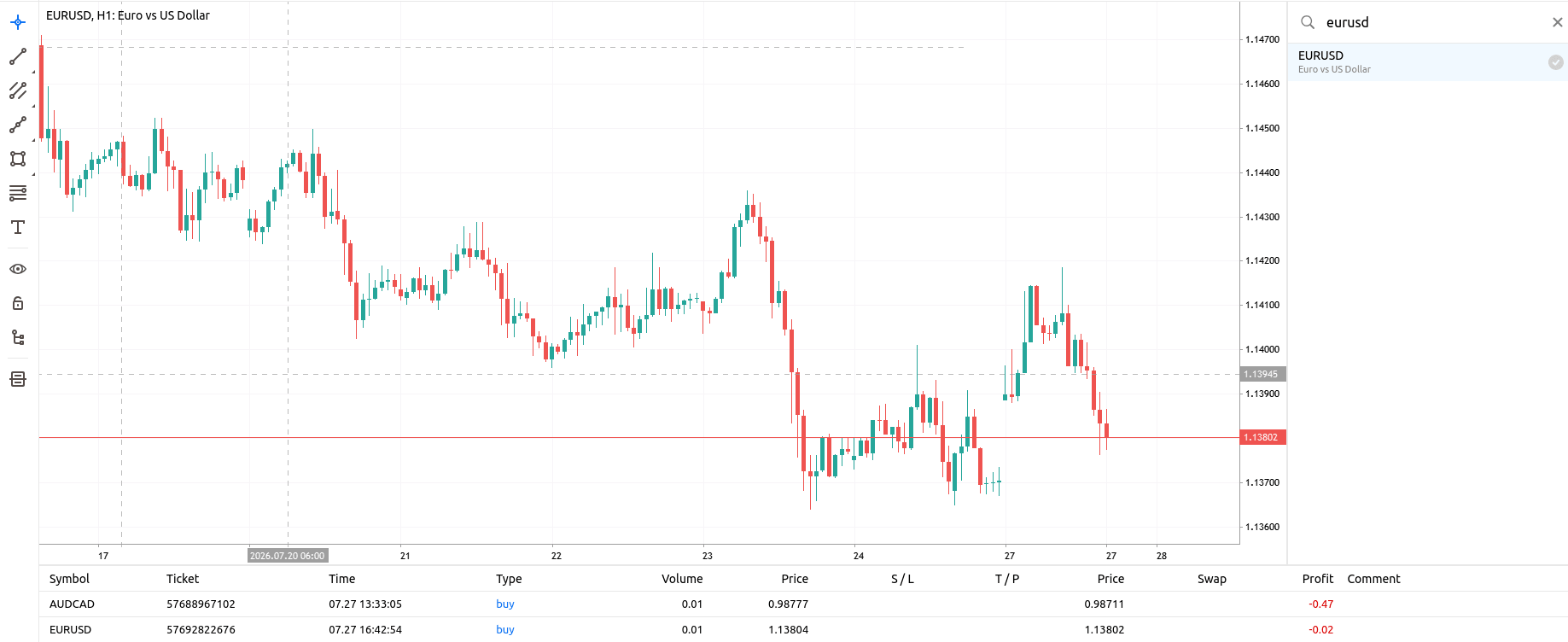
Using the crosshair tool to precisely identify the time (2026.07.20 06:00) and price level on a EUR/USD H1 chart.
Arranging Multiple Charts
If you open several charts, MT5 lets you arrange them in different ways so you can monitor more than one market.
- Use tiled windows or tabs depending on your screen size and preferences.
- On a large monitor, multiple charts can be very effective; on a small laptop, they can quickly become hard to read.
- A practical approach is to group charts by purpose, keeping a small set of “analysis charts” instead of trying to watch everything at once.
Saving Chart Templates
A chart template saves the chart’s appearance and attached indicators so you can apply the same setup to another symbol quickly.
- Use templates to keep a consistent visual layout across multiple instruments.
- Apply the same indicators and settings to new charts in a few clicks.
- Avoid saving overly complex templates until you fully understand what each element does.
Using Chart Profiles
Profiles save a broader workspace, including multiple open charts and their layout. This is helpful if you want one setup for forex, another for indices, and another for testing.
- Create separate profiles for different focuses (for example, forex, indices, or testing).
- Switch profiles instead of rebuilding your entire screen each time.
- Use profiles to keep your workspace organized and reduce the risk of opening the wrong chart or missing information.
Indicators and Analytical Tools
Adding Technical Indicators
MT5 includes a wide selection of built-in technical indicators, such as moving averages, Relative Strength Index (RSI), Moving Average Convergence Divergence (MACD), and Bollinger Bands.
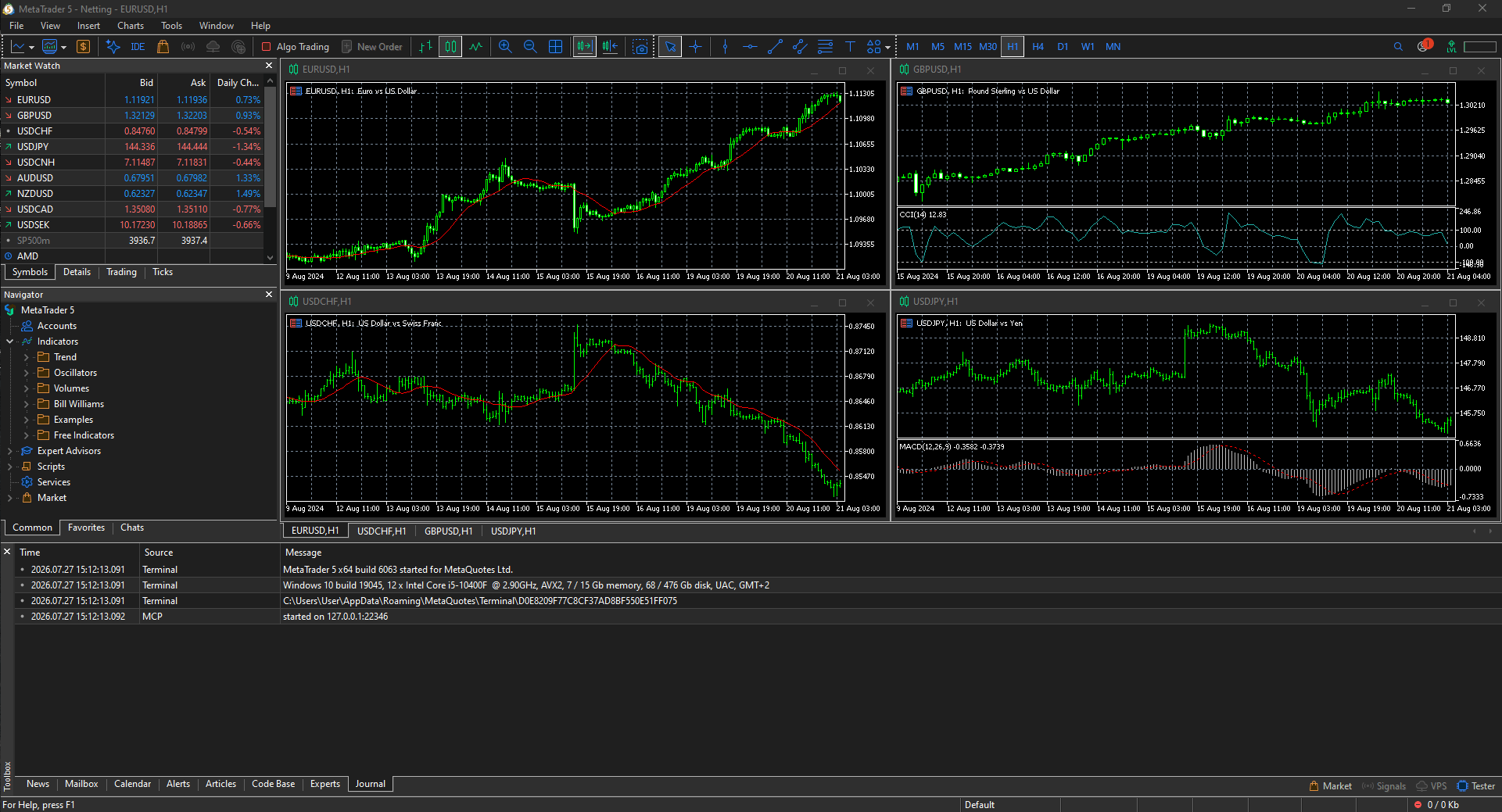
Adding indicators can be done in two ways:
- Add indicators from the Insert → Indicators menu or by dragging them from the Navigator onto a chart.

- Most indicators either overlay the price chart (for example, Moving Averages, Bollinger Bands) or appear in a separate panel below it (for example, RSI, MACD).
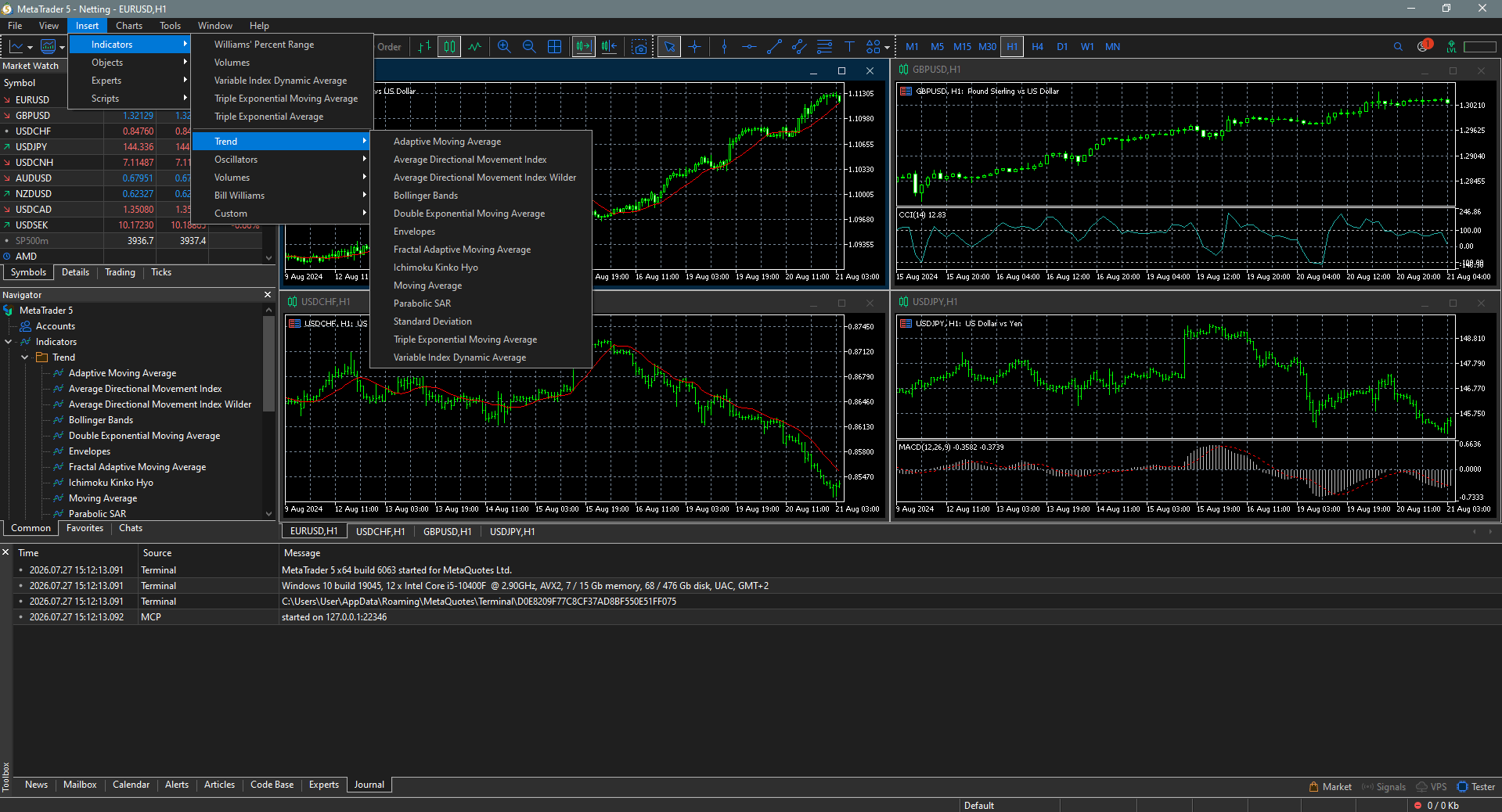
Before adding an indicator, make sure you know what it measures and how it is intended to be used. Indicators can help organize market information, but they do not remove trading risk or guarantee better decisions.
Editing Indicator Settings
Most indicators allow you to change settings such as calculation period, color, line thickness, and the price type used in the calculation.
- Adjust inputs (for example, period lengths) to fit your analysis style, not just to make past charts look perfect.
- Use colors and line styles that keep the chart readable instead of cluttered.
Beginners should be careful not to keep tweaking settings until an indicator fits old chart data perfectly. That often creates false confidence and does not necessarily work in future market conditions.
Removing Indicators
You can remove an indicator from a chart through the chart’s indicator list or by using the right-click options on the indicator itself.
- Regularly clear indicators you are no longer using to keep the chart readable and responsive.
- If the chart starts to feel crowded or slow, removing unused tools is a sensible way to simplify it.
A chart filled with indicators that no longer serve a clear purpose can make decision-making harder.
Using Drawing Tools
Drawing tools let you annotate charts manually. Common tools include trend lines, horizontal lines, channels, rectangles, text labels, and Fibonacci tools.
- Use lines and shapes to mark support and resistance, trend direction, key levels, and planned entry and exit areas.
- Fibonacci retracements and channels can help you visualize pullbacks and projected levels along a trend.
Manual drawing encourages you to think actively about price structure rather than relying entirely on automatic indicators. That can be a useful habit for beginners.
Adding Trend Lines and Support or Resistance Levels
Trend lines help you connect market swings to visualize direction, while horizontal lines can be used to mark support and resistance. These tools are simple but powerful because they force you to identify areas where price has reacted before.
- Draw trend lines along obvious swing highs or lows to highlight the main direction.
- Mark support and resistance where price has reacted repeatedly, treating them as zones rather than exact single-price guarantees.
Keep the process practical. Do not try to make every chart perfectly symmetrical or “clean”. Markets are unpredictable, and support or resistance should usually be treated as zones rather than exact single-price guarantees.
Saving Indicator Setups as Templates
If you regularly use the same indicator combination, save it as a chart template so it can be applied quickly to new charts. Templates store chart types, colors, indicators, and other visual settings.
- Use templates to maintain a consistent layout across different symbols.
- Save simple, well‑understood setups before experimenting with more complex ones.
Consistency can be useful in trading, but avoid assuming that one indicator setup will suit every asset equally well. Different instruments can move differently.
Avoiding Chart Overload
One of the most common beginner mistakes is adding too many indicators, colours, and drawings to a single chart.
- Too many tools can give conflicting signals and slow down decision-making.
- A simpler setup is often easier to follow, especially when you are still learning how price behaves.
- If you cannot explain why a tool is on the chart and what decision it supports, it may not need to be there.
In practice, too much information often creates more confusion.
Placing Orders in MetaTrader 5
Opening the New Order Window
The New Order window is where you enter trade details such as symbol, volume, order type, stop loss, and take profit. You can usually open it from the toolbar, by right-clicking on a chart, or from the Trade section of the Toolbox. On desktop, this is the main screen for controlled order entry. Beginners should prefer the full order window at first rather than one-click trading, because it encourages you to review the details before sending the order.
Understanding Volume and Lot Size
Volume is the size of your trade, and in MT5 it is usually expressed in lots. The exact contract size behind one lot depends on the instrument. For this reason, you should always check the symbol specifications before trading. A volume size that looks small on one instrument can still carry significant risk on another, especially if leverage is being used. If you are learning, start with the smallest available volume on a demo account. Position size is one of the most important risk variables in trading.
Lot Size Examples
To understand how volume translates to actual market exposure, consider these standard contract sizes:
- Forex:
- 1 Standard lot equals 100,000 units of the base currency
- 1 Mini lot (0.10 lots) equals 10,000 units of the base currency
- 1 Micro lot (0.01 lots) equals 1,000 units of the base currency
- Gold (XAU/USD): 1 lot typically represents 100 troy ounces.
- Stocks: 1 lot often represents 100 shares, though this may vary by broker.
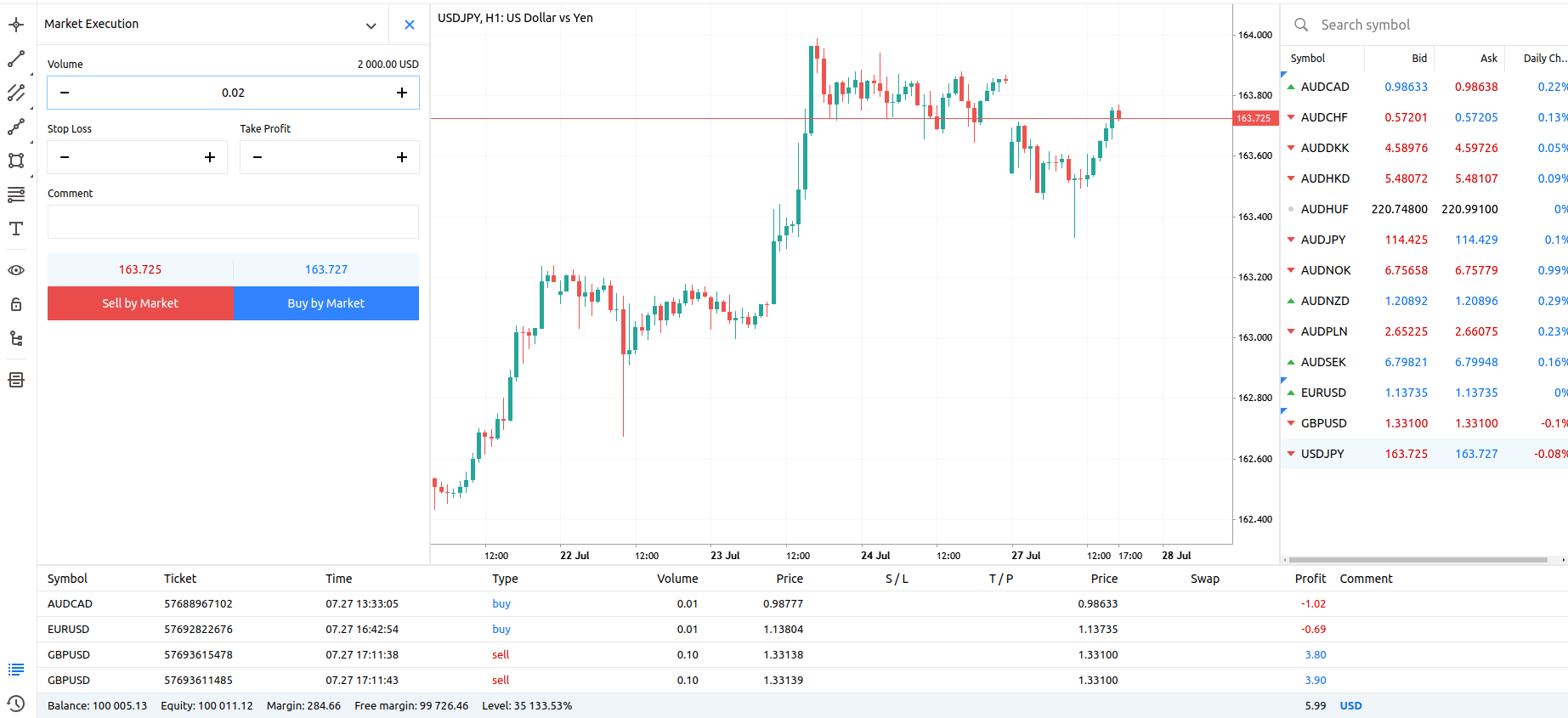
We configured a position size of 2 micro lots, equivalent to 2,000 USD, in the order window prior to executing a USD/JPY trade on the H1 chart.
MT5 Order Types Explained
In the MetaTrader 5 platform, orders are divided into two main types: market and pending. In addition, there are the Stop Loss and Take Profit orders.
Market Orders (Instant Execution)
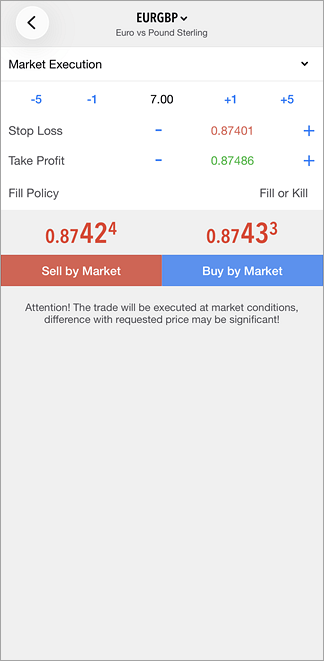
A market order tells the platform to execute the trade as soon as possible at the current available price. This is the fastest way to enter a trade, but the exact fill may differ slightly from the price you saw if the market is moving quickly. That is a normal part of trading in live conditions. Because market orders execute immediately, they require extra care on live accounts. Always check the symbol, volume, and direction before clicking.
- Buy Market:
- Sell Market:
A Buy Market order tells MT5 to open a buy position for us immediately at the current available ask price. We use it when we want exposure without waiting for the price to reach another level. It is straightforward, but it carries the normal risk of immediate market exposure and possible slippage in fast conditions. Before sending a Buy Market order, we always confirm that we are on the correct symbol and that the volume is appropriate for our account size and risk tolerance.
A Sell Market order tells MT5 to open a sell position for us immediately at the current available bid price. We use this when we expect the market to fall. Like a Buy Market order, it is executed as soon as possible, which is why we always treat it with care. Beginners should remember that “sell” here means opening a short position through the broker’s trading setup, not necessarily selling an asset physically held in a separate account.
Pending Orders (Price Triggered)
A pending order is an instruction to open a trade later if the price reaches a specified level. These orders are useful when you do not want to watch the market constantly or when your strategy requires entry at a price that is not currently available. MT5 supports several pending order types, each designed for a different scenario. Pending orders can be practical, but they are not “set and forget” by default. Market conditions can change, and a level that looked sensible earlier may no longer fit your plan later in the day.
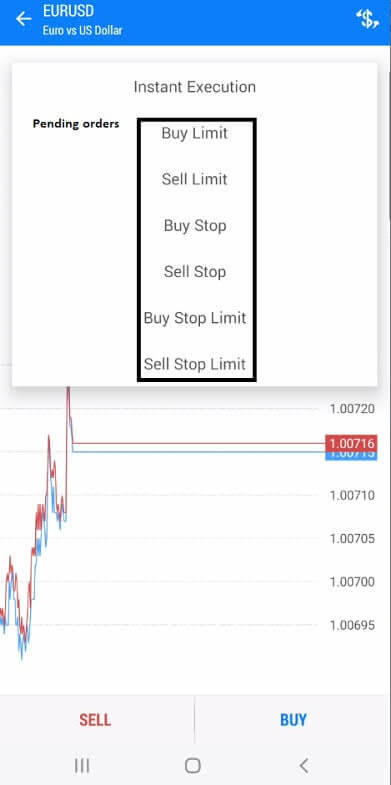
- Buy Limit: A Buy Limit order is placed below the current market price. We use this order when we expect the price to fall to a lower level and then rise. Instead of buying immediately, we set the platform to wait and only buy if the market comes down to our designated entry point. This can be useful for entering pull-backs at a better price, but there is always the risk that the trade will not trigger if the price keeps rising without retracing to our set level.
- Sell Limit: A Sell Limit order is placed above the current market price. We use this order type when we expect the price to rise to a higher level and then fall. Rather than selling right away, we set the order to wait until the market moves up into our target zone before opening the short position. Like other pending orders, it requires active review. If market conditions change, the original level may no longer make sense and should be amended or cancelled.
- Buy Stop: A Buy Stop order is placed above the current market price. We use this order type when we want to buy only if the market breaks up through a certain level. This is common in breakout strategies where the trader wants confirmation of upward movement before entering. The risk is that breakouts can fail. Price may trigger the order and then reverse quickly, which is why a sensible stop loss still matters.
- Sell Stop: A Sell Stop order is placed below the current market price. We use this order type when we want to open a short position only after the price breaks down through a key support level. This allows us to confirm downward momentum before entering the trade. As with a Buy Stop, triggering the order does not guarantee follow-through. False breakouts happen, especially in volatile or thin liquidity conditions.
Advanced Pending Orders (Stop Limit)
- Buy Stop Limit: A Buy Stop Limit order is a two-stage instruction. First, the price must rise to trigger our stop level. Once that happens, MT5 places a Buy Limit order at the limit price we defined. We use this order type when we want tighter control over our execution price during breakout setups compared to a standard Buy Stop. Because of that added precision, beginners should use this order type only after they clearly understand both stop and limit logic. It is easier to make input mistakes here than with simpler order types.
- Sell Stop Limit A Sell Stop Limit order also works in two stages. First, the price must fall to trigger our stop level. Once triggered, the platform places a Sell Limit order at our designated limit price. We use this when we want a breakdown trigger followed by entry at a more controlled level. The trade-off we often observe in live market conditions is that the order may trigger but still fail to fill if the price does not return to the limit level. That is not a platform execution error, but rather the exact mechanism of how the order is designed.
Risk Management Orders
- Stop Loss
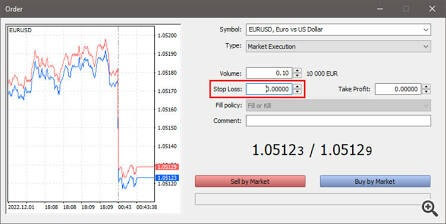
A Stop Loss is an exit instruction intended to limit loss if the market moves against our position. For a buy trade, we usually place it below the entry price, while for a sell trade, we usually place it above the entry price. It is one of the most important controls available to traders. Even so, our live execution experience confirms that it is not a guarantee of a perfect exit price in all market conditions. Price gaps, rapid market moves, and low liquidity can cause the final execution to differ from our exact stop level. - Take Profit
A Take Profit is an exit instruction that closes a trade when the price reaches a specified profit target. In our trading workflow, it helps us define an intended exit in advance instead of making the decision emotionally in the moment. We consistently use take profit alongside stop loss to set clear boundaries around a trade idea. Using a take profit does not remove risk, but it can improve consistency by making the trade plan explicit before the market moves. - Trailing Stop
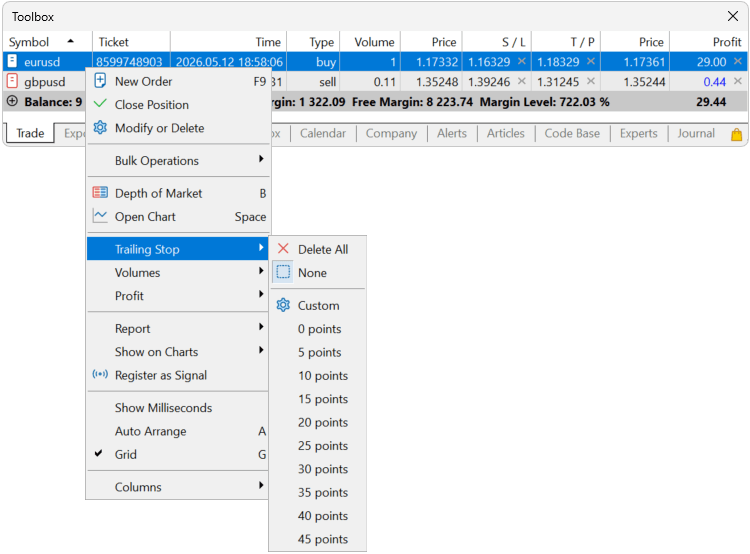
A Trailing Stop is a dynamic stop loss that moves with the price when our trade becomes profitable, while remaining fixed if the market later reverses. We use it to protect accumulated profits while allowing the trade room to continue. In MT5, traders often use trailing stops as a trade management tool rather than an entry tool. Beginners should note that trailing stops are not magic. On desktops, they often depend on the terminal being active, and in volatile markets, they can still trigger quickly. We strongly advise confirming how your specific platform setup handles them before relying on the feature.
| Order Category | Order Type | Function |
|---|---|---|
| Market | Buy / Sell | Immediate execution at the best current price to open or close a position. |
| Pending (Limit) | Buy Limit / Sell Limit | An order to buy at the “Ask” price equal to or lower than the one specified. Used when expecting the price to bounce up after a drop. / An order to sell at the “Bid” price equal to or higher than the one specified. Used when expecting the price to drop after a rise. |
| Pending (Stop) | Buy Stop / Sell Stop | An order to buy at the “Ask” price equal to or higher than the one specified. Used to catch a price breakout upward. / An order to sell at the “Bid” price equal to or lower than the one specified. Used to catch a price breakout downward. |
| Pending (Stop Limit) | Buy Stop Limit / Sell Stop Limit | A combination of a stop order and a limit order. Once the “Stop” price is reached, a Buy Limit order is automatically placed. / Once the “Stop” price is reached, a Sell Limit order is automatically placed. |
| Risk Control | Stop Loss / Take Profit | An order intended to minimize losses if the security price begins to move in an unprofitable direction. It is always linked to an open position or a pending order. / An order intended to secure profit when the security price reaches a certain level. Execution of this order results in the complete closure of the position. |
One-Click Trading
One-click trading allows you to place market orders directly from the chart or small order panels without the normal confirmation window. It is designed for speed, but speed increases the chance of mistakes. A single accidental click can open a live trade immediately.
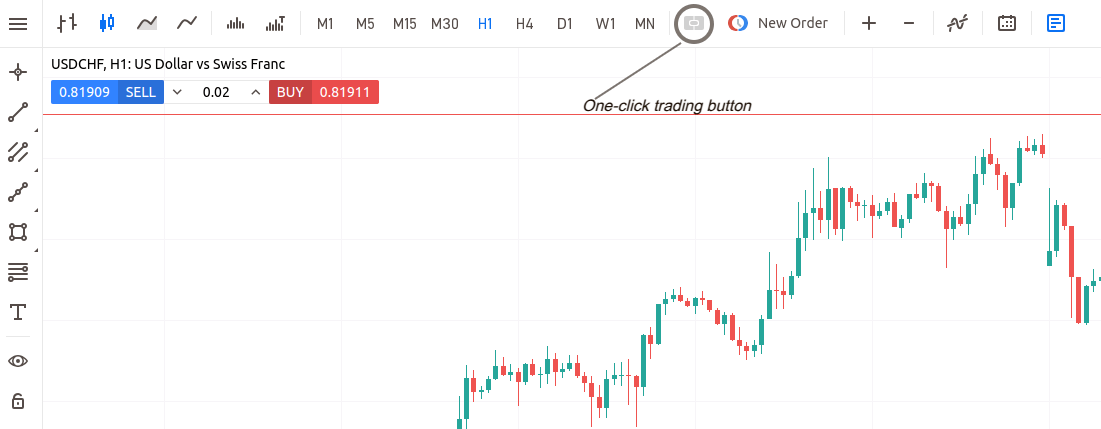
We enabled the one-click trading panel on a USD/CHF H1 chart using the toolbar icon next to the New Order button. As you can see in the screenshot, the panel displays live Sell/Buy prices and volume controls.
If you enable one-click trading, make sure you fully understand the feature and consider using it only after practicing in a demo mode. Many beginners are better off leaving it disabled until they are consistently comfortable with standard order entry.
Modifying Open Positions
After a trade is open, MT5 lets you modify certain elements, such as stop loss and take profit. In some cases, depending on account type and symbol rules, you may also be able to partially close a position. Modifying a trade is often done from the Toolbox or by right-clicking the position.
When adjusting an open trade, review the numbers carefully before confirming. A misplaced decimal point or a stop set on the wrong side of the market can create unnecessary risk.
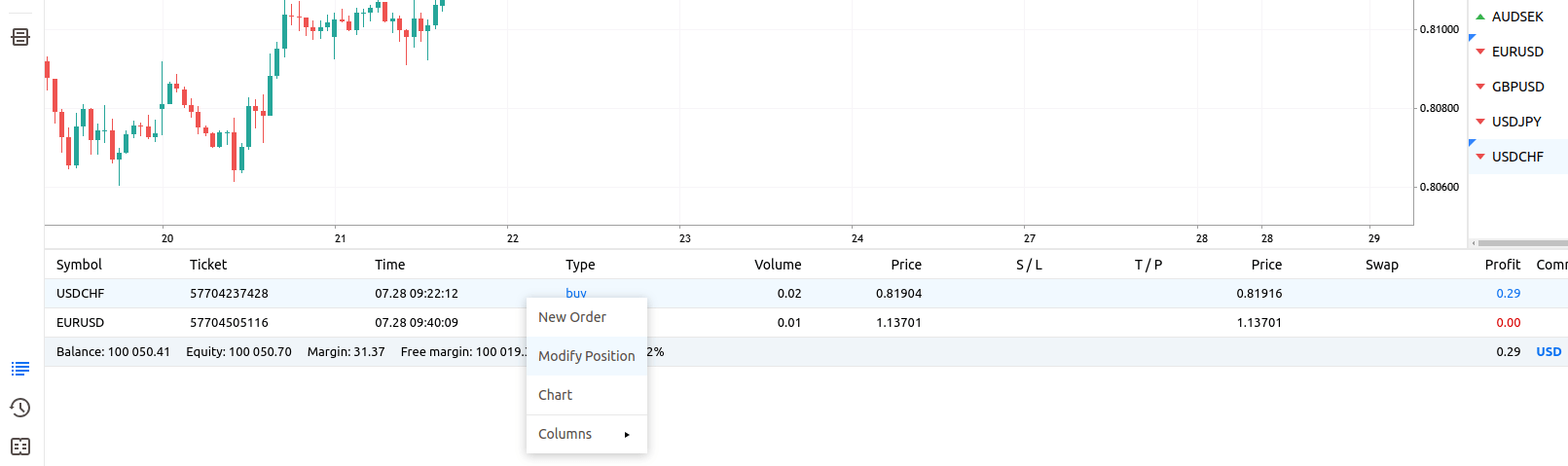
We right-clicked an active USD/CHF trade in the context menu and selected Modify Position to open the order settings.
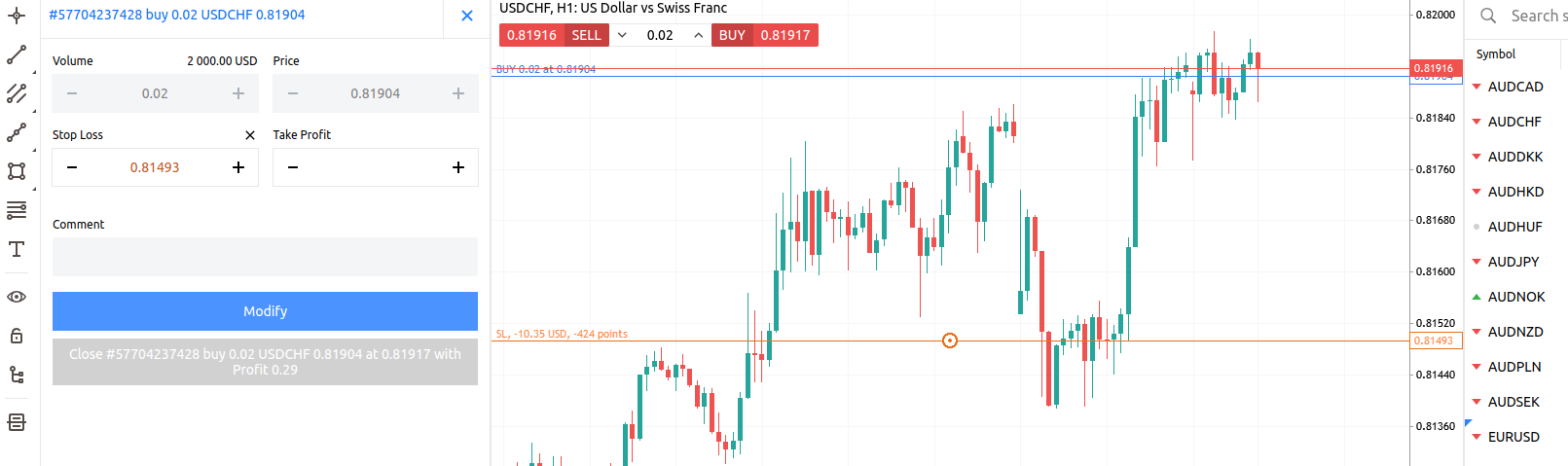
After we set up the stop-loss level at 0.81493 in the modification panel, we confirmed the change by clicking Modify.
Closing Positions
You can close an open position manually from the Trade section of the Toolbox or, on some setups, directly from the chart. Manual closure is useful when your trading reason changes or when you want to exit before the stop loss or take profit is reached.
Closing a trade means accepting the current result, whether profit or loss. On a live account, it is worth slowing down and checking that you are closing the correct position, especially if several are open at once.
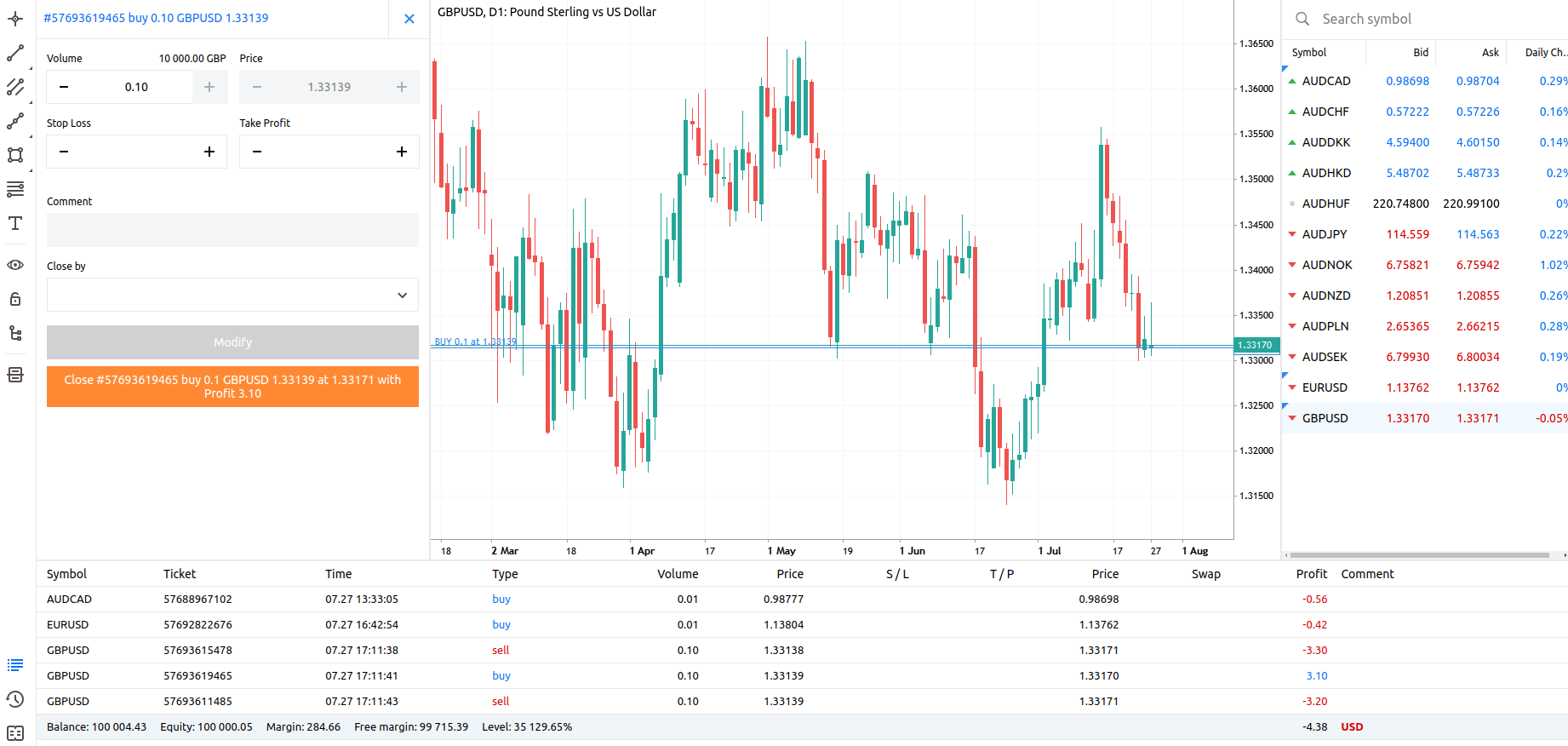
We opened the position management panel in for ticket #57693619465 to close a 0.10 lot buy order on GBP/USD at 1.33171 for a $3.10 profit.
Viewing Active Trades
Active trades appear in the Trade tab of the Toolbox, where you can see details such as symbol, volume, entry price, current price, stop loss, take profit, and floating profit or loss. This area is central to trade management and should be checked regularly if you have positions open.
Remember that the display can differ depending on whether your account uses netting or hedging. In a netting account, positions in the same symbol are combined. In a hedging account, separate positions can coexist.
Managing Trades and Account Information
Viewing Open Positions
Open positions are normally shown in the Trade tab of the Toolbox. Here you can monitor symbols, entry levels, position sizes, current prices, floating profit or loss, stop loss, take profit, and swaps/commissions, where applicable. This is where you track the current state of your live or demo exposure.
If you have multiple positions, sort and review them carefully. Good trade management starts with knowing exactly what is open and why.
Checking Balance, Equity and Margin
- Balance: Account amount after all closed trades, deposits, and withdrawals.
- Equity: Balance plus or minus the current floating profit or loss from open positions.
- Margin: The amount currently locked to support open trades.
MT5 displays these figures so you can monitor account health in real time. Beginners should not ignore these numbers. A trade can appear small on the chart but still use a significant margin depending on the instrument and volume chosen.
Understanding Free Margin and Margin Level
- Free margin: Equity minus used margin. This is the amount of funds still available to support new trades or absorb losses on existing ones.
- Margin level: compares equity with used margin and is often watched closely because a very low margin level can lead to forced liquidation depending on broker rules.
Leverage increases both opportunity and risk. It can make a modest market move affect account figures far more than a beginner expects. For that reason, margin should be monitored before and after every trade, not only when trouble appears.
Reviewing Trade History
The History section lets you review closed trades, deposits, withdrawals, and other completed account events. You can often filter by date range so that you can inspect a specific week, month, or custom period. This is useful for checking results and spotting mistakes.
Trade history is one of the best learning tools on the platform. It shows what actually happened, not what you remember happening. Reviewing it regularly helps you spot repeated mistakes (for example, over‑sizing or over‑trading around news).
Exporting Account Reports
MT5 allows account activity to be exported into a detailed report file. This can be useful for:
- Personal performance tracking
- Sharing results with a mentor or coach
- Providing records to an accountant or tax adviser
Before sharing any report, check whether it contains sensitive account information such as account numbers or personal details. Keep reports secure. They can reveal trading behavior, balances, and patterns that you may not want to expose publicly.
Reading Orders, Deals, and Positions
MT5 uses specific terms that are worth understanding.
- Order: An instruction to trade (market order or pending order).
- Deal: The actual executed transaction (or part of it).
- Position: The resulting open exposure after deals are processed for a symbol (in netting mode, this is one net position per symbol; in hedging mode, you may see multiple positions).
This structure is more detailed than many beginners expect, but it helps explain why account records sometimes show several lines for what feels like one trade. Learning this terminology makes troubleshooting and report reading much easier, especially when partial fills, modifications, or netting are involved.
Alerts, Notifications, and News
Creating Price Alerts
Price alerts allow MT5 to notify you when a symbol reaches a specified level or condition. This is useful when you want to monitor a market without sitting in front of the chart constantly. Alerts can support discipline by reducing the urge to over-watch every price movement.
- Set alerts from the Alerts tab or by right‑clicking on the chart/price level, then choosing your condition.
- Choose how MT5 will notify you: sound, pop‑up, email, or push notification, depending on your setup.
Even so, an alert is not a trading plan. It only tells you that a condition was met. You still need to decide whether the trade idea remains valid.
Setting Up Push Notifications
Push notifications can send platform messages to your mobile device, which is helpful for alerts and account monitoring when you are away from the desktop terminal. This usually requires linking the desktop platform to the mobile app through a notification ID.
- Once linked, alerts, Expert Advisors, or account events can be sent directly to your phone, even if the app is not open.
- Check your phone’s notification permissions so that important alerts are allowed, but manage lock‑screen visibility if you do not want trading information visible to others.
Email Notification Settings
MT5 can be configured to send email notifications, although setup may require manual email server details depending on how you use it. This feature can be useful for alerts or system messages, but it should be tested before you rely on it in a live environment.
- Test email notifications with a simple alert before relying on them for live trading.
- Remember that email delivery is not always instant, so it should not be your only risk control for time‑sensitive decisions.
Using the Economic Calendar
The built-in economic calendar helps traders track scheduled macroeconomic events such as interest rate decisions, inflation data, and employment reports. These events can increase volatility, especially in forex and index markets.
- Open the calendar from the Toolbox/Calendar tab to see upcoming events, affected currencies, and importance levels.
- Right‑click an event to set an alert so you receive a warning before high‑impact news is released.
The calendar is a planning tool, not a prediction engine. High-impact events can move markets sharply in either direction, and the actual market reaction is not always obvious from the headline alone.
Reading Broker Messages
Brokers may send operational messages through the platform relating to maintenance, holiday trading hours, margin changes, or symbol adjustments. These messages can affect your ability to trade or hold positions, so they should not be ignored.
- Check the Mailbox or messages area regularly, especially around holidays or major events.
- Act on important notices in good time (for example, by closing or adjusting positions before a scheduled change).
Some traders focus only on charts and overlook platform messages. That can be costly if a broker warns about an upcoming schedule change or instrument adjustment.
Using the Journal Tab
The Journal tab records platform events such as login attempts, connection issues, script actions, and Expert Advisor messages. When something goes wrong, the Journal is often one of the first places to look because it can reveal the exact reason a feature failed.
- Use the Journal to identify why an order failed (for example, not enough margin, market closed, or invalid price).
- Check it when you notice connection issues, unexpected logouts, or EA behavior you do not understand.
Beginners may not read the Journal often at first, but it becomes extremely useful during troubleshooting. A short error message there can save a lot of guesswork.
Customising MetaTrader 5
Changing Chart Appearance
MT5 allows you to customize chart colors, candle style, grid visibility, ask line display, and other visual elements. A clear chart layout can improve concentration, especially if you spend long periods analyzing markets. The goal is not to make the chart look impressive, but to make it readable.
- Adjust background, candle/bar colours, grid lines, and bid/ask line visibility to suit your eyes.
- Use strong contrast so the price stands out clearly; avoid color schemes that are hard to read at a glance.
Many traders prefer a simple color scheme with strong contrast. If the chart is difficult to read at a glance, the design is probably working against you.
Setting Default Templates
Once you have a chart layout you like, you can save it as a template and reuse it. Templates store chart type, colors, indicators, and other visual settings, and you can even set a template as the default, so new charts open with your preferred style.
- Save a template for the layout you use most, then apply it to new instruments instead of rebuilding from scratch.
- Templates are especially helpful if you trade several instruments in a similar way, but still review each chart instead of assuming one layout fits every situation.
Customising Toolbars
Toolbars can often be shown, hidden, or rearranged so that your most-used controls are easier to reach. Removing buttons you never use can reduce clutter and make the platform feel less overwhelming. This is a small change, but it can improve day-to-day usability.
- Keep visible only the buttons you recognize and actually use, especially when you are new to MT5.
- Fewer buttons lowers the chance of accidental clicks on advanced functions you do not yet understand.
Changing Platform Language
MT5 supports multiple interface languages. If you switch languages, the platform may need to download the language pack and restart before the change takes effect. This is useful for comfort and clarity, especially when learning the platform for the first time.
- Choose a language that makes menu items and messages easy to understand while you are learning.
- Remember that translated menu terms may differ slightly from English‑language articles or videos you follow, so be prepared for small naming differences.
Adjusting Trading Settings
Platform options include settings related to one-click trading, order handling, trade volumes, and other operational behavior. These should be reviewed carefully, especially before moving from demo to live trading.
- Convenience settings can save time, but they can also increase the chance of a costly mistake if enabled without understanding them.
- Any change that makes order placement faster should be treated with extra care. Speed is useful only when accuracy remains intact. Do not sacrifice checks and confirmations that protect you from errors.
Managing Sounds and Notifications
MT5 can play sounds for platform events and display notification pop-ups. Used well, these can help you notice an executed order or triggered alert. Used badly, they can become distracting.
- Enable sounds and pop‑ups only for events that truly matter (for example, order filled, price alert triggered).
- If you trade in a shared environment, consider privacy: audible alerts and visible messages may reveal information you would prefer to keep private.
Saving Your Workspace
Your workspace includes open charts, profiles, templates, and panel layout. Saving and organizing these settings makes it easier to return to a familiar environment each time you open the platform. This reduces setup time and helps maintain consistency.
- Use profiles and templates to restore your preferred layout quickly after a restart or update.
- Back up important settings (for example, by copying the relevant MT5 data folders) if you rely on a particular workspace, so a reinstall or device change is less disruptive.
A stable, well‑organized workspace reduces setup time and helps you stay focused on analysis, rather than constantly rearranging the platform.
Expert Advisors and Automated Trading
What Expert Advisors Are
Expert Advisors, usually called EAs, are automated trading programs designed to analyze the market and, in some cases, place or manage trades according to coded rules. In MT5, they are a major feature for traders who want automation, systematic execution, or semi-automated assistance.
EAs are written in the MQL5 language and can be created, bought, or downloaded. An EA is not automatically reliable just because it runs inside MT5. It is only as good as its logic, coding quality, and risk controls.
What Scripts Are
Scripts are small programs that perform a one-off task when launched, rather than continuously monitoring the market like an EA. For example, a script might close all trades, place a specific object on a chart, or carry out another single action.
Because scripts can act quickly and affect multiple orders at once, they should still be handled carefully. Running a script you do not understand on a live account is not advisable.
What Custom Indicators Are
Custom indicators are user-created analytical tools that extend MT5 beyond its built-in indicator library. They can display unique calculations, visual signals, or alerts on charts, and are also written in MQL5.
Some are useful, but quality varies widely. Before installing a custom indicator, make sure you understand what it is meant to show and where it came from. Before installing a custom indicator, make sure you understand what it is meant to show, how it is calculated, and where it came from. More indicators do not automatically mean better analysis.
Enabling and Disabling Algorithmic Trading
MT5 includes controls for enabling or disabling algorithmic trading. This is important because an installed EA cannot usually trade automatically unless the relevant permissions are active. The platform toolbar also makes it possible to turn the algorithmic operation off quickly if needed.
That switch should not be treated casually. If you are unsure what an EA is doing, disable algorithmic trading first and investigate before allowing it to continue.
Introduction to Strategy Tester
The Strategy Tester lets you backtest and, in some cases, optimize automated strategies using historical data. It can help you understand how a rule-based approach might have performed under past conditions. This is useful for early evaluation, but it is not proof that the strategy will work in future markets.
Good testing includes more than one historical period and should be followed by forward observation on a demo account. A backtest alone is not enough.
Risks of Automated Trading
Automated trading carries real risk. An EA can place trades faster and more frequently than a human, which means errors can also happen faster. Poor coding, unrealistic assumptions, over-optimisation, unstable internet, bad risk settings, and excessive leverage can all create serious damage to a live account.
There is also a behavioral risk: traders sometimes trust a “black box” system they do not understand. If you cannot explain what an EA is supposed to do, it is not sensible to let it trade unsupervised with real money.
Testing Automation on a Demo Account
Before using any EA or script on a live account, test it on a demo. This should include both historical backtesting and live forward observation in a demo environment.
- Watch how it behaves around news and volatility.
- Check how it sizes trades, handles errors, and manages open positions.
- Monitor logs in the Experts and Journal tabs for warnings or failures.
Demo testing still does not guarantee live results, but it is far safer than deploying an untested system straight into a real account. When leverage is involved, this caution becomes even more important.
MetaTrader 5 Mobile App Overview
Quotes Tab
The Quotes tab is the mobile equivalent of Market Watch. It displays symbols and live prices, and it is usually the starting point for opening charts or order screens on a phone or tablet. You can customize the list to focus on the instruments that matter to you. Because screen space is limited, keeping the Quotes tab tidy is useful. A shorter, more relevant list is faster to navigate when markets are moving quickly and reduces the chance of tapping the wrong symbol.
Chart Tab
The Chart tab lets you view price movements, change the timeframe, add some indicators, and carry out basic analysis. Mobile charting is good for monitoring and quick checks, but it is usually less comfortable than a desktop for detailed multi-timeframe or multi-chart work. Always zoom and scroll carefully on small screens. It is easy to misread chart structure when too little data is visible.
Trade Tab
The Trade tab shows open positions, pending orders, and account summary figures, such as balance, equity, and margin. This is the main area for checking current exposure on mobile. It also gives access to modification and closure actions. Because mobile taps are less precise than mouse clicks, take a moment before confirming any changes. Double-check symbol, direction, volume, and price levels, as small-screen mistakes are common.
History Tab
The History tab displays closed trades and other past account activity. It is useful for reviewing results while away from your desk or checking whether a take profit or stop loss has already been hit. Depending on the app version, you may be able to filter the time range. Reviewing history on mobile is convenient, but for deeper analysis, many traders still prefer the larger desktop layout.
Settings Tab
The Settings tab is where you manage app-level preferences, account access, and related options. These may include switching between accounts, adjusting chart display behavior, and managing messages or notifications depending on the device and app version. It is also a good place to confirm which account is currently active. That small check can help prevent confusion between demo and live logins.
Adding and Removing Symbols
On mobile, you can usually edit the quotes list to add or remove symbols. This helps keep the app focused on the markets you actually follow. If your broker offers many instruments, using a shorter watchlist makes the app much easier to use. If a symbol is missing, first search for it. If you still cannot find it, the issue may be account-specific, rather than app-related (for example, not enabled for your account type).
Managing Trades on Mobile
Mobile trade management can include opening positions, placing pending orders, modifying stop loss or take profit, and closing trades. The functionality is useful, but the smaller interface increases the chance of input errors, especially when markets are moving fast. For that reason, many traders use mobile for monitoring and urgent adjustments, rather than for complex order planning. If you must place a live trade from mobile, verify the symbol, direction, and volume carefully.
Mobile Notifications
Mobile notifications are one of the most practical features of the app because they keep you informed when you are away from the desktop terminal. Price alerts or trade-related messages can help you react promptly without constantly watching the screen. They are helpful, but they are not a substitute for proper risk controls. A stop loss or sensible position size should not be replaced by the assumption that you will see and act on a phone alert in time.
Common MetaTrader 5 Problems and Fixes
MT5 Will Not Install
If MT5 will not install, the cause is often a corrupted download, insufficient permissions, a security block, or an unsupported system environment. Start by deleting the installer, downloading a fresh copy from a trusted source, and trying again. If you are on a managed work device, administrative restrictions may prevent installation entirely.
- First steps: Delete the installer, download a fresh copy from a trusted source, and try again.
- Permissions: On Windows, try “Run as administrator”; on managed work devices, admin restrictions may prevent installation entirely.
- Security software: Check if antivirus or SmartScreen is blocking the installer and verify the file before allowing it.
Make sure you are not using a file from an unofficial website. Troubleshooting a bad installer is a waste of time when the safer solution is simply to re-download it from a verified source.
MT5 Will Not Open
If MT5 installs but does not open, restart the computer first. If that does not help, check whether security software has blocked the program, whether the shortcut points to the right file, and whether the platform is trying to launch in the background but failing. A reinstall can solve damaged local files.
- Check security tools: See if MT5 has been quarantined or blocked by antivirus/firewall.
- Shortcuts: Ensure the desktop or taskbar shortcut points to the correct installation path.
- macOS: Approve security permissions and Gatekeeper prompts before the app opens correctly.
On any system, repeated launch failure after a clean reinstall may suggest a compatibility issue or a deeper OS problem.
Invalid Account Error
An “invalid account” message usually means the login details do not match the server you selected.
- Check: account number, trading password, and server name exactly as provided by the broker.
- Confirm you are not using a client portal password or an investor (read‑only) password instead of the full trading password.
If the details are correct, the account may be inactive, archived, or expired, particularly for demo accounts. Your broker can confirm the account status or reopen it if needed.
No Connection Error
A “no connection” message means MT5 is not currently communicating with the broker server. This can result from your internet connection, local firewall rules, a VPN conflict, network restrictions, or a temporary broker-side outage.
- Step 1: Confirm your device has normal internet access (other sites/apps work).
- Step 2: Restart MT5 and check the correct server is selected; wrong server choices are a frequent cause.
- Step 3: Review firewall/VPN settings and, if needed, try another network, or disable VPN temporarily.
If everything looks correct on your side, the issue may be temporary maintenance or a server problem at the broker.
Broker Server Not Found
If MT5 cannot find the broker server, the server name may be misspelled, outdated, or missing from your platform’s server list.
- Use the broker’s exact server name from the welcome email or client portal.
- Update or rescan the server list and search again; broker‑branded installers often preload the correct servers.
This is another reason to keep the original broker login email. The exact server label matters, especially when a broker uses several similar names.
Charts Not Loading
If charts are blank or not updating, check that you are actually logged in, that the platform is connected, and that the selected symbol is available for your account.
- If the market is closed, charts may appear static simply because no new prices are coming in.
- Try refreshing the symbol, switching timeframes, or reopening the chart to reload data.
If only one chart or symbol is affected, the problem is likely symbol‑specific (permissions, symbol status) rather than platform‑wide.
Symbols Missing from Market Watch
Missing symbols usually mean they are hidden, not unavailable.
- Open the symbol list or use the show-all option in Market Watch to reveal hidden instruments.
- If they still do not appear, confirm with the broker that the instruments are available on your account type and region.
Pay attention to naming differences. The instrument you expect may exist under a slightly different symbol label or with a prefix/suffix.
Trade Button Disabled
If the trade button is greyed out or disabled, possible causes include using an investor password, having no connection, selecting a non-tradable symbol, lacking sufficient margin, or trying to trade while the market is closed. In some cases, the broker may temporarily disable trading on a symbol.
- Check in order: connection status, login type (investor vs trading password), symbol tradability, market hours, and free margin.
- If all looks correct, contact the broker to see if trading is disabled on your account or the symbol.
Market Closed Message
A “market closed” message generally means the instrument is outside its trading session, the market is shut for the weekend, or there is a holiday or special schedule change. Some instruments also have daily breaks.
- Check symbol specifications for trading sessions and daily breaks.
- Review broker notices around holidays or special events, as hours can change temporarily. In this case, the platform is not malfunctioning; it is simply enforcing market hours and broker rules.
Expert Advisor Not Working
If an Expert Advisor is not working, first check whether algorithmic trading is enabled globally and for that specific EA. Then review the chart, symbol, and timeframe it is attached to, and read the Journal for error messages.
- Confirm AutoTrading is turned on and the EA has permission to trade in its settings.
- Ensure the EA is attached to the correct symbol/timeframe and that there is sufficient historical data for its logic.
- Look for errors related to lot size, margin, trading hours, or invalid prices in the logs.
Do not assume silence means everything is fine. If an EA is not taking trades when you expect it to, the Journal and Experts-related messages are the best places to investigate before making any live-account changes.
MetaTrader 5 Security Tips
Downloading Only from Trusted Sources
The safest habit you can develop with MT5 is simple: only download it from trusted sources.
- Official Broker Portals: Download directly from your regulated broker’s secure client area.
- MetaQuotes Official Site: Use metatrader5.com for the generic, unbranded version.
- Verified App Stores: Only install the mobile app via the Apple App Store or Google Play Store.
This reduces the risk of malware, fake installers, and stolen credentials. If a download source feels rushed, unclear, or overly aggressive, treat that as a warning sign. Trading software should never be installed casually.
Protecting Your Login Details
Your trading login is sensitive financial information. Do not share it casually, do not send it through insecure channels if avoidable, and do not store it in plain text on shared devices. If your broker offers additional account security features outside the platform, review them carefully. A compromised trading password can expose your account to unauthorized access or trade activity. Convenience should never come before account control.
Avoiding Fake Brokers and Cloned Websites
Fake brokers and cloned broker websites are a real risk. They often copy the design and branding of legitimate firms and use advertising, social media, or messaging apps to attract deposits and platform logins. The platform name alone does not make a broker genuine.
- Verify Regulation: Before entering credentials, cross-reference the broker’s license number on the regulator’s official database (e.g., the FCA Register, ASIC, or CySEC).
- Domain Scrutiny: Check for subtle misspellings in the URL.
- SSL Certificates: Ensure the site uses HTTPS, but remember that a “padlock” icon only means the connection is encrypted, not that the business is legitimate.
Using MT5 on Shared Devices
Using MT5 on a shared computer or shared mobile device increases the risk of unauthorized access. Another person may be able to open the platform, view account information, or place trades if passwords are saved or the session remains active. If you must use a shared device, avoid saving the password, log out fully when finished, and consider removing the account from the platform afterwards. For live trading, a personal device is far safer.
Managing Saved Passwords
MT5 can save passwords for convenience, but this should be used thoughtfully. On a private, secured device, saving the password may be acceptable for some users. On any shared, repair-bound, or temporary device, it is a serious risk. If you sell, recycle, or lend a device, remove the platform or account access first. Do not assume that uninstalling later will protect an account that was left accessible in the meantime.
Avoiding Unsafe Expert Advisors
Do not run Expert Advisors, scripts, or custom indicators from unknown sources just because they promise strong performance. Unsafe add-ons can trade aggressively, misuse risk settings, malfunction badly, or come bundled with other unwanted software. Even if the file is not malicious in a technical sense, it can still be dangerous to your account.
Test every add-on on a demo account first, read reviews carefully, and prefer transparent tools over black-box promises. If the seller refuses to explain basic behavior, be cautious.
Keeping MT5 Updated
Keeping MT5 updated helps maintain compatibility, stability, and security. Updates can fix bugs, improve platform behavior, and support newer operating systems. Using an outdated version can create avoidable problems, especially when a broker server expects a newer build. Update through the normal platform process or by downloading a fresh version from a trusted source. Avoid “special update packages” offered on random websites.
Beginner Workflow: From Download to First Demo Trade
Downloading and Installing MT5
For a beginner, the safest workflow starts with a trusted download and a straightforward installation. Choose the desktop version if you want the fullest learning experience, or mobile if you only need basic access. Install from the official MetaTrader website, the official app store, or your broker’s verified site.
- Choose your device type.
- Download from a trusted source only.
- Install using the default settings unless you have a reason to change them.
- Open the platform and confirm it launches normally.
Creating or Logging In to a Demo Account
Once MT5 is open, create a demo account or log in to one your broker has already provided. Make sure you use the demo server, not the live server. A demo account is the right place to practice because it lets you learn the mechanics of the platform without risking real money.
Adding a Trading Instrument
Open Market Watch and find the symbol you want to practice with. If it is not visible, use the symbols list or the show-all option. Start with a widely followed instrument that has regular price movement, so you can clearly see how the platform behaves. Before you go further, open the symbol specifications and check the minimum trade size. This helps avoid order rejection later.
Opening Your First Chart
Right-click the symbol and open a chart. Choose a comfortable timeframe, such as an hourly or four-hour chart, if you want a clearer view than a very fast market display. Make the chart readable by adjusting zoom and, if needed, switching to candlesticks. The objective here is not to find the perfect trade. It is to become comfortable with basic chart handling.
Adding a Basic Indicator
Add one simple indicator, such as a moving average, so you can learn how indicators are attached and edited. Do not add several at once. The goal is to understand the process, not to build a full strategy immediately. Once the indicator appears, change one or two settings and observe how the display changes. This is a practical way to learn without overwhelming the chart.
Placing a Demo Trade
Open the New Order window, select the correct symbol, and enter the smallest practical demo volume. Decide whether you want a buy or sell order, then place a market order to see how immediate execution appears on the platform. This is usually the easiest order type for a first practice trade. Remember that a demo trade is still a learning exercise. The point is to understand the order process and platform response, not to chase a result.
Adding Stop Loss and Take Profit
Once the trade is open, add a stop loss and take profit if you did not enter them at the start. This teaches the habit of defining risk and target levels. Use clear chart locations rather than random numbers, even in demo. Good risk habits should begin in practice, not later. Waiting until you switch to live trading is usually too late.
Closing the Demo Trade
Close the trade manually from the Trade tab after observing how it behaves. This lets you learn the closure process and see how the result moves from an open position into account history. If you close too quickly, that is fine for the exercise. The important part is becoming comfortable with the order life cycle: open, monitor, modify, and close.
Reviewing the Result in Account History
Open the History tab and review the completed trade. Note the entry and exit prices, the result, and any associated platform details. This is where you begin building the habit of reviewing what actually happened rather than relying on memory. Demo practice is valuable, but remember that live trading adds real financial and emotional pressure. Good demo habits help, yet they do not guarantee live performance.
MetaTrader 5 Glossary
Bid and Ask
The bid is the price at which the market buys from you, and the ask is the price at which the market sells to you. In practical terms, buy trades usually open at the ask, and sell trades usually open at the bid. The difference matters when you look at execution and immediate floating profit or loss.
Spread
The spread is the difference between the bid and ask price. It is one of the basic trading costs reflected in the price quote itself. On a chart, the spread helps explain why a new trade may begin slightly negative even if the market has not visibly moved much yet.
Lot Size
Lot size is the volume of the trade. In MT5, this is how position size is typically entered. One lot does not mean the same exposure on every instrument, so you should always check symbol specifications before trading. Position size has a major effect on risk.
Pip and Point
A pip is a common unit used to describe price movement, especially in forex. A point is the minimum quoted price increment shown by the platform. On some forex symbols quoted to five decimal places, one pip equals ten points. Knowing the difference helps with measuring stops, targets, and trade value.
Balance and Equity
Balance is the amount in the account after closed trades. Equity is the balance plus or minus the floating result of open positions. When trades are open, equity changes with market movement, even though balance does not.
Margin and Free Margin
Margin is the amount of funds set aside to support open positions. Free margin is what remains available for new positions or for absorbing losses on existing ones. Low free margin can limit your flexibility and increase the risk of margin-related problems.
Market Order and Pending Order
A market order is executed immediately at the best available price. A pending order is placed in advance to trigger later if the price reaches a specified level. Pending orders are useful when you do not want to enter at the current market price.
Stop Loss and Take Profit
A stop loss is an exit level designed to limit loss if the price moves against the trade. A take profit is an exit level designed to close the trade at a target profit. Both help define the trade plan before emotions take over.
Indicator
An indicator is a chart-based analytical tool that applies a calculation to price, volume, or other data. Indicators can help traders identify trend, momentum, volatility, or structure, but they do not predict markets with certainty.
Expert Advisor
An Expert Advisor is an automated trading program used in MT5. It can analyze conditions and, if permitted, place or manage trades according to coded rules. EAs should be tested carefully on a demo before any live use because automation can magnify mistakes as quickly as it magnifies efficiency.
About the Editorial Team