


 Zornitsa Stefanova
 Zornitsa Stefanova is a Financial Research and Platform Testing Analyst at BestBrokers.com, specialising in hands-on reviews of forex, cryptocurrency and stock trading platforms. She evaluates brokerage companies from a user-focused perspective, testing key areas such as account setup, trading conditions, platform usability, available markets and overall reliability.
 | Expert Editor
  Eugene Lee, CFA
 Eugene Lee, CFA, is the Head of Research at BestBrokers.com, where he draws on more than two decades of experience in global markets, portfolio management, derivatives, and fintech to evaluate online brokers. His background in institutional investing and quantitative research helps ensure that broker reviews are based on data, risk assessment, and real-world trading conditions.
  | Updated:
 If you are planning on making cTrader your platform of choice but are unsure where to start, this guide explains how to download, install, and use cTrader across various devices. We will additionally walk you through the key parts of the platform, from charting tools and supported instruments to account management and troubleshooting. Features can vary slightly by broker and app version, so the examples here focus on the core workflow of the software.
This guide is suited for beginners who have never used cTrader, as well as traders who are moving from another platform and want a practical walkthrough before placing a trade. It is also appropriate for users who plan to practice on a demo account first, which is the safest way to learn the platform layout and order process. In addition, algorithmic traders will be introduced to cTrader Algo and cBots, and there is also a section dedicated to the platform’s copy trading tool, cTrader Copy.
By the end, readers should understand where to get cTrader safely, how to connect a broker account, how to navigate charts and watchlists, how to place and manage orders, how to avoid common mistakes, and the like. They will also learn where the potential risks are and how to avoid or mitigate them.
What Is cTrader?
cTrader is a platform developed to function as an all-in-one trading tool that provides a cohesive environment for technical analysis and trade execution. It is used for trading a wide variety of markets, including but not limited to forex, indices, shares, metals, and cryptocurrencies. Whether you prefer manual trading, the hands-off efficiency of cBots and other algorithmic tools, or leveraging the expertise of professionals through copy trading, cTrader integrates all of this and more into its software.
The cTrader interface lets you view prices, open charts, place orders, monitor positions, and review your performance. While it is not the most widely spread platform among trading brands, it is still supported by a substantial range of online brokers.
It is important to separate the platform from the broker. cTrader is the trading software, while the broker is the company that provides your trading account, holds client funds, sets available instruments, and handles execution terms for that account. Downloading cTrader does not, by itself, open a live trading account.
Demo Accounts vs Live Accounts at cTrader
cTrader supports two main types of broker accounts: demo and live. They serve fundamentally different purposes in the online trading sphere:
- Demo Account: This option uses virtual money and is designed for practice, testing, and learning the platform.
- Live Account: A live account uses real money, which means every order can generate real profit or result in real losses.
The choice between the two is dependent on your trading experience, goals, and the account conditions of your broker. Generally, complete novices are advised against creating a live account from the get-go. Their inexperience can result in major losses, and going with a demo account first can help them become familiar with how trading works and the potential risks, without losing real money. In addition, demo trading can also be used by seasoned traders who are looking to test out new strategies.
At the same time, cTrader users should remember that demo trading does not fully reflect live trading conditions, market pressure, or the emotional aspect of trading with real money. Strong demo results, therefore, do not guarantee live results.
Markets Available Through cTrader
During our examination of the cTrader platform, we were able to trade the following markets: forex, hard and soft commodities, indices, ETFs, shares, and cryptocurrencies. However, we should stress that the instruments you can trade through cTrader depend on the broker you connect to the platform.
What is more, your account type will also dictate the types of instruments you can access. For example, opening a swap-free account could mean that you will only be able to trade forex and metals if your broker does not offer other market types for this account type. Local regulation is also of key importance, since in regions like the United Kingdom, retail traders cannot access crypto CFDs or other crypto derivatives.
cTrader Desktop, Web and Mobile Versions
cTrader is available in desktop, web, and mobile forms. Each comes with its own pros and cons, though we found the desktop version to be the most complete in terms of charting, layout control, and automation. The web version, meanwhile, works in a browser without a full local installation.
Traders on the go will be able to use the mobile app, which is mainly for monitoring, quick order placements, chart checks, alerts, and trade management while away from one’s desk.
| Version | Typical use | Main strengths | Main limitations |
|---|---|---|---|
| Desktop | Full trading workstation | Most complete tools, layouts, and automation workflow | Requires installation on a computer |
| Web | Browser-based access | No full install, useful on shared or managed computers |
|
| Mobile | On-the-go monitoring and trade management | Portable, alerts, quick account checks, placing orders, monitoring positions |
|
Before You Install cTrader
To ensure a smooth installation, traders are advised to perform a series of checks before they start using cTrader. In this section, we cover cTrader’s system requirements and other potential factors that can affect the installation.
Device and System Requirements
Before installing, make sure your device is up to date and suitable for the version you want to use. For desktop trading, having a compatible Windows or macOS system and enough memory (RAM) for multiple charts is essential. Below, you can view an overview of the minimum system requirements for Windows and macOS devices:
| Requirement Type | Windows | macOS |
|---|---|---|
| Processor | Dual-core CPU | Apple M1 or Intel Core i5 |
| Memory | 2 GB | 8 GB |
| Operating system | Windows 7 or higher | macOS 12.0 Monterey |
| Internet connection | 50 kB per second or faster | 50 kB per second or faster |
| Screen resolution | 1280 x 800 | 1280 x 800 |
For optimal performance, Windows users will need to meet the recommended requirements as laid out on cTrader’s website:
| Requirement Type (Recommended) | Windows |
|---|---|
| Processor | Dual-core CPU |
| Memory | 4 GB |
| Operating system | Latest version of Windows |
| Internet connection | 100 kB per second or faster |
| Screen resolution |
|
For web trading, use an up-to-date browser and once again ensure that your OS meets cTrader’s web trader system requirements, which are identical to the ones shown above. As mentioned earlier, the web version also works on Linux computers.
If you trade on your phone, use an Android or iOS version that either matches or is higher than the minimum listed on the Google Play or App Store page. Moreover, ensure that you have downloaded either the official cTrader app or the dedicated broker application that is powered by cTrader.
The table below offers an overview of the cTrader app’s system requirements for Android and iOS, as well as the key characteristics of each application.
| Android | iOS | |
|---|---|---|
| Rating | 4.9 stars (Google Play) | 4.7 stars (App Store) |
| Required OS Version | Android 10 and up | iOS 15.0 or higher |
| Download Size | 143 MB | 148 MB |
| Languages | 23 (English, Arabic, Czech, Italian, Japanese, etc.) | 23 (English, Arabic, Czech, Italian, Japanese, etc.) |
| Analytical Tools | 5 chart types (Standard, Tick, Renko, etc.), 5 chart view options (candlesticks, bar charts, etc.), 16 chart drawings (horizontal, vertical, ray, etc), 65 technical indicators | 5 chart types (Standard, Tick, Renko, etc.), 5 chart view options (candlesticks, bar charts, etc.), 16 chart drawings (horizontal, vertical, ray, etc), 65 technical indicators |
| Additional Features | Push and email alerts, supports multiple accounts, trade statistics, price alerts, symbol watchlists, manage sessions, dark theme | Push and email alerts, supports multiple accounts, trade statistics, price alerts, symbol watchlists, manage sessions, dark theme |
Broker-Branded cTrader Versions
During testing, our team observed that some brokers offer a branded version of cTrader Web, a broker-specific download page with the broker’s version of the cTrader Desktop software, or dedicated trading apps that are powered by cTrader and may have different OS requirements. In most cases, the core platform is still cTrader, but the branding, color scheme, login flow, or preloaded server connection may differ. Instrument selection will also vary depending on the broker, as certain brokerages offer more specialized market offerings, while others must adhere to regulatory restrictions tied to certain instruments.
Our tests confirmed that official platform downloads and legitimate broker downloads are safe sources, provided you have chosen a fully regulated broker that is authorized to operate in your country of residence.
Internet Connection and Storage Requirements
cTrader does not need extreme hardware, but it does need a reliable internet connection of at least 50 kB per second, especially for live trading.
When evaluating cTrader, we first tested its performance on a weak Wi-Fi connection and confirmed that it can cause chart delays, login issues, or order submission problems. Unstable mobile data or a VPN that drops regularly can also result in such problems.
You should also keep enough free storage for the app itself, updates, logs, and cached chart data. Any files linked to custom tools will also require sufficient storage.
Choosing a Broker and Logging in
Because cTrader is a platform and not a brokerage, you need a broker that supports it if you want to trade with a live account. Before installing, confirm that the broker actually offers cTrader for your country and intended device, and that you understand their account opening process.
Useful checks include:
- Confirm the broker supports cTrader on desktop, web, or mobile as needed.
- Check that the broker is available in your jurisdiction and its licensing status.
- Verify that demo and live accounts are available.
If everything seems to be in order, use the broker’s official website to download cTrader or to open cTrader Web.
Before you click download, check the website address carefully, confirm the connection is secure, and avoid links sent by strangers. If you are using a shared computer, think carefully before installing trading software or saving passwords, and make sure to untick “Keep me logged in” during login. It is also sensible to confirm that your antivirus is active and your operating system is updated before running any installer.
cTrader uses a cTrader ID (cTID) for platform access and synchronization, while your broker account provides the actual trading account connection. You can create a cTID by registering directly through cTrader, or by making one via your broker. Prepare the correct email address, password, and any account numbers, your cTrader username, or server details your broker provided.
When examining cTrader’s account management environment, we were able to link multiple broker accounts to one cTrader ID. We could switch between these accounts on the desktop, web, and mobile versions of cTrader.
How to Download cTrader Safely
The safest places to download cTrader are the official cTrader website, your broker’s secure client area, Google Play, and the App Store. Sources you should avoid, on the other hand, include file-sharing sites, random blogs, or direct message links that may lead to outdated installers, modified files, or bundled adware that may be harmful to your device. Fake “enhanced” versions of trading software can also expose your cTrader login credentials.
If you are unsure, start from the broker’s official homepage and navigate from there. After downloading on Windows, you can inspect file properties to see whether the file is digitally signed by the expected publisher. If the installer name, icon, publisher, or download prompt looks unusual, stop and verify before opening it. It is also advised that you scan the file with your security software.
If a Windows warning appears, read it carefully. Do not approve unexpected requests for unrelated software, browser extensions, or remote access tools during the installation process.
As for downloading the app from Google Play or the App Store, check the developer listing, screenshots, version history, update date, and general consistency of the page. Be cautious with apps that have vague descriptions, unrelated screenshots, or names designed to imitate another product. Also, avoid clicking sponsored ad links that redirect you outside the official store listing.
How to Install cTrader on Windows
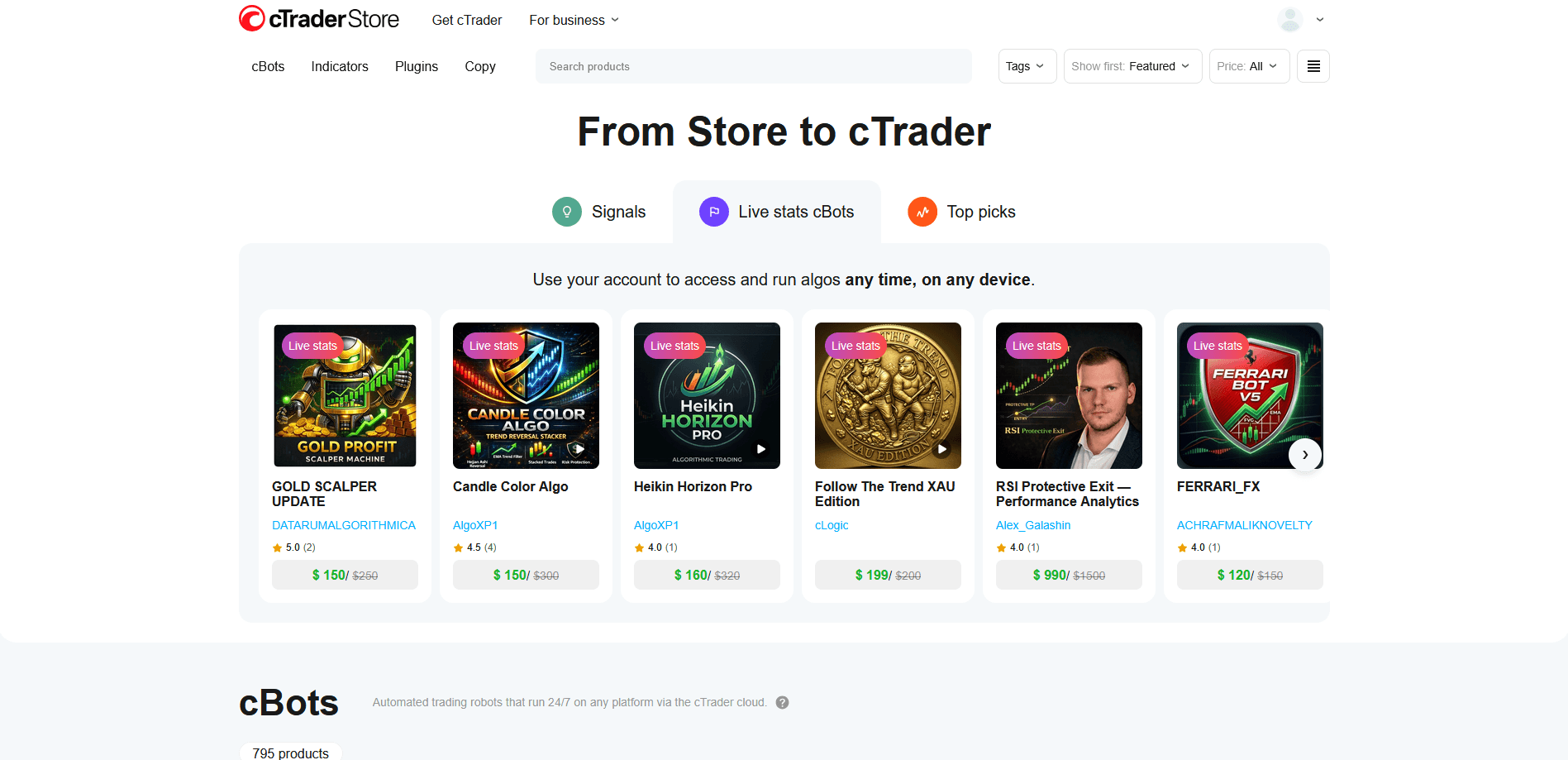
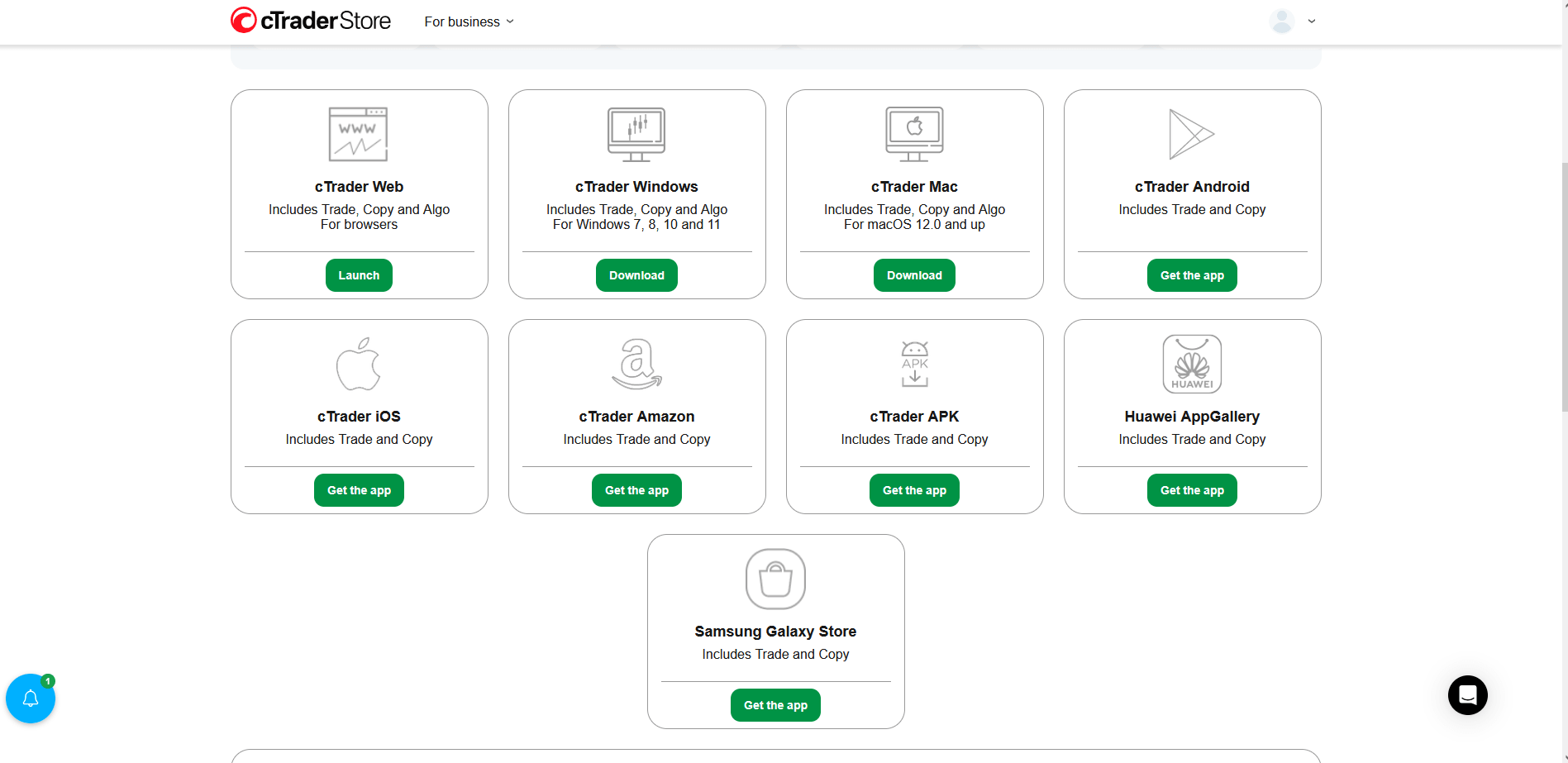
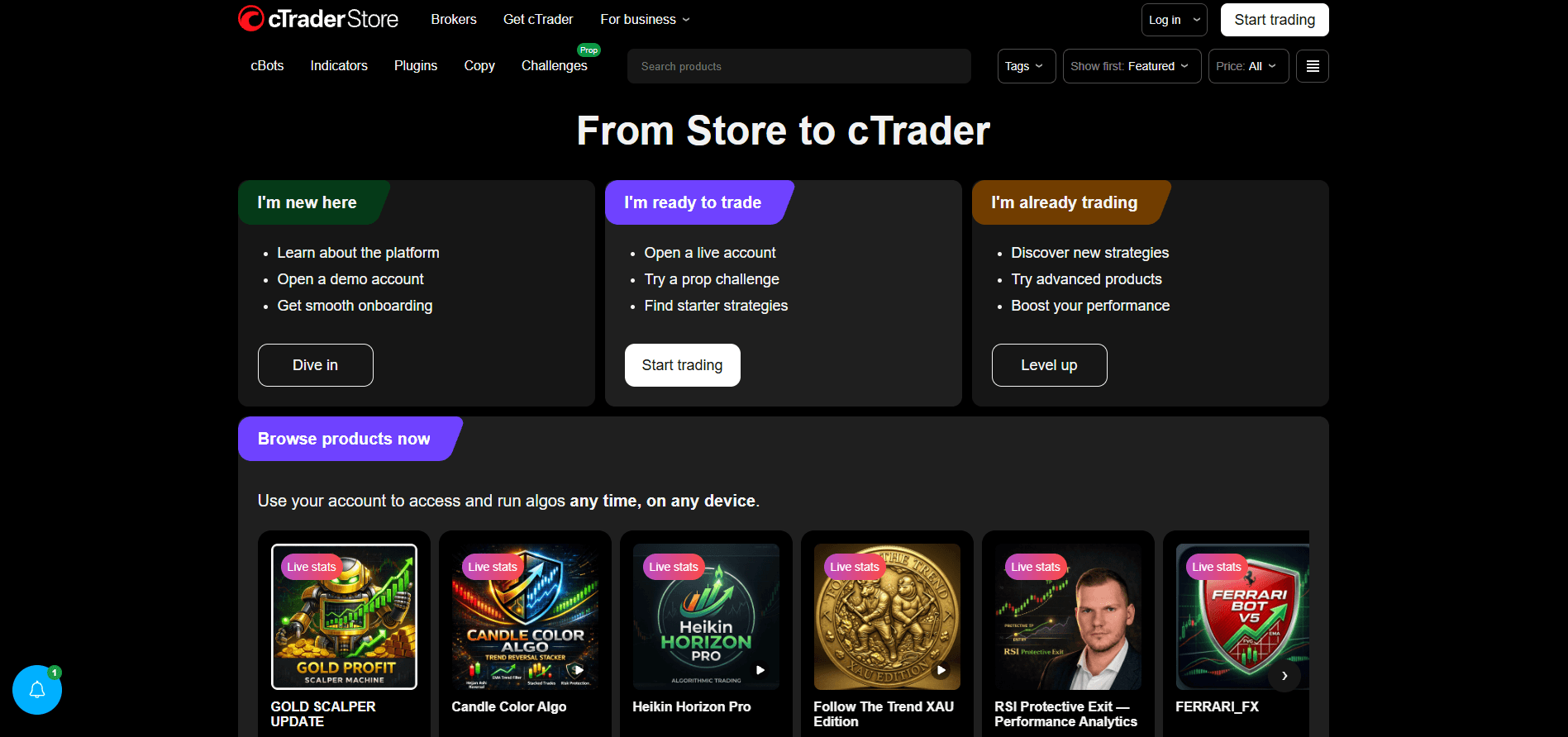
- Visit cTrader’s website and go to the “Get cTrader” page.

- Download the cTrader Windows installer. Save the file to a known location, such as your Downloads folder, so that you can easily verify what you opened.
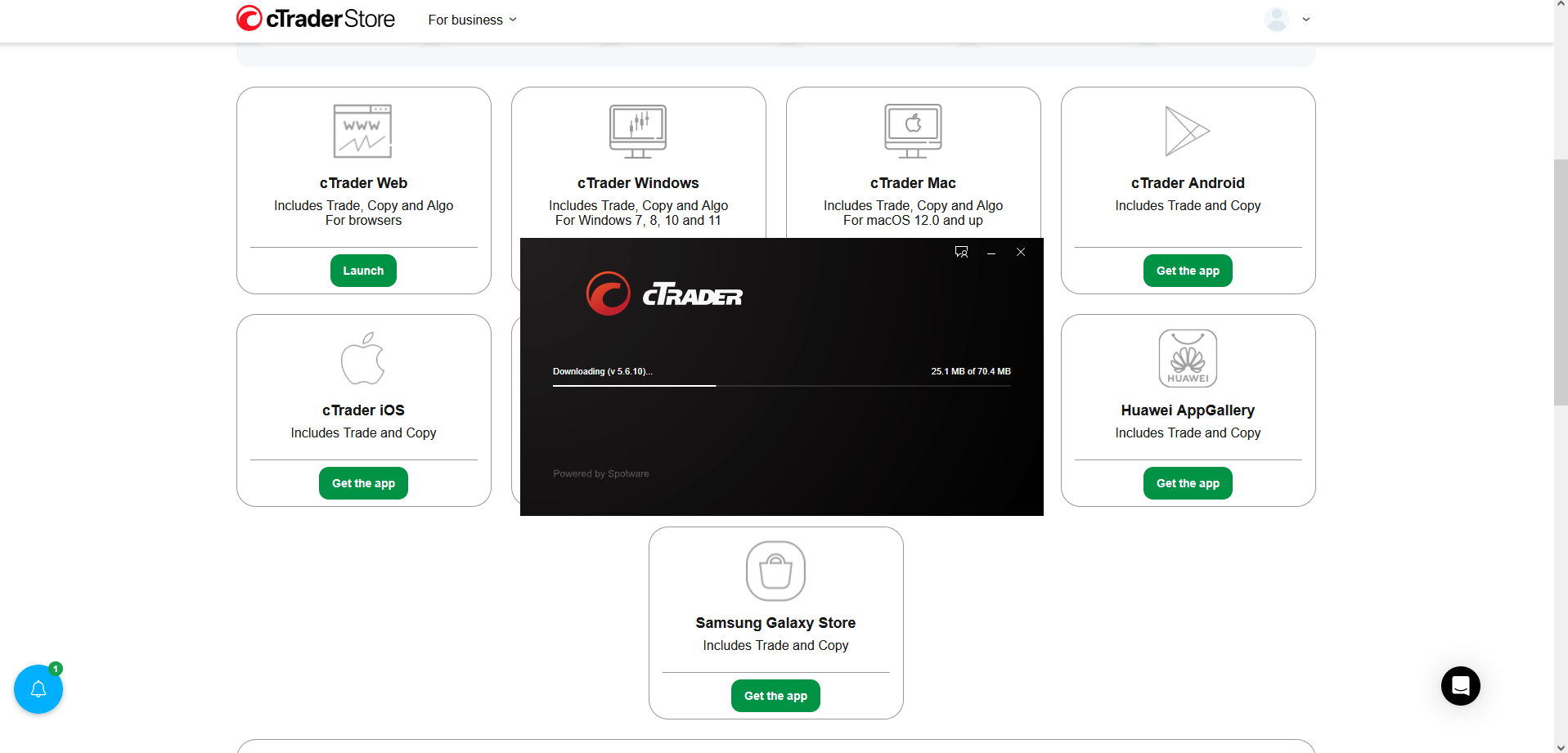
- Open the setup file by double-clicking it. If Windows asks whether you want to allow the app to make changes, read the prompt and confirm that the publisher and app name match what you expected. Once the software is installed, it will automatically launch cTrader.
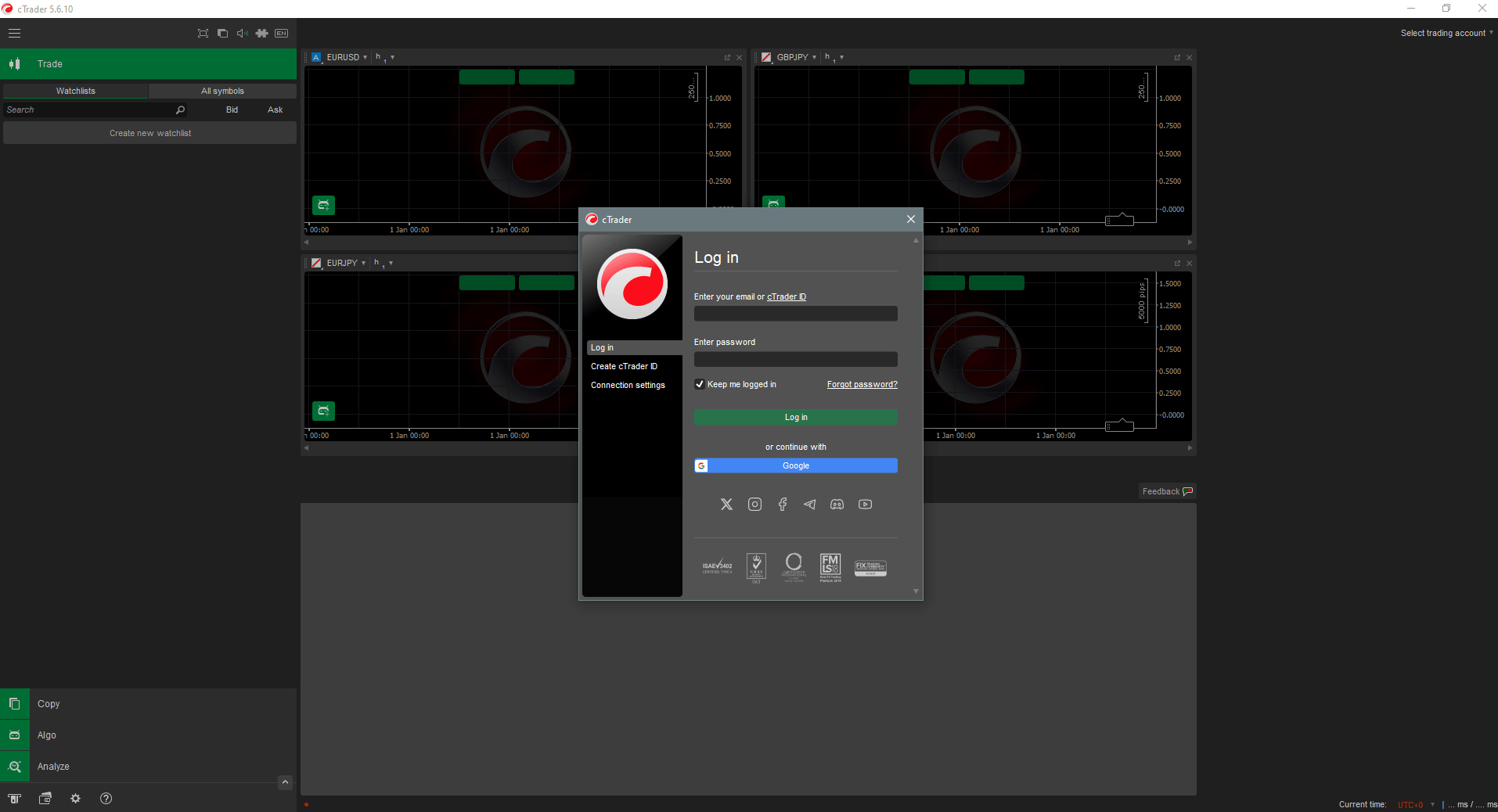
- Create a cTrader ID or log in if you already have one.
Some systems may also ask for firewall permission so the platform can connect to trading servers. Granting network access can be necessary for quotes and account login, but only do so if you are certain the installation source was valid.
How to Install cTrader on macOS
- First, launch cTrader’s official website and go to the “Get cTrader” page.
- Download the cTrader Mac installer. The .dmg file should be downloaded in a folder you can find easily.
- Double-click the .dmg file, then drag cTrader onto your Applications folder.
- Find cTrader in your Applications folder and launch the program.
- Now, you will be prompted to either log in with your cTrader ID or create one. With this, you are ready to start using cTrader.
How to Install cTrader Through Your Broker
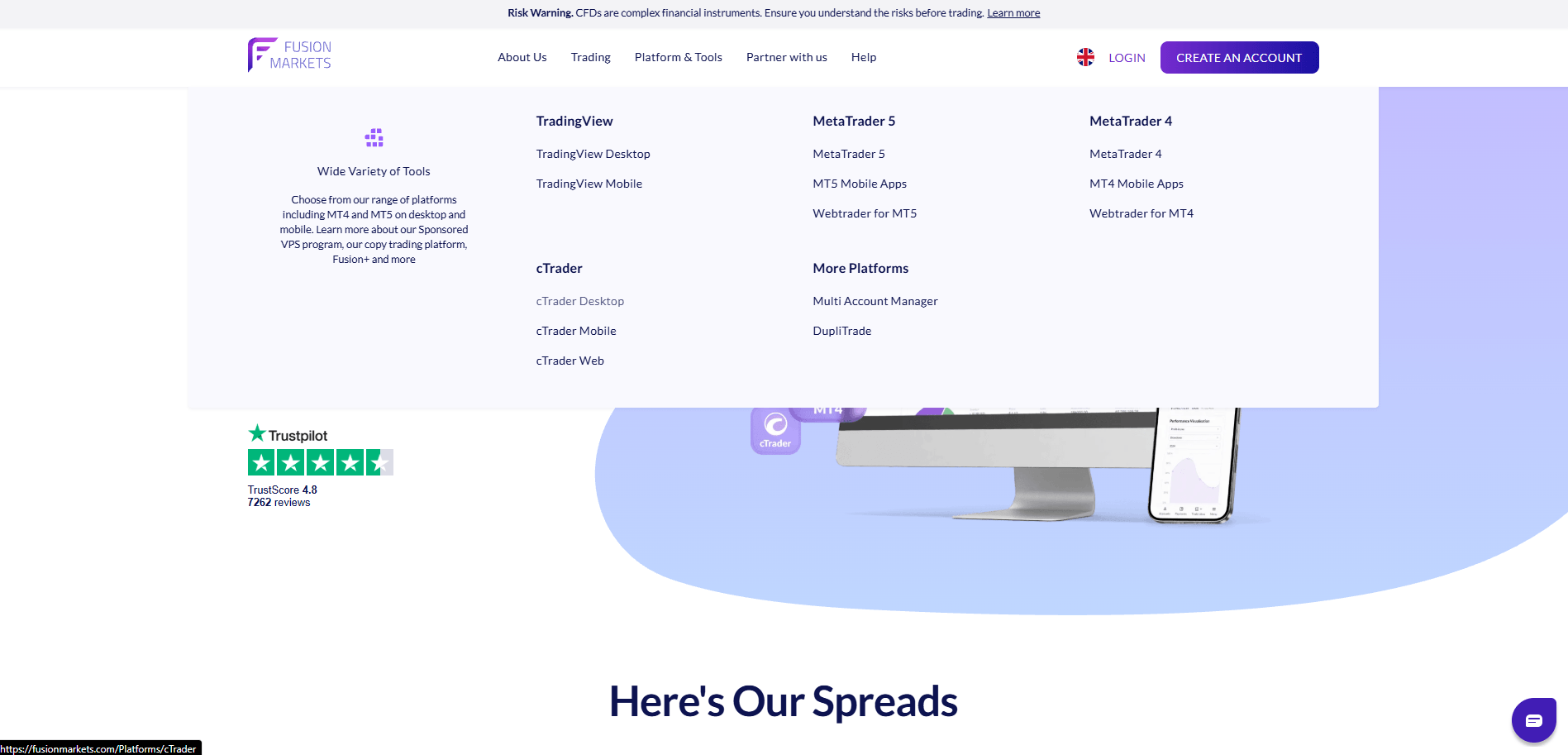
- Pay a visit to your broker of choice and find the broker’s list of platforms and select cTrader. For this demonstration, we will use Fusion Markets.
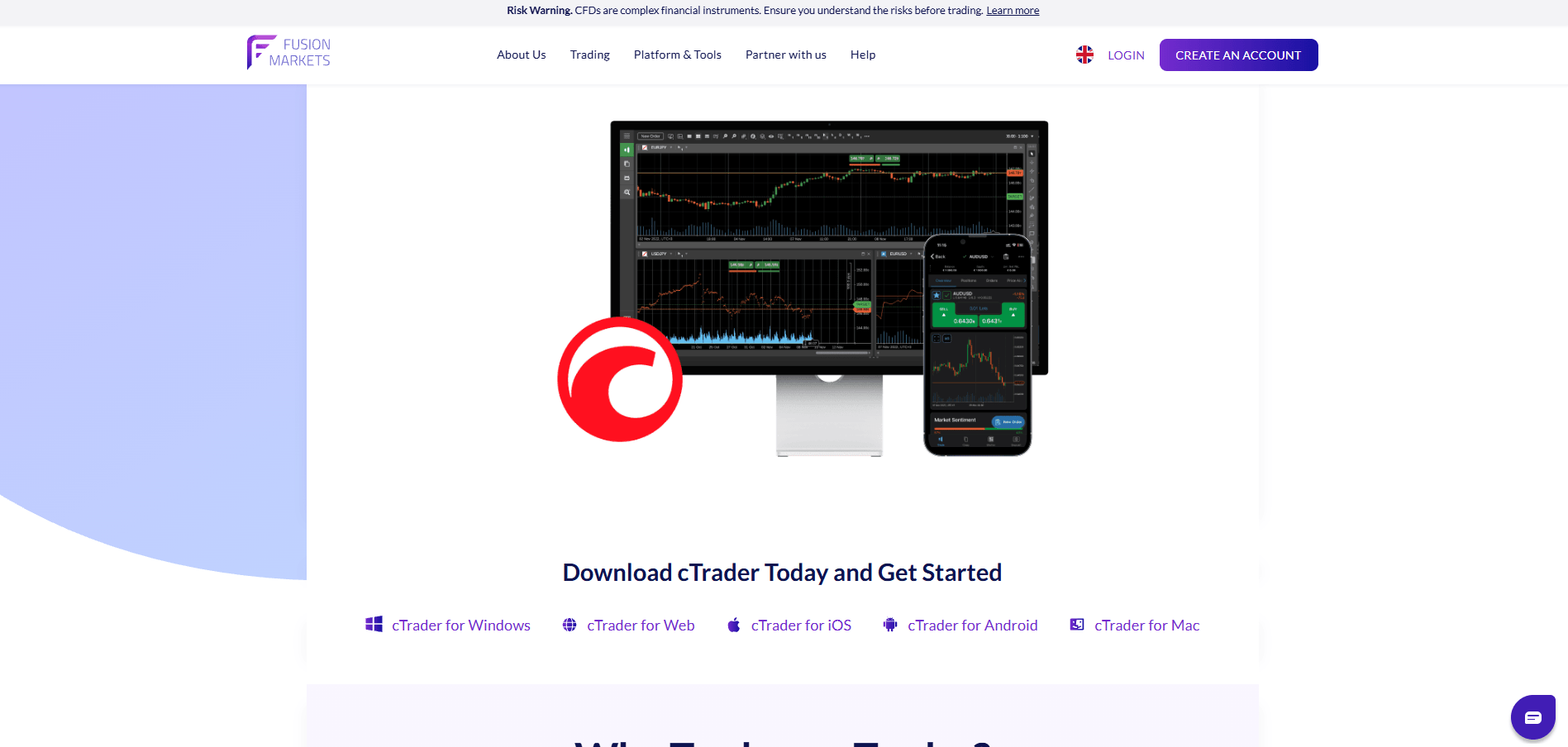
- Scroll down and choose the option appropriate for your device. In this case, we will download cTrader for Windows.
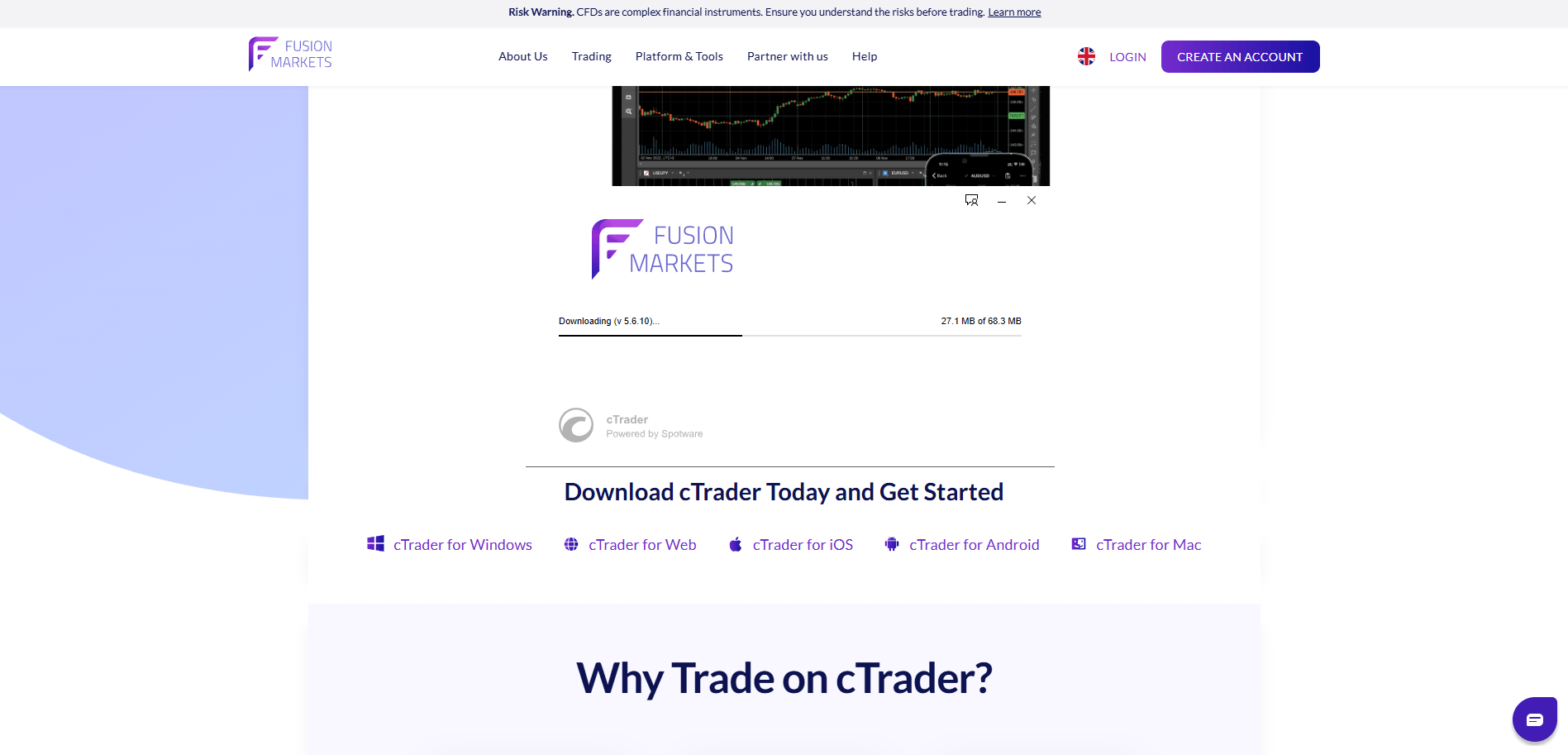
- Find the .exe file in your downloads folder and run it. This will launch the cTrader installer.
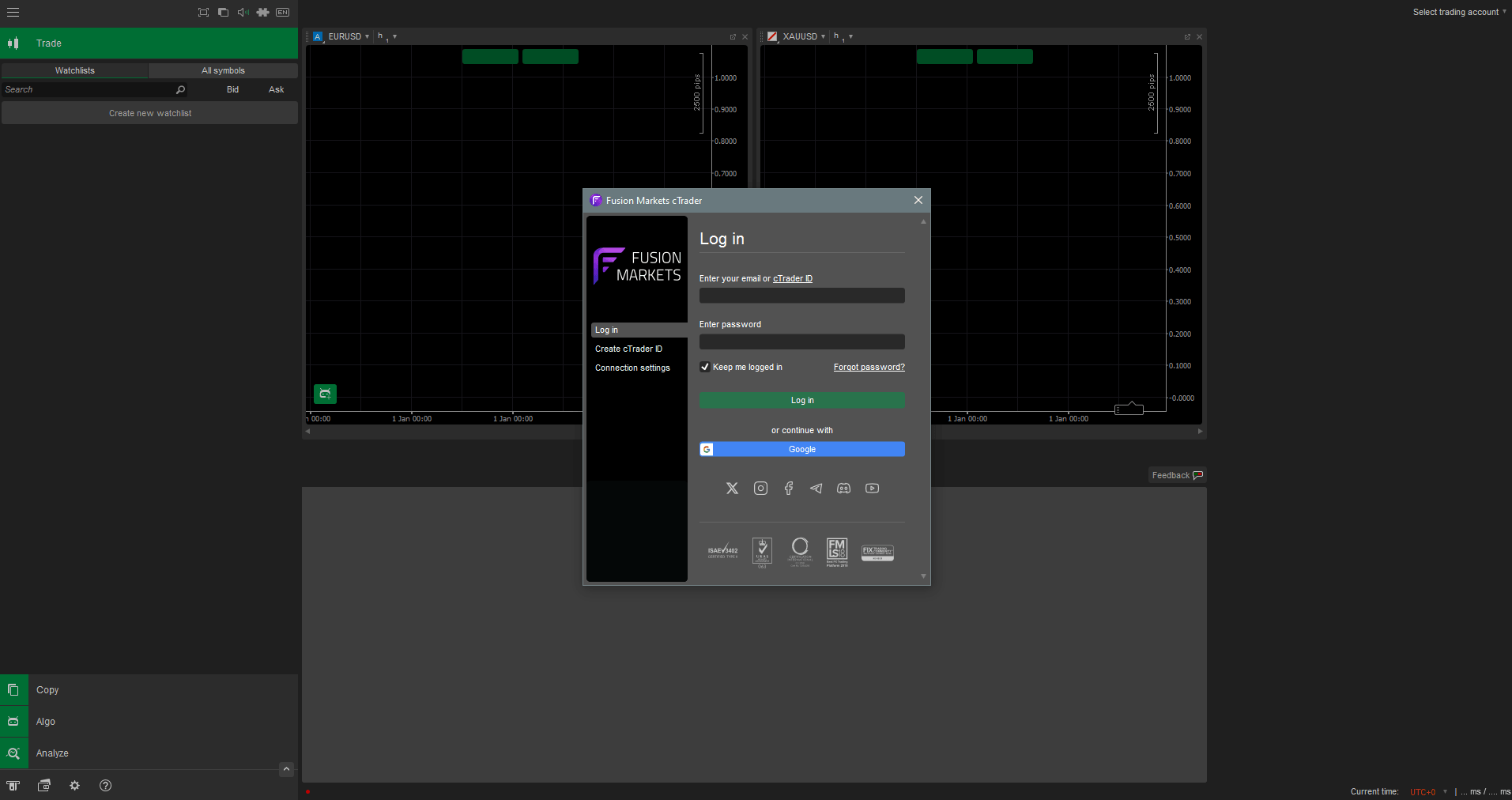
- Log in if you already have a trading account and a cTrader ID, or create a cTrader ID. Once done, you will be good to go.
Common Installation Problems
The most common installation problems are blocked permissions, incomplete downloads, or outdated Windows or macOS components. Furthermore, aggressive antivirus settings and corporate firewalls may also block the installation.
When installing cTrader on our Windows test device, our antivirus software flagged and blocked the installation file from executing. To resolve this problem, we whitelisted the file by adding it to our antivirus exclusion list. On our macOS test machine, the installation wizard halted due to insufficient disk space, and fixing this problem was a matter of freeing up enough space.
To resolve any issues that may arise, make sure that your machine has enough space and try downloading the file again from the verified source. If you use a Windows machine, running as administrator may help.
You should also verify that your security software has not quarantined components of the installer. If your antivirus halts the installation, make sure that the file is safe and either whitelist it or download and initiate the installation process after temporarily disabling your antivirus. If the issue persists, contact your broker’s customer support team.
Here is a summary of how to troubleshoot potential installation issues:
- Check that Windows or macOS is up to date.
- Review antivirus or firewall alerts.
- Make sure you have enough free disk space.
- Try a personal computer if your work device blocks installations.
- Re-download the installer from the original trusted source.
How to Use cTrader Web
cTrader Web is the browser-based version of the platform. It is designed for users who want cTrader access without installing additional software on their devices. We confirmed that by using cTrader Web, users still get charts, watchlists, order entry, and account views, but the experience depends on the client’s browser and device. For active live trading, browser stability and internet quality matter just as much as the platform itself. cTrader Web is compatible with the following browsers:
- Mozilla Firefox
- Google Chrome
- Microsoft Edge
- Safari
How to Access cTrader Web
- To access cTrader Web, first visit the official cTrader website or your broker’s homepage.
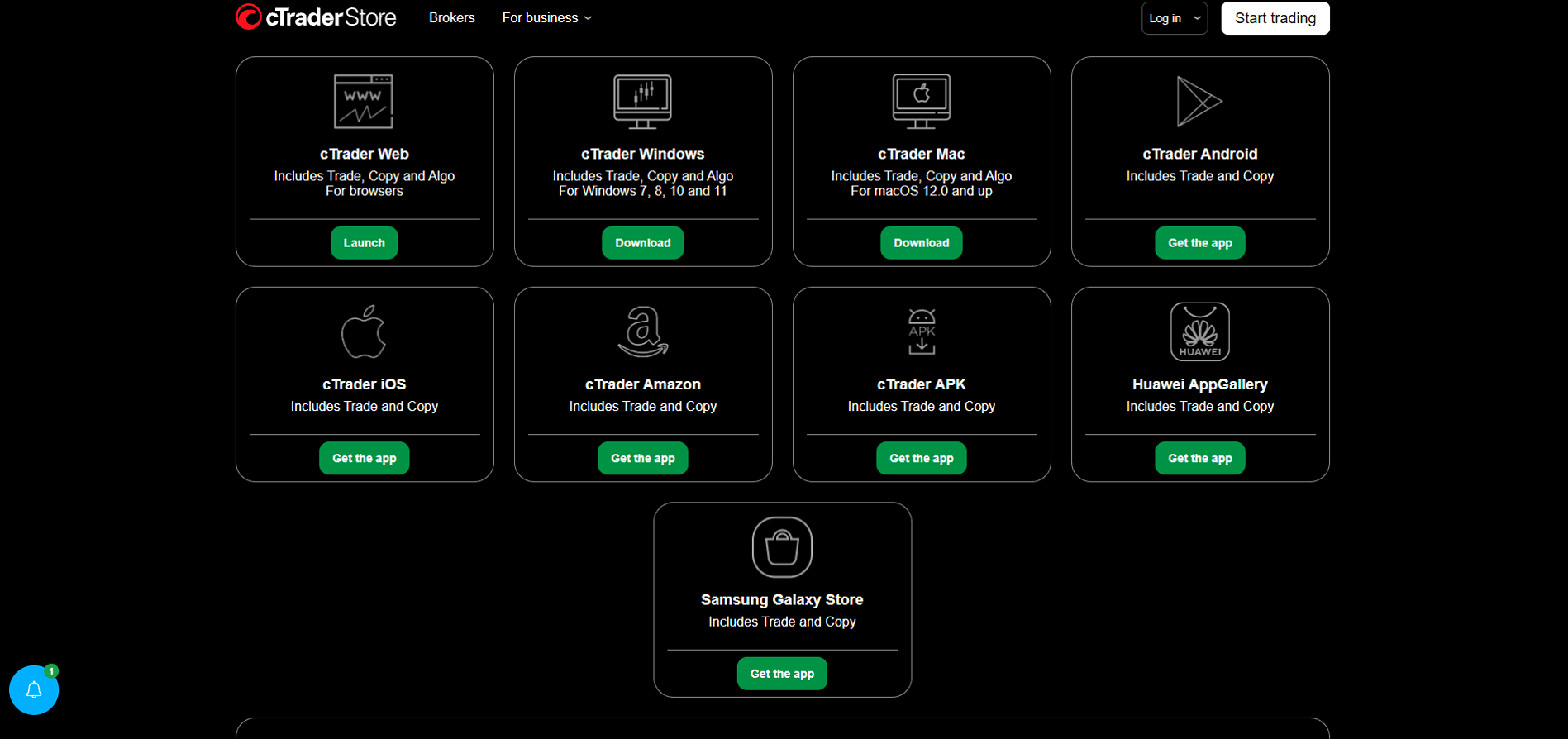
- Go to “Get cTrader” and select the “Launch” button under cTrader Web.
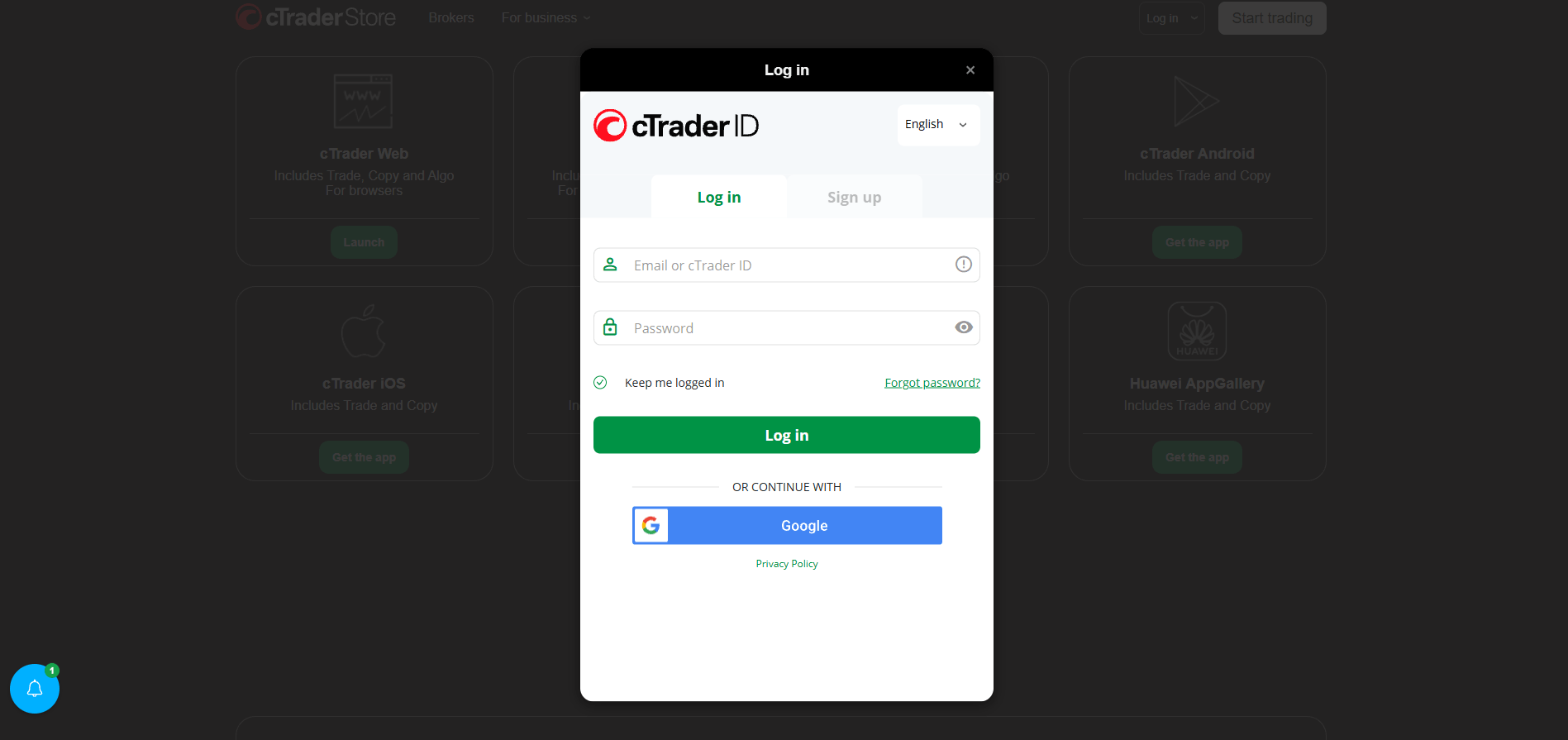
- If you are not logged in, you will be prompted to do so or to create a cTrader ID.
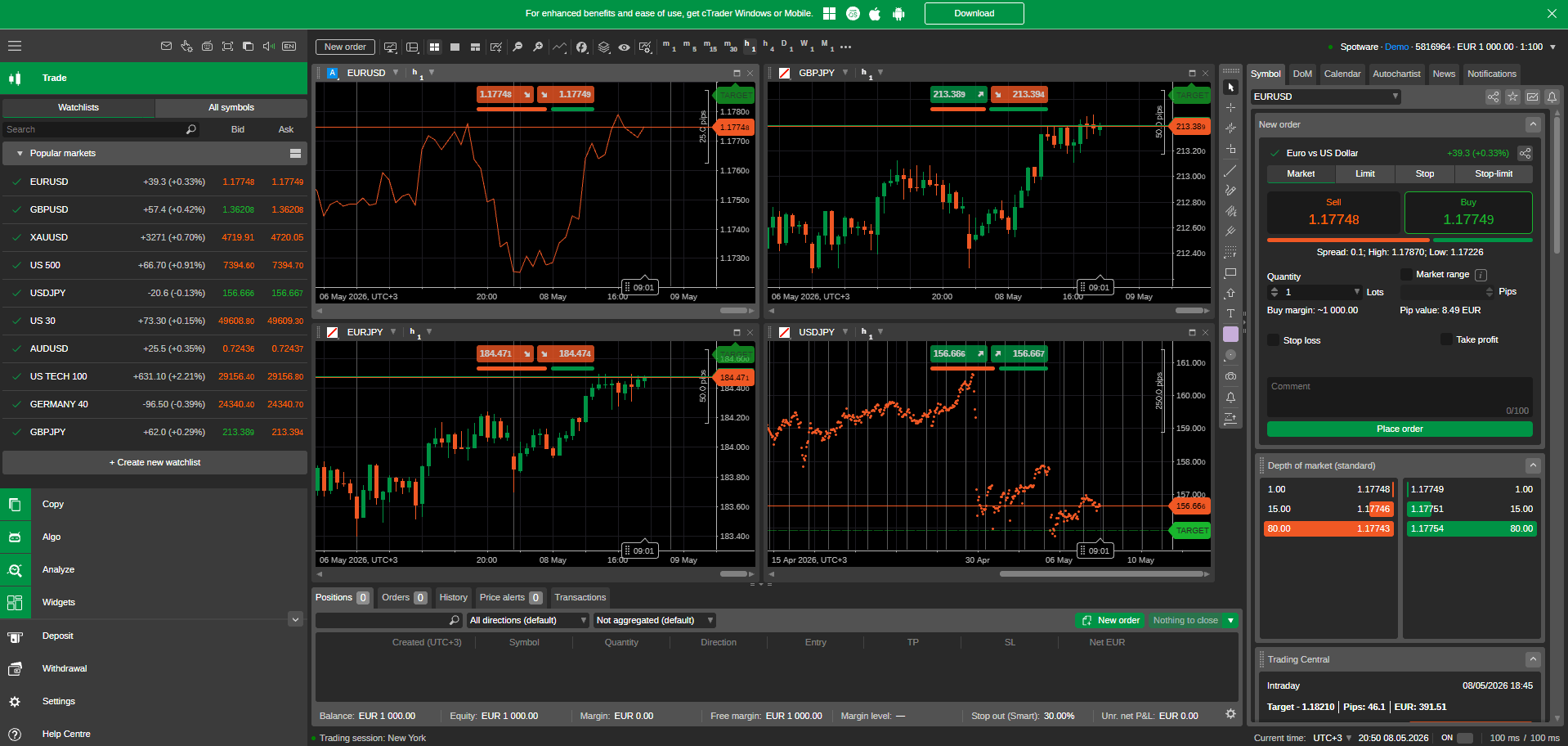
- Once you have successfully logged in, select the Launch button again. This will lead you to the cTrader Web interface.
Bookmark the cTrader page once you are done so that you are less likely to mistype the address later.
Security Tips for Browser-Based Trading
When logging in through a browser, check the full web address before entering any credentials. Then choose the correct account or broker connection and sign in with the right details. If you use multiple accounts, label them clearly. Browser sessions can stay active longer than you expect, so always log out manually when you finish, especially on any device that is not exclusively yours.
Keep your browser updated, avoid public Wi-Fi for live trading, and do not save trading passwords if other individuals use the device and browser. Consider using a trusted password manager instead of the browser’s built-in password save on non-private devices. Also, be careful with browser extensions. An unnecessary extension can interfere with pages, capture data, or reduce security.
cTrader Web vs cTrader Desktop
We consider cTrader Web excellent for flexibility, while cTrader Desktop is stronger in terms of its workspace setup and automation capabilities. As established, cTrader Web’s cBot capabilities are limited, and traders can only use them through the cloud. In our experience, the desktop version is also more suitable for heavy chart usage. Essentially, if you plan to create cBots, use them for backtesting, use cTrader Automate, trade on multiple monitors, or wish to use a large number of charts, the desktop version is the more practical choice.
How to Install cTrader on Mobile
The installation process on your mobile device is dependent on your phone or tablet’s operating system. In this section, you will learn how to install cTrader on Android smartphones and tablets, as well as on iPhones and iPads.
Installing cTrader on Android Smartphones
Installing cTrader on an Android device should not take you long. To do so, simply:
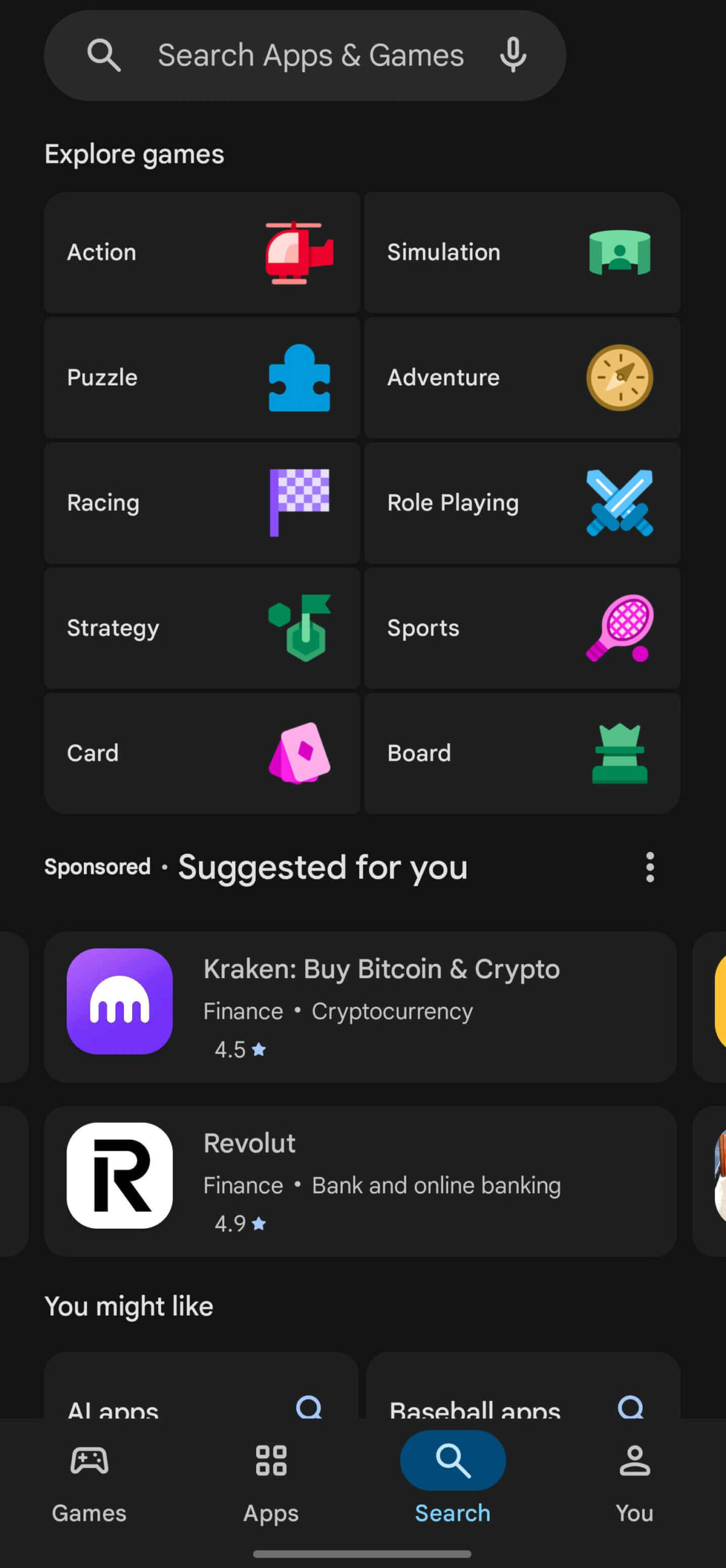
- Open Google Play. Alternatively, follow the link or scan the code that your broker has provided.
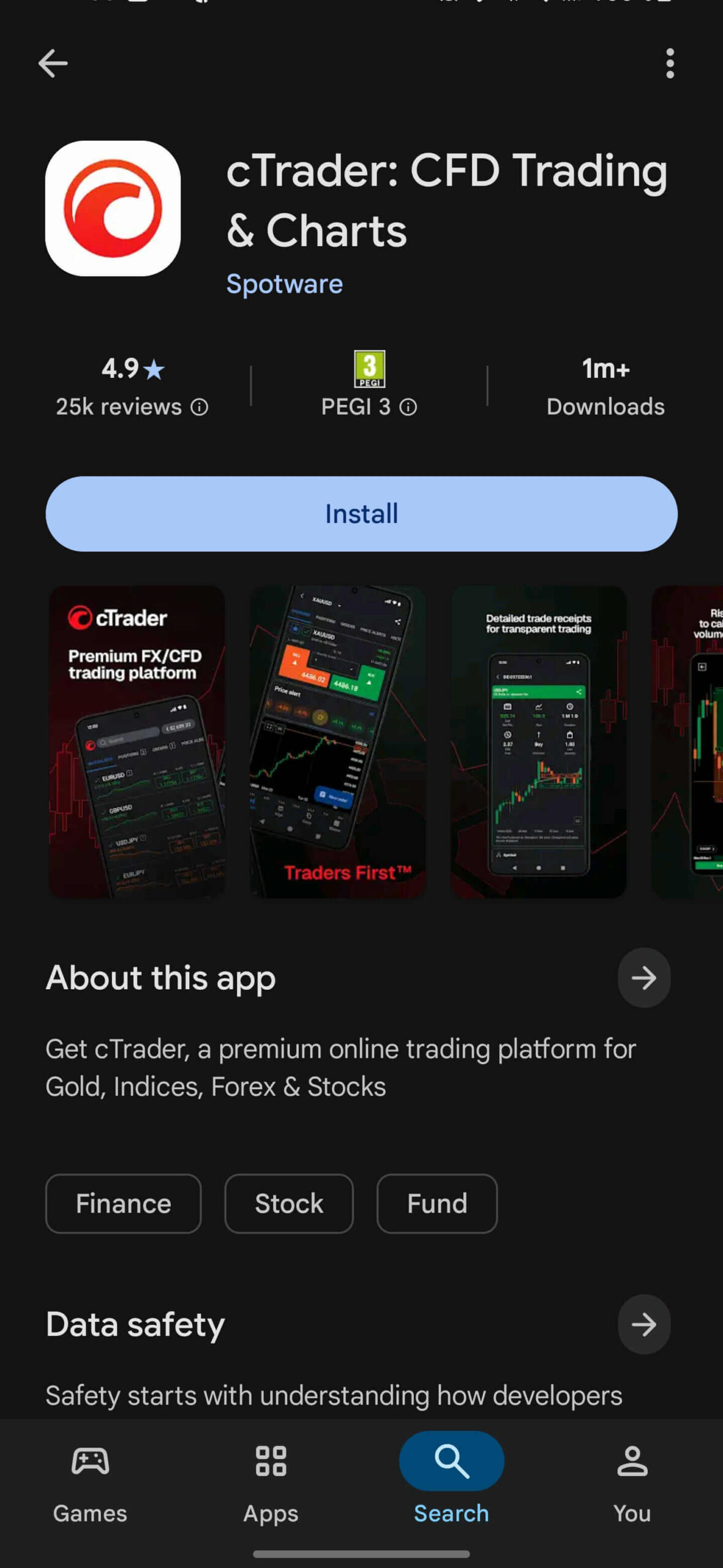
- Search for cTrader if you did not follow a direct link. Once again, we should stress that you should download either the main official app or the cTrader application for your broker of choice.
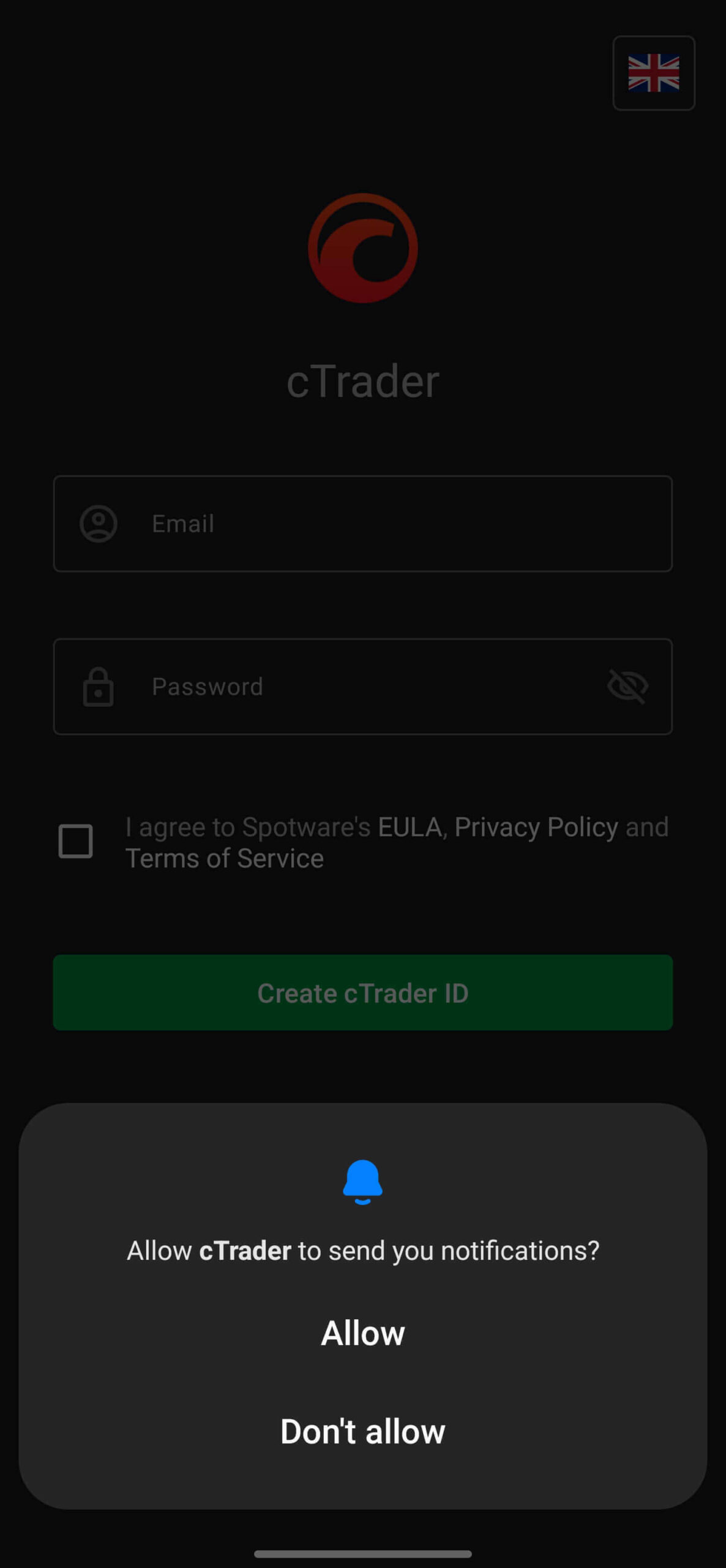
- Tap the “Install” button. After installation, you may be asked to allow notifications, which can be useful for order and price alerts. After enabling notifications, you can log in to your account.
Installing cTrader on iPhone and iPad
- On your iPhone and iPad, open the App Store and search for the app. If your broker offers one, you could also scan cTrader’s App Store QR code or follow the broker’s link to the app.
- Review the app page carefully.
- Install the app onto your device.
- Allow only the permissions you actually want the app to use or that are necessary.
iOS applications also allow users to enable push notifications.
Opening the Mobile App for the First Time
We found mobile cTrader useful for monitoring, opening and closing orders, and managing open positions. The user interface is convenient for use on mobile devices, although for power users, it might still prove less comfortable than the desktop version.
We must note that the app’s charting capabilities are not quite as strong as those of the desktop versions, and in our experience, it is not really possible to create a workspace with multiple visible charts. A smaller screen can also increase order-entry mistakes. For that reason, it can be best for beginners to use mobile mainly for alerts and checking positions, while learning core platform functions on desktop or web first.
Certain features are either missing or not fully functional. When using cBots, for example, we could add, stop, and delete instances, but we were limited to cloud instances. We also confirmed that cBots cannot be used for backtesting on mobile devices.
Mobile App Limitations Compared with Desktop
Based on our testing, the installation process on mobile is relatively smooth provided you have enough space and meet the minimum OS requirements. We found mobile cTrader useful for monitoring, opening and closing orders, and managing open positions. The user interface is convenient for use on mobile devices, although for power users, it might still prove less comfortable than the desktop version.
We must note that the app’s charting capabilities are not quite as strong as those of the desktop versions, and in our experience, it is not really possible to create a workspace with multiple visible charts. A smaller screen can also increase order-entry mistakes. For that reason, it can be best for beginners to use mobile mainly for alerts and checking positions, while learning core platform functions on desktop or web first.
Certain features are either missing or not fully functional. When using cBots, for example, we could add, stop, and delete instances, but we were limited to cloud instances. We also confirmed that cBots cannot be used for backtesting on mobile devices.
Setting Up Your cTrader Account
To use cTrader, you will need to create a cTrader ID (cTID). This is your platform-level login for accessing certain cTrader services and syncing your setup. There are two ways to make a cTID:
- Creating an independent cTrader account: This involves going to the official cTrader website and registering through your preferred platform version. Note that if you go with this option, you will need to use your cTID email to create a broker account for the two to be connected.
- Using your broker account: If you have already created a broker account, you can follow the broker’s web trader link or download the broker’s version of cTrader on your device of choice. From there, you can create your cTID. Once again, the emails need to match.
Do not reuse the same password for both your broker account and cTrader account. If your broker offers multi-factor authentication, enabling it can add another layer of protection.
Logging In with cTrader ID
Once your cTrader ID is ready, you will be able to sign in through the platform and confirm that the account shown is yours. If you use more than one broker, cTrader ID allows you to manage all accounts under the same cTID. If you trade on a desktop, the list of accounts is accessible through the button at the top right. Make sure to select the correct broker, and always confirm whether the connected account is demo or live before you trade.
Connecting a Broker Account
If you made a cTID prior to registering at a given broker, you will need to ensure that you create your brokerage account with the same email you use for your cTID. This applies to any future trading accounts you wish to be compatible with this cTID.
Alternatively, if you already have an account at a brokerage and wish to switch to cTrader, you will have to create your cTID with the same email. Moreover, you may also need to use the broker’s dedicated cTrader programme, app, or web application. At IC Markets, for example, you can install IC Markets LTD cTrader (Windows), IC Markets Global cTrader (iOS app), use the web version, and the like.
Opening a Demo Account
A demo account is the right place to learn order types, chart tools, and position management without risking real money. You could also use it to test out strategies that have no proven track record thus far, or you are not sure they would suit your trading style.
Depending on the broker, you may open it from the broker’s website or the platform itself. Start with a realistic virtual balance if your goal is to practice disciplined risk management. Going with substantial virtual funds can result in reckless trading habits that may translate poorly when you switch to a live account.
Switching Between Accounts
cTrader can show multiple trading accounts based on account type and the broker associated with the said account. Thus, it is best to get into the habit of checking the active account before every session. Switching between demo and live can result in one of the most serious beginner mistakes: placing a real trade when you thought you were still practicing. A quick account check before each order can prevent that problem.
Fixing Login and Broker Connection Errors
If login fails, first confirm that you used the correct email and password. Then check internet access, app version, and any password reset emails from the broker or cTrader ID system.
If you have not reset your password, you can click “Forgot password” and proceed to do so. Once you have set up your new password, you should be able to log in. However, if the issue persists, contact support through the broker’s official website. Avoid “support” contacts found in comment sections or chat groups, as they cannot be trusted and may lead to scams or trick you into downloading malicious software.
cTrader Interface Overview
cTrader’s user interface is relatively intuitive, and even complete novices to trading will get used to it in no time. Below, we will cover all of the key components of the UI, particularly the interface of the desktop and web versions of cTrader. If you are interested in the mobile interface, you will find more information in the cTrader Mobile App Overview section.
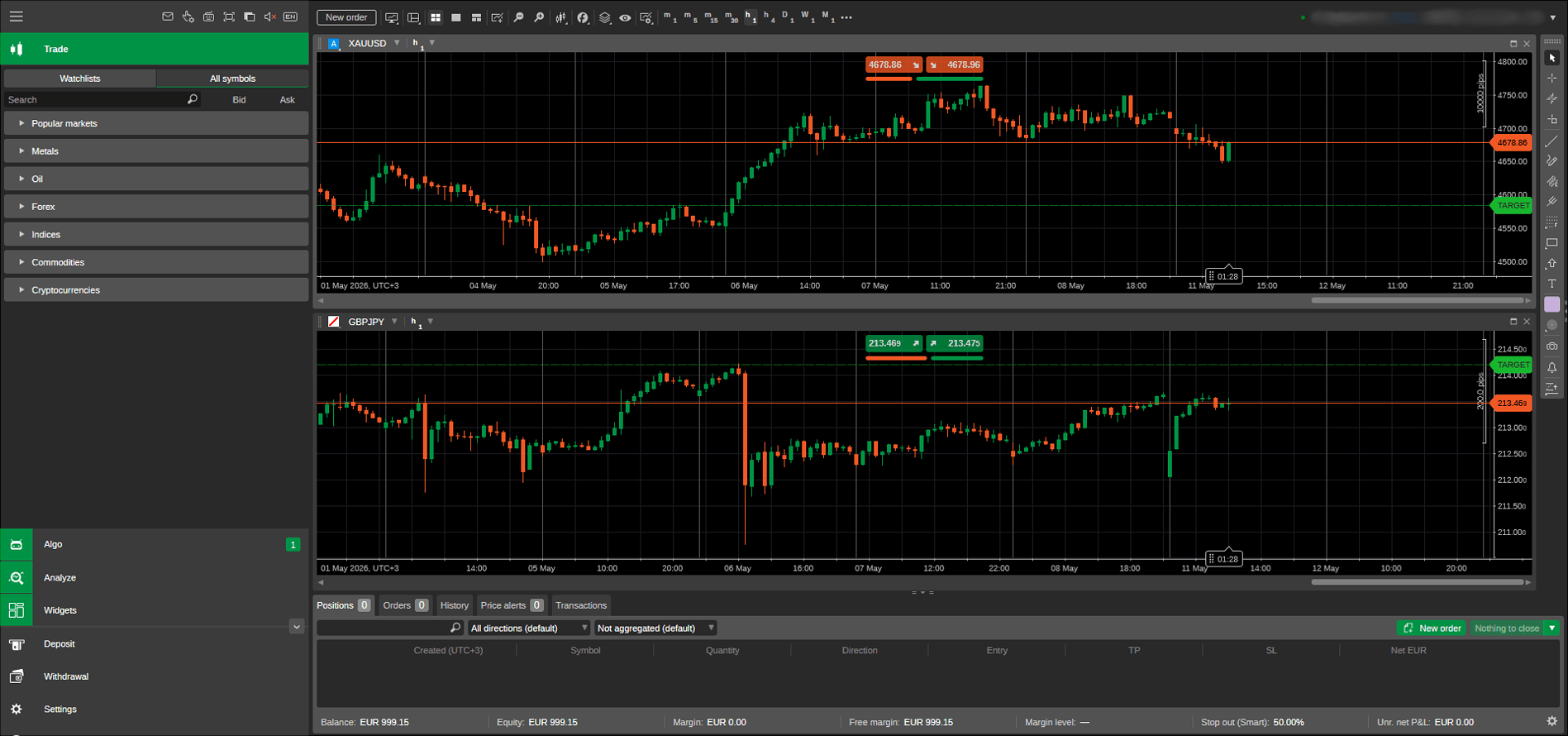
In the screenshot above, you can view the Watchlists on the left, along with the menus for algorithmic trading, analysis, widgets, deposits, withdrawals, and settings. Two chart windows display the price movements of XAU/USD and GBP/JPY. The drawing tools menu is situated on the right.
Main Menu
The main menu is your navigation hub for switching between core sections such as trading, charts, copy trading, automation, deposits and withdrawals, analysis, and more. On different versions of cTrader, the menu may appear as a side panel, tab bar, or top navigation area. Learning this menu first makes the rest of the platform much easier to understand.
Watchlists
Watchlists display groups of trading instruments along with live prices and basic quote data. The default watchlist is dubbed “Popular markets,” and some brokers have set up additional defaults, but you can also create your own. They help you organize what you want to watch instead of searching the full market list every time. A clean watchlist is especially useful for beginners because it reduces clutter and lowers the chance of opening the wrong symbol by accident.
Active Symbol Panel
The active symbol panel shows the currently selected instrument and its key details, such as current price, buy and sell buttons, depth of markets (DOM), and often quick-access symbol information. Think of it as the control area for the instrument you are focused on. Before placing a trade, verify that this panel shows the exact symbol you intended to trade.
Chart Area
The chart area is where you analyze price action. It shows historical price data and is where you apply indicators, drawing tools, and chart templates. At the top, you will also find the chart toolbar, which features the “New order” button, options to switch between the single, multi-chart, and free-chart modes, a selection of chart types, technical tools ranging from oscillators to Bollinger Bands, and more.
The instrument toolbar is located on the right. It grants quick access to tools such as crosshair, market snapshot, drawing tools, chartshot, and price alerts, to name a few.
Trade Watch
Trade Watch is the area where you monitor open positions, pending orders, price alerts, your transaction history, and trading history. It is one of the most important panels in the platform because it shows what is actually happening in the account, not just what the chart seems to suggest. Beginners should check Trade Watch frequently when learning order management.
Algo Section
The Algo section is where cTrader handles algorithmic tools such as cBots and custom indicators. It is aimed at users who code strategies or test automation. Even if you do not write code yourself, the cTrader store features a plethora of user-created cBots that are either sold or available for free. However, it is best to treat them cautiously, as not all cBots will be suitable for your trading strategy.
Copy Section
The Copy section is where users can review copy trading strategies and choose whether to allocate funds to them. At a glance, users can view the given strategy’s strategy provider, when the strategy was created, the minimum required investment, the ROI (which is also represented in chart form), provider and investor funds (updated live), and the maximum leverage. The menu also includes a chart of the strategy’s performance.
Clicking on a strategy will provide further details such as the strategy’s description, number of investors, base currency, performance, management fees (represented in percentages), and the volume fee.
This area is separate from manual trading, but it still carries market risk. Copying another strategy does not remove the possibility of loss, and a strategy with impressive past returns can still fail during different market conditions. As always, you should remember that past performance does not guarantee future results.
Analyze Section
The Analyze section is the reporting area for reviewing account performance, trade statistics, and historical behavior. It helps you look at patterns such as win rate, drawdown, profitability by symbol, or time-of-day performance. This section is particularly useful once you have enough demo or live trading history to review objectively.
Widgets
This section houses a range of tools that can be embedded on external websites. The widgets in the default cTrader platform include cTrader Web, Market Watch, Your Strategies, Single Strategy, Multiple Strategies, and Market Chart.
Working with Watchlists
Watchlists are accessible from the trading screen or the left-side market panel. When you first open the platform, you may see the default symbol group “Popular markets” or other default groups from your broker. These are only starting points. You can use them as-is, but most traders benefit from building a smaller custom list of instruments they actually follow.
Creating a Custom Watchlist
Creating a custom watchlist helps you group instruments by market, session, or strategy. For example, you might keep one list for major forex pairs and another for commodities or indices. A focused list reduces distractions and can improve execution discipline. It also lowers the chance of placing an order on a similarly named symbol that you did not mean to select.
Making a watchlist is relatively easy:
- In the Trade tab, pick Watchlists and select “+Create new watchlist.”
- Name the watchlist as you see fit.
- Click the + button to view the symbols you can add to your watchlist. The viable options will depend on your brokerage, but usually you will see market categories such as forex (EUR/USD, GBP/JPY, etc.), metals (XAU/USD), US Shares (BEST BUY), and other popular options.
- To add a symbol, click the star to its right. With this, you are ready to use the watchlist.
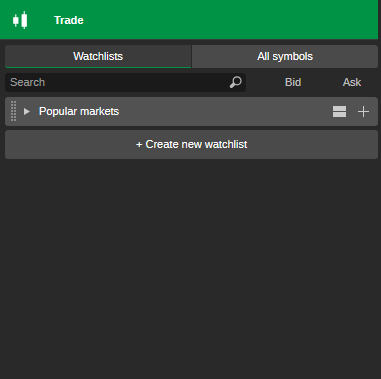
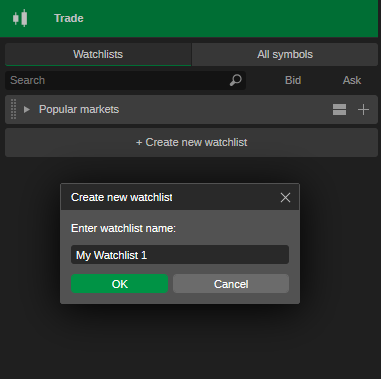
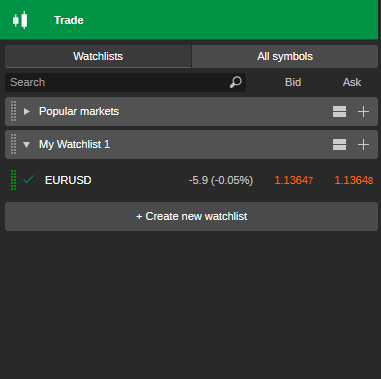
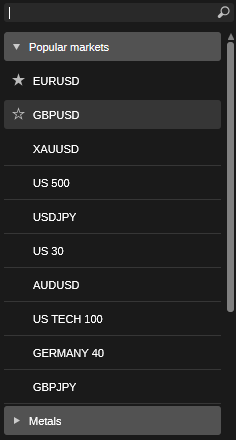
Note that if you would like to remove a symbol, one of the ways to find this option is by right-clicking on the watchlist. This menu will also allow you to rename your watchlist, duplicate it, or delete it. Additionally, it provides shortcuts to the Market Watch settings and Asset settings.
Watchlist Symbols
You can usually add symbols through a search field, the add button, or the context menu, and remove them the same way. Search by symbol code or instrument name, and check the full result carefully before selecting it. Brokers may use suffixes or region-specific naming, which can create similar-looking instruments with different contract details.
Removing a symbol from a watchlist does not remove it from your account permanently; it only cleans up your current view. If a symbol will not add, it may be unavailable for your account or hidden by broker permissions.
Most symbols have an information panel where you can review trading hours, minimum volume, price increment, contract size, and other conditions set by the broker. Reading this information before trading is good practice. It helps you understand how the product works and whether the volume you are about to enter fits the symbol’s allowed size increments.
To open a given symbol’s chart, select the instrument from your watchlist. Always glance at the symbol name once the chart opens, especially if you use the multi-chart or free-chart modes.
Understanding the Bid-Ask Spread
The bid is the price at which a trader can sell an instrument, and the ask is the price at which a trader can buy it. The difference between them is the spread.
Spreads can change throughout the day, especially in volatile periods, around market open and close, or on less liquid instruments. While some brokers offer fixed spreads, the majority allow their clients to trade with floating spreads.
The lowest floating spread you can use is dependent on your broker and account type. Typically, zero-commission accounts have minimum spreads of at least 1 pip, while commission-based accounts allow clients to use spreads from 0.0 pips.
Working with Charts in cTrader
You can open a new chart from a watchlist, symbol panel, or instrument search. If you already have several charts open, naming or grouping them in a logical layout can help. For beginners, it is better to start with one or two charts and understand the controls before building a complex workspace with many tabs and panels.
Below, you will learn about cTrader’s charting features:
Chart Types
In terms of chart types, cTrader supports candlestick, bar, dot, area, HLC, and line charts. Candlesticks are widely used because they show open, high, low, and close data clearly. Line charts are simpler and can help reduce visual noise. The chart type does not change the market itself; it only changes how price information is displayed for analysis.
Timeframes
Timeframes let you view the same instrument over different periods, such as minutes, hours, days, or more. Lower timeframes show more short-term movement and noise, while higher timeframes smooth out detail and show broader structure. Timeframes are a useful tool, but they can create confusion if you over-analyze every possible view instead of following one consistent process.
Zooming and Scrolling
Zoom controls help you see either more market history or more short-term price detail. Scrolling allows you to review previous moves, structure, and reaction zones. When learning, zoom out occasionally to understand the wider context of the market. A trade that looks attractive on a tight zoom can look very different once you see the larger trend or recent volatility.
Crosshair and Chart Tools
The crosshair tool helps you inspect exact price and time points on the chart. It enables measuring distance, comparing highs and lows, and checking candle values precisely. Chart tools like rulers or object selectors can also make analysis more organized. These tools are especially helpful when you are learning to place stops and targets more deliberately.
Arranging Multiple Charts
cTrader allows you to work with more than one chart at a time, either as tabs or side-by-side layouts. This is useful if you compare several instruments or timeframes. However, too many open charts can slow decision-making and tempt you to overtrade. A smaller, repeatable chart setup is often better than a large but poorly monitored layout.
Saving Chart Layouts
A chart layout saves the way your charts are arranged, which helps you use the exact same workspace during each trading session. Saving layouts is practical if you use different screens or trading styles at different times. It also reduces the risk of accidentally losing a well-organized setup after an update, restart, or account switch.
Using Chart Templates
Templates usually save chart-specific settings such as indicators, colors, and style, so you can apply the same setup to another instrument quickly. This is different from a full workspace layout. Templates save time, but avoid applying the same indicator-heavy template blindly to every market. Different instruments can behave differently and may need different analysis.
Indicators and Analytical Tools
You can add indicators from the chart menu or the indicator library. Indicators are there to support analysis, and it is best to start with one or two simple tools you understand. Then, you can slowly expand as you learn more about trading and how different indicators are useful.
The following indicator categories are available:
| Technical Indicator Types | Examples |
|---|---|
| Trend | Accumulative Swing Index, Aaron, Exponential Moving Average, Supertrend, Directional Moving System |
| Oscillators | Cyber Cycle, MACD Crossover, Price ROC, TRIX, Mass Index |
| Volatility | Bollinger Bands, Chaikin Volatility, Historical Volatility, Standard Deviation, Keltner Channels |
| Volume | Ease of Movement, Pierce Volume Trend, Negative Volume Index, Volume ROC, Money Flow Index |
| Other | Fractals, Swing Index, High Minus Low, Pivot Points, Ichimoku Kinko Hyo |
On the WebTrader version of cTrader, you can find the indicators button on top of the chart windows. Clicking it opens a drop-down menu of each indicator category:
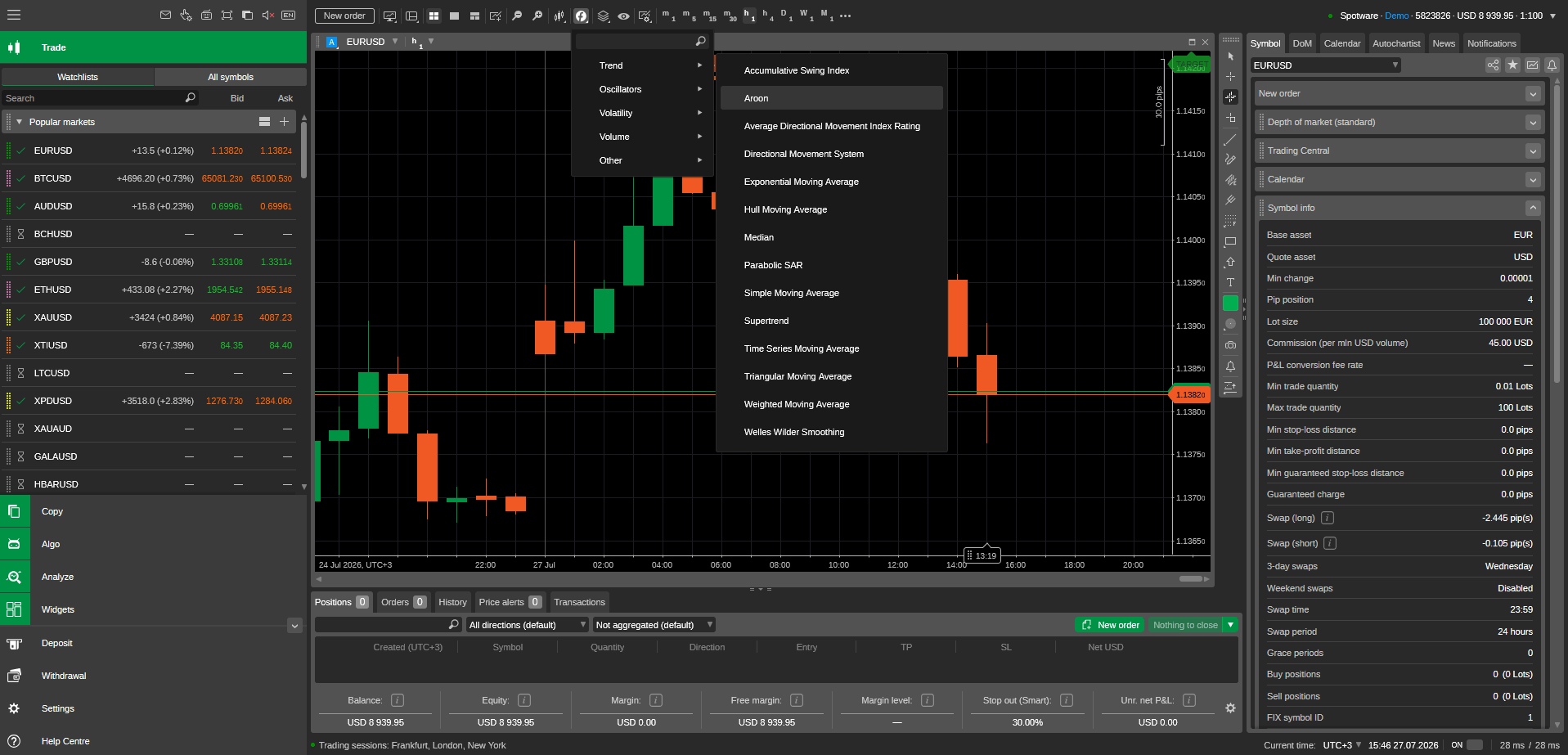
On the Windows version, the button above the chart windows opens the indicators menu in a separate window:
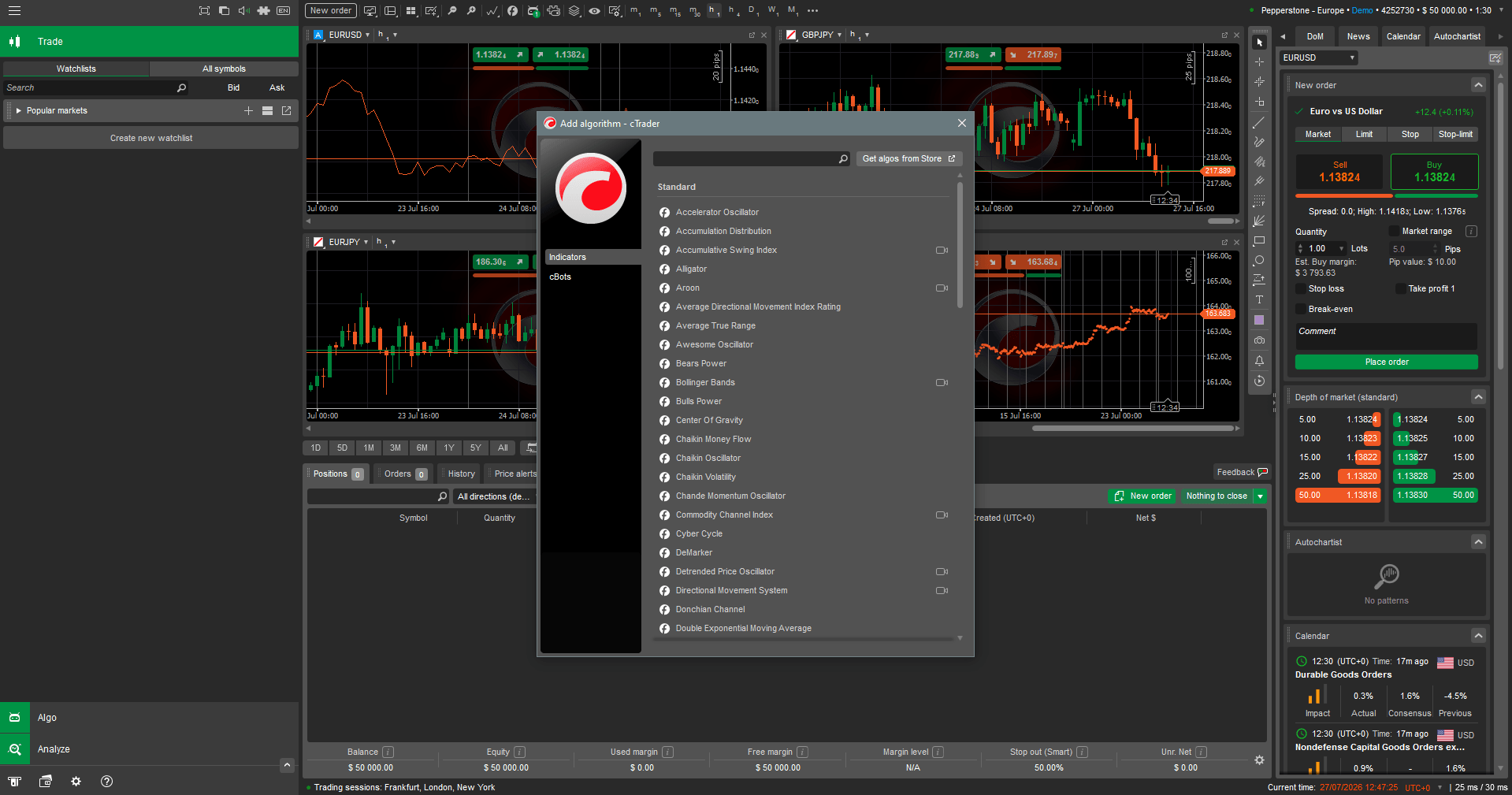
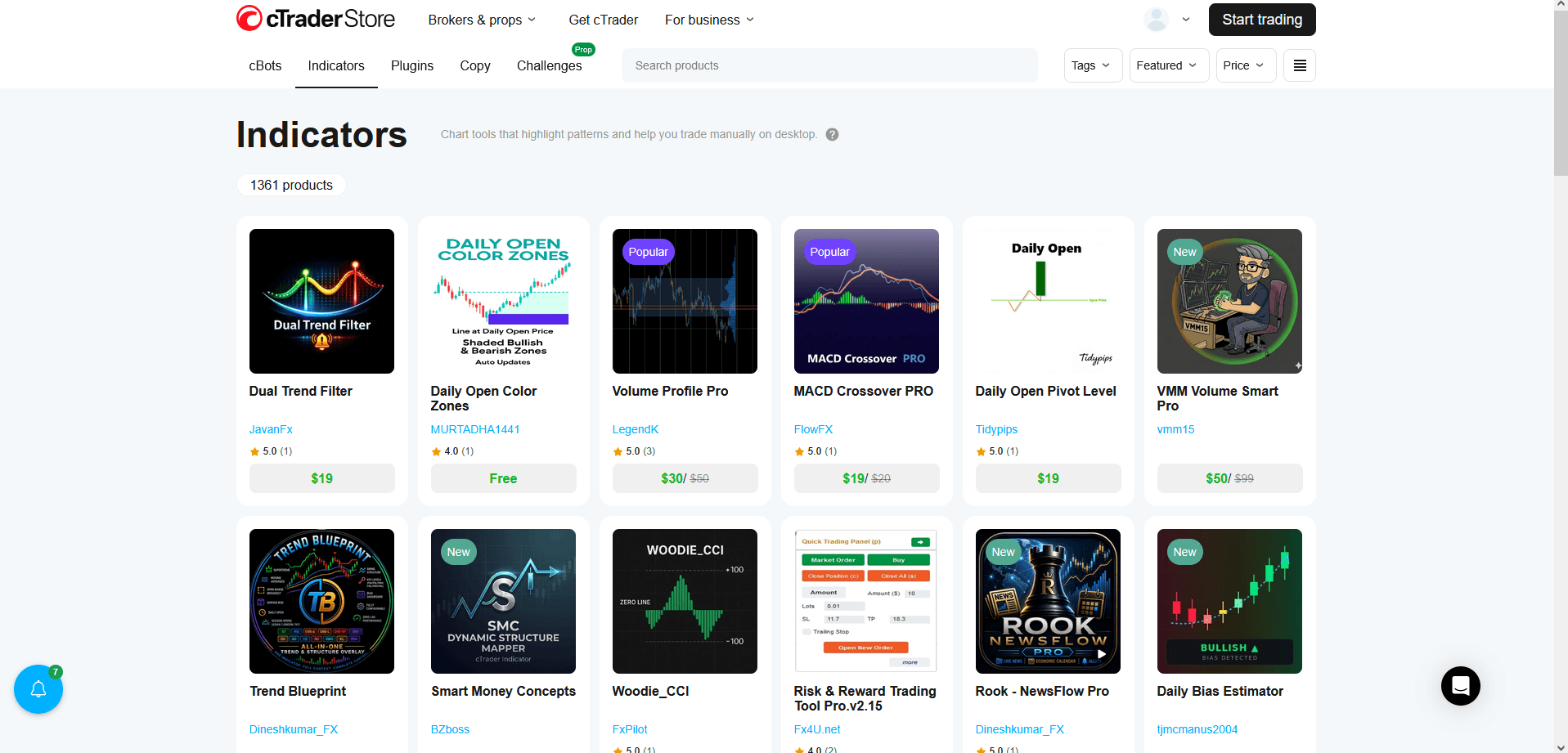
Apart from the built-in indicators, our team also examined the selection of indicators available on the cTrader Store. We accessed these indicators by visiting the cTrader Store from the Indicators window on the desktop version, or by opening the cTrader website directly in your browser and selecting the Indicators section.
At the time of writing, the cTrader Store features over 1,300 free and paid indicators:
Most indicators let you change inputs such as period length, price source, color, and line thickness. Small changes can alter how the indicator reacts to price, so do not change settings randomly. If you are testing a setup, keep notes and be careful about over-optimizing. A setting that looks perfect on old data may perform poorly in future markets.
If you use the same indicator combination often, save it as part of a template or chart preset so you can reuse it consistently. This improves routine and reduces setup errors. It also makes demo testing easier because you can apply the same analytical environment across different symbols and properly compare your trading strategies.
However, it is best to avoid chart overload. This happens when too many indicators, colors, drawings, and timeframes compete for your attention. Your device may slow down as a result, and it may also have a negative impact on decision-making. A cleaner chart often leads to clearer thinking, and if several tools tell conflicting stories, it is best to simplify your layout and remove some of the indicators.
Indicators can be removed via the object manager, and its button is located on the right of the indicators button. By hovering over it, you will find the option to delete all indicators at once.
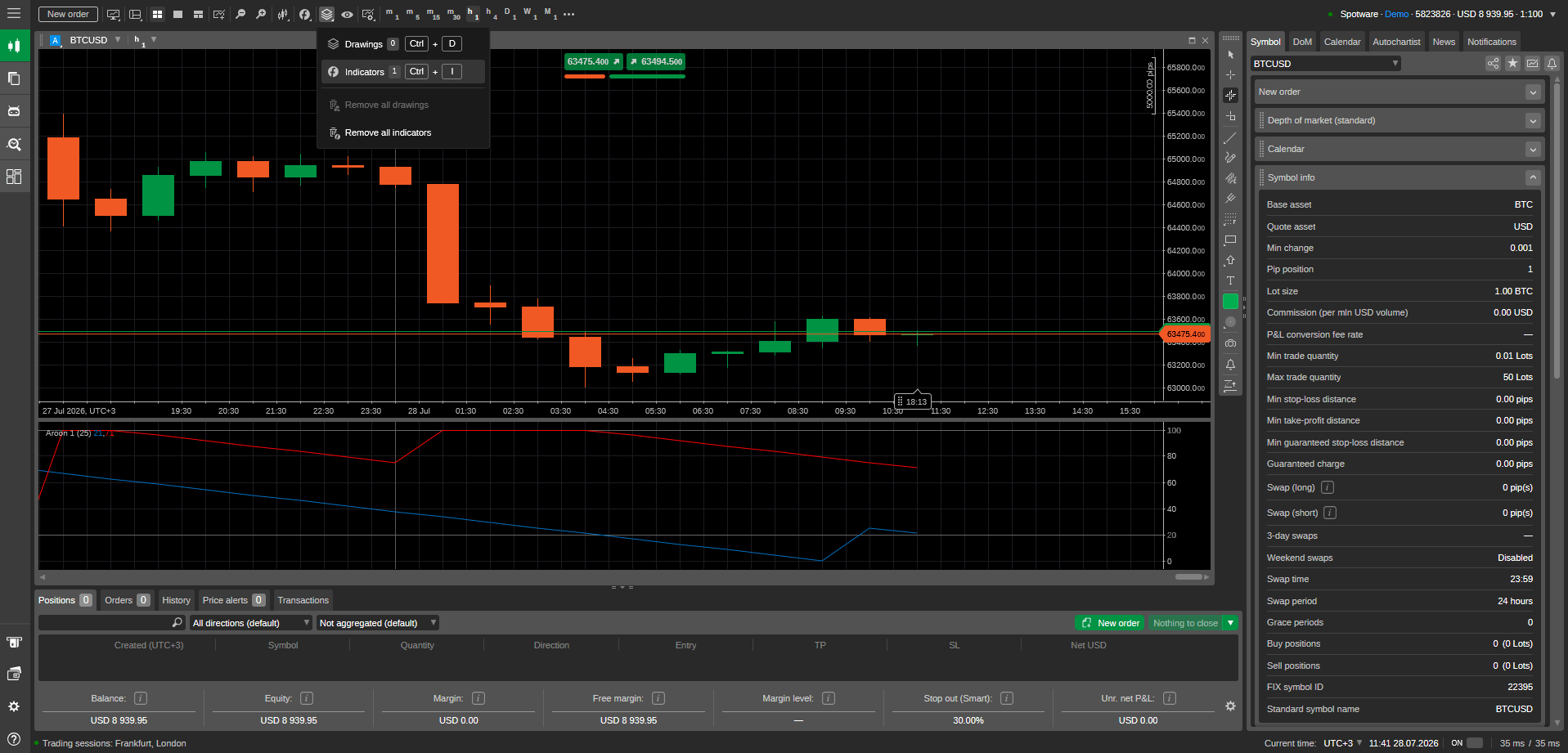
If you have multiple indicators and only wish to delete some of them, clicking the button will take you to the object manager menu.
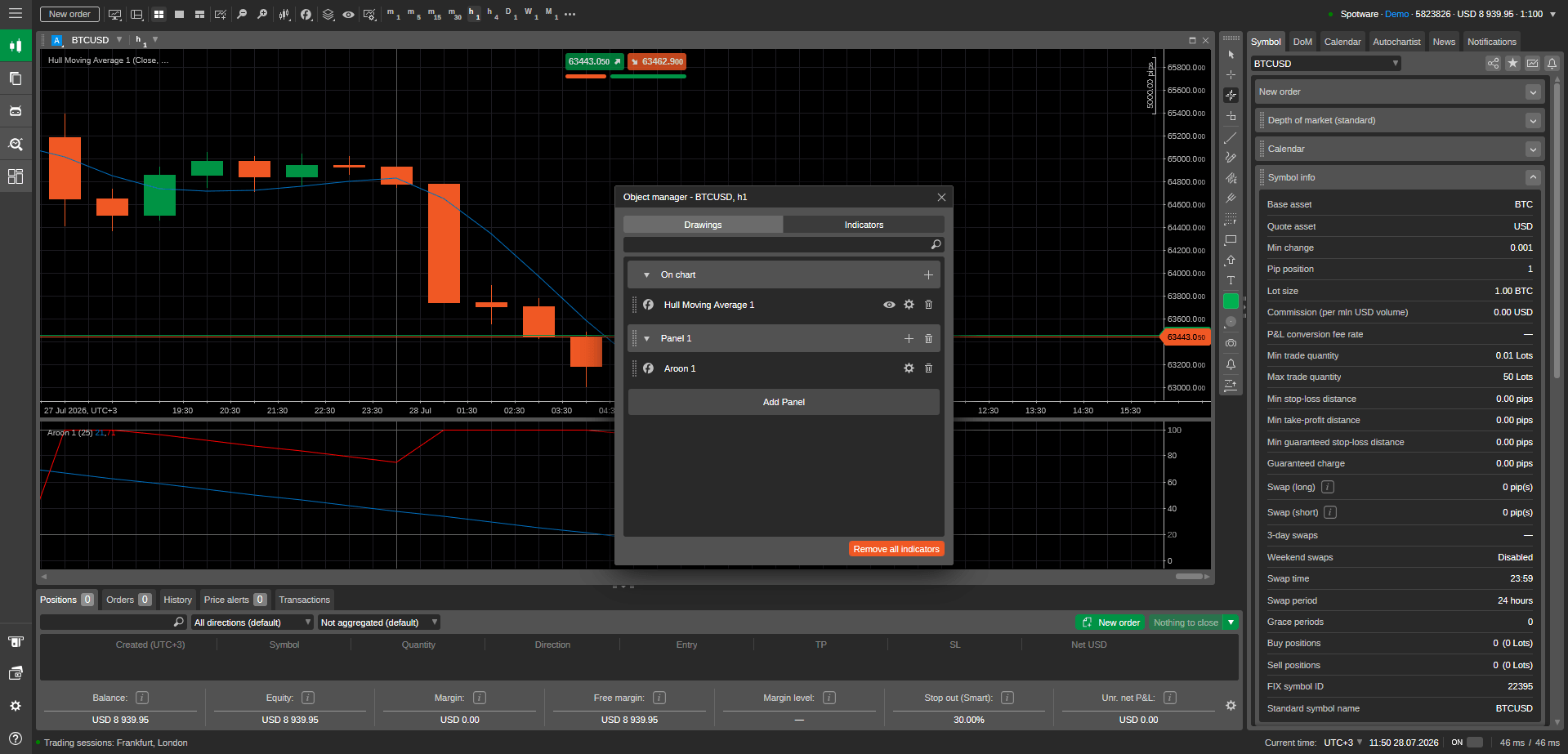
Indicators can usually be removed directly from the chart or from the list of applied studies. Clearing indicators you no longer use keeps the chart readable and reduces visual clutter. If your chart starts to feel crowded or contradictory, removing tools is often more helpful than adding new ones to solve the confusion.
Last but not least, we have drawing tools. They play a key role in the utilization of charts as they allow you to mark the chart with trend lines, horizontal levels, rectangles, channels, and notes. Trend lines can help visualize direction, while support and resistance areas can highlight previous reaction zones. Essentially, these are personal analysis aids useful for planning entries, stops, targets, and market structure.
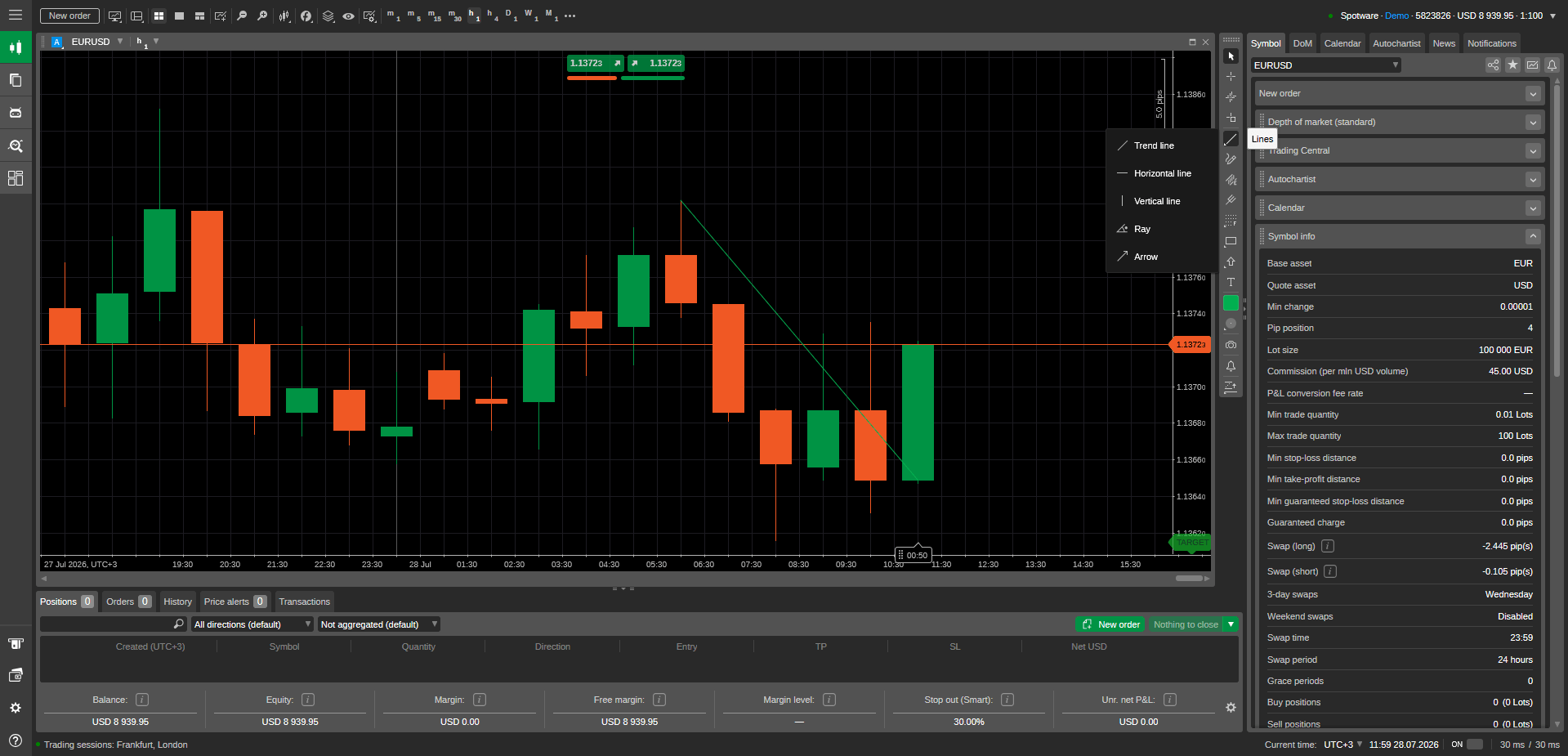
In the screenshot above, you can observe a trend line concerning the EUR/USD’s price movements.
Placing Orders in cTrader
Placing an order involves an order ticket. This is where you choose the symbol, volume, order type, and protective settings such as stop loss or take profit. You can usually open it from the chart, watchlist, or active symbol panel. Before entering anything, verify the account type, symbol, and whether you are about to place a market order or a pending order.
Volume is the size of your trade. In many forex markets, traders often talk in lots, but the actual contract size can vary by instrument and broker. cTrader may show volume in a way that reflects the broker’s setup, so always check symbol specifications. If leveraged products are available, a small increase in volume can make trading significantly riskier.
Modifying Positions
After a trade is open, you can usually edit stop loss, take profit, and other position details from the chart or Trade Watch. This flexibility is useful, but changes should be made for a clear reason. Moving a stop farther away after price moves against you increases risk and can turn a planned loss into a much larger one.
Positions can usually be closed manually from the chart, the position list, or a quick close button. Some platforms also allow partial closes if the broker supports them. Before closing, check whether you are closing the full position or only part of it. In a live account, every close action has a real financial effect, so avoid rushing this step.
Additional Features
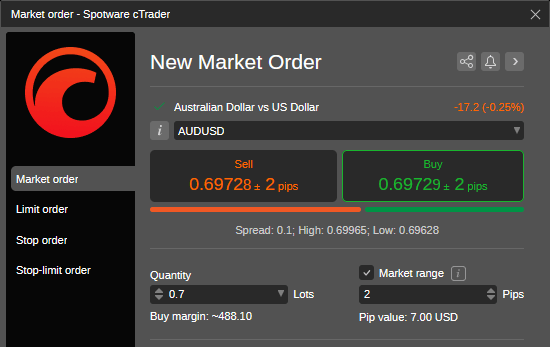
Market range settings define the maximum acceptable price deviation for a market order in some cTrader workflows. In simple terms, they can help you limit how far the execution price may move away from the expected level. If the range is too tight, the order may be rejected in fast markets. That can protect the price but also leave you unfilled. In the following screenshot, we have selected a market range of 2 pips for this AUD/USD position.
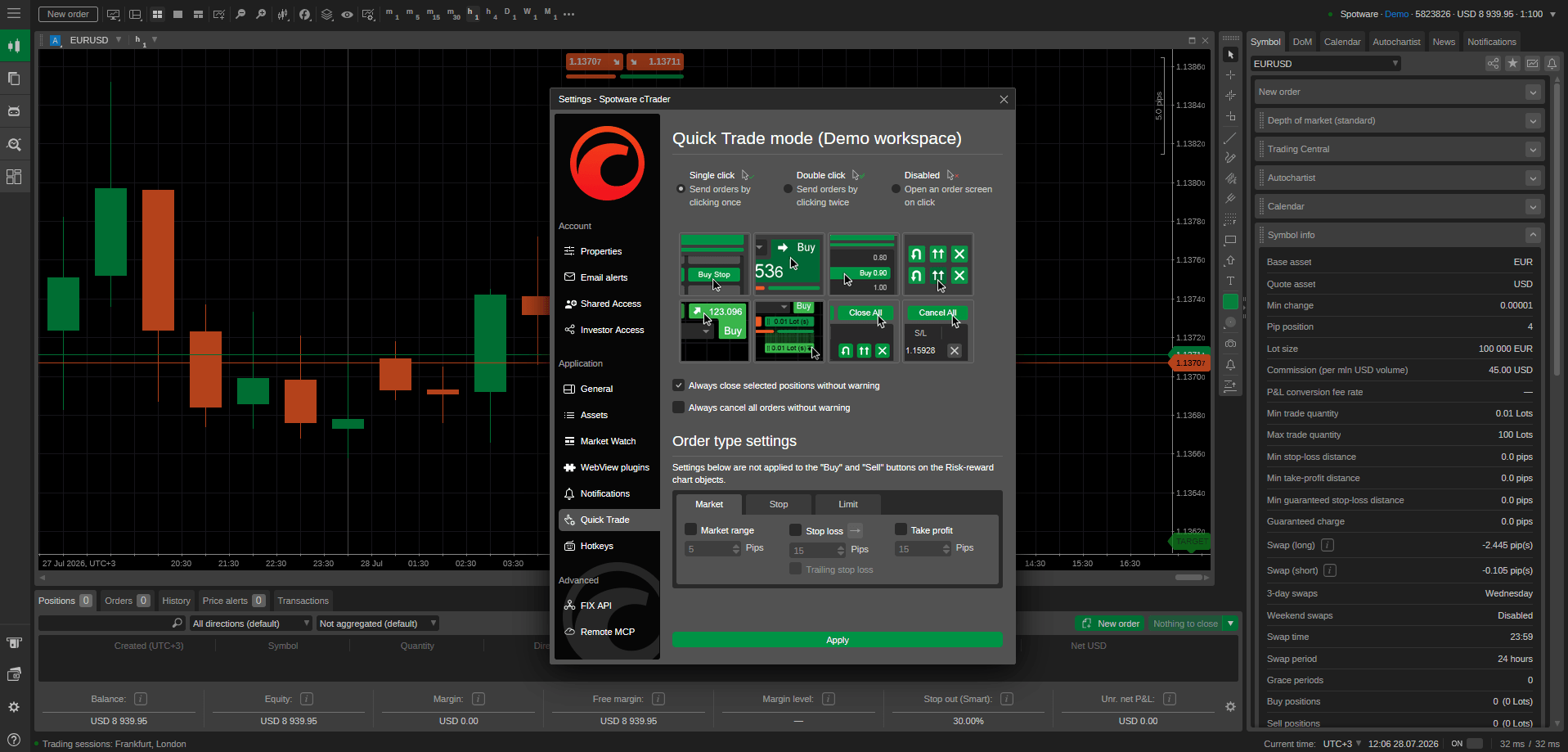
QuickTrade or one-click trading, on the other hand, lets you open or close trades faster with fewer confirmation steps. cTrader offers customizable quick trade settings in both demo and live trading. Below, our team tested the Quick Trade mode on the Demo workspace and selected the single-click option.
Active trades are normally visible in Trade Watch, where you can see entry price, current price, floating profit or loss, stop loss, take profit, and other details. This is the area to monitor when a trade is live. Do not rely only on chart lines. The positions panel gives a more direct operational view of what your account is actually carrying.
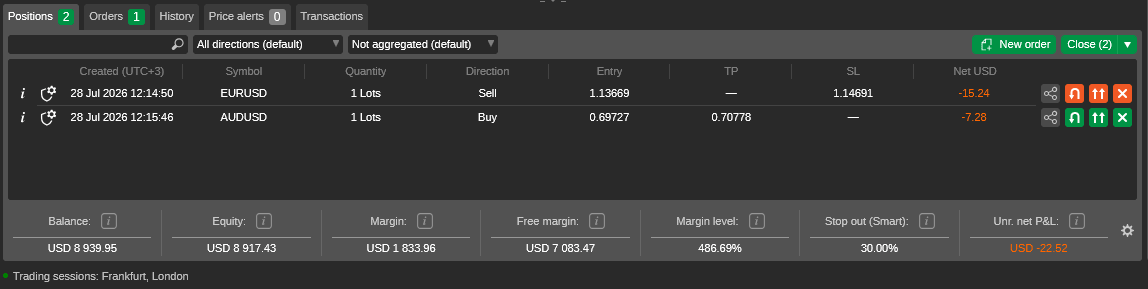
As you can see above, our reviewers have two 1-lot positions open, with one being a sell position (EUR/USD), while the latter is a Buy position (AUD/USD).
cTrader Order Types Explained
Order types are the cornerstone of navigating trading markets, and cTrader supports a wide range of order types:
| Order Type | Description and Purpose | Main Caution |
|---|---|---|
| Buy and Sell Orders | A buy order is used when you expect prices to rise, while a sell order is used when you expect prices to fall. | Beginners should still check the order ticket carefully, entering the right size in the wrong direction can be more damaging than entering a small size in the right one | Market Orders | Immediate Execution at Current Market Price: A market order aims to execute immediately at the best available market price. | Price can move before fill |
| Limit Orders | Enter at a Better Price Than the Current Market: Limit orders are pending orders that aim to buy below the current market price or sell above it. | Order may never fill |
| Stop Orders | Enter After Price Breaks Through a Level: Stop orders are pending orders that trigger when a price moves to a specified level, typically to enter on momentum or a breakout. A buy stop is usually placed above the current price, and a sell stop below it. | Can trigger in volatility and fill at a worse price |
| Stop Loss / Take Profit | Exit Risk or Lock Target on an Open Trade: Stop loss and take profit orders are exit instructions attached to a trade. A stop loss is designed to limit downside, while a take profit closes at a target price if reached. | In volatile or gapping markets, the final fill can be worse or better than the trigger level |
| Trailing Stop | Trailing stops move protection with favorable price movement. | Can close trades early in normal market noise |
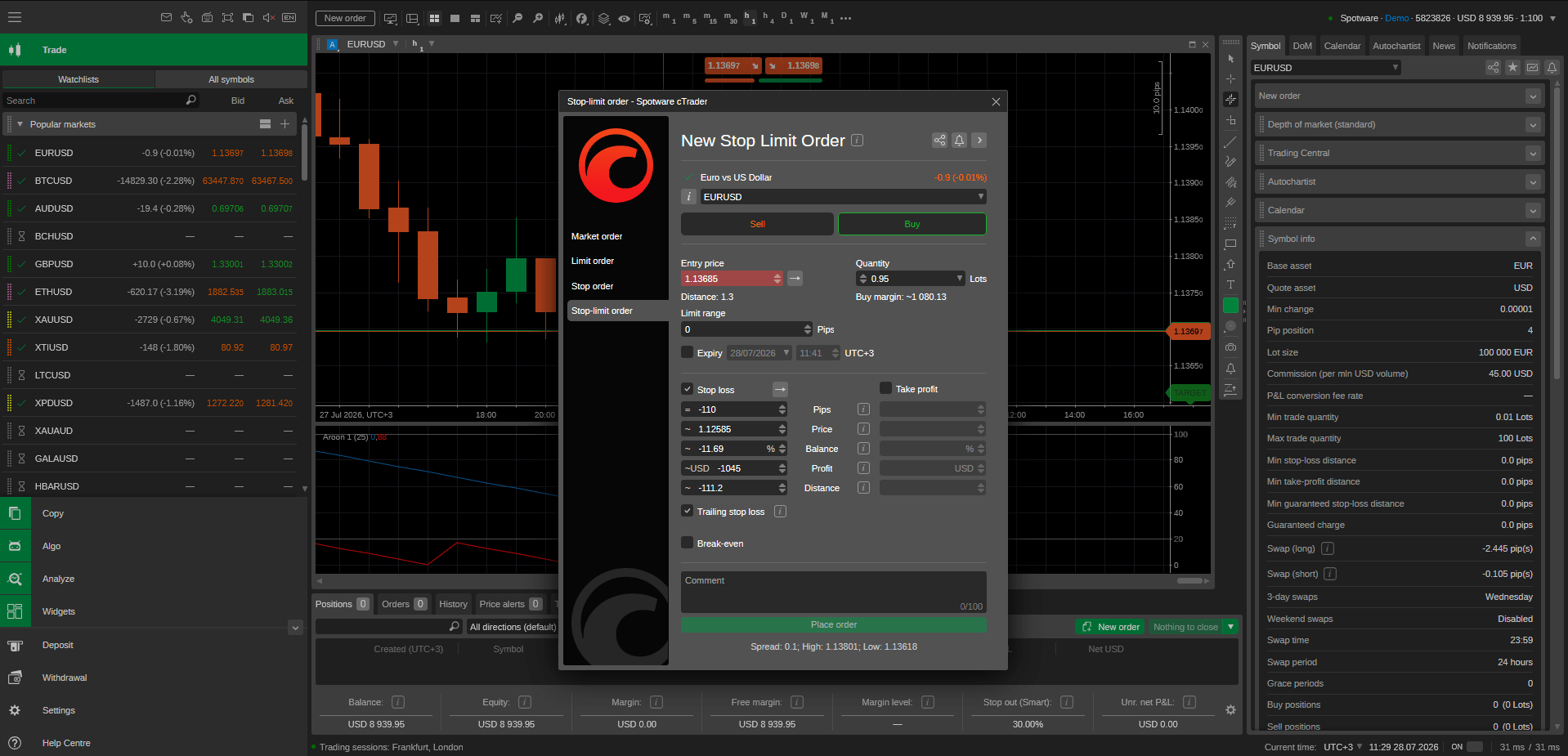
| Stop Limit | This order allows traders to trigger an entry, then limit the acceptable fill price. | More price control but less certainty of execution |
Not every broker or instrument supports every order type or execution setting, however. Before using any order type live, practice it in a demo account to understand where it triggers, how it appears in the platform, and what risks it still carries.
If you would like to learn more about the order types you may be able to place while using cTrader, you will find a detailed overview of the key ones and how we used them during our testing of the cTrader platform below.
Market Orders
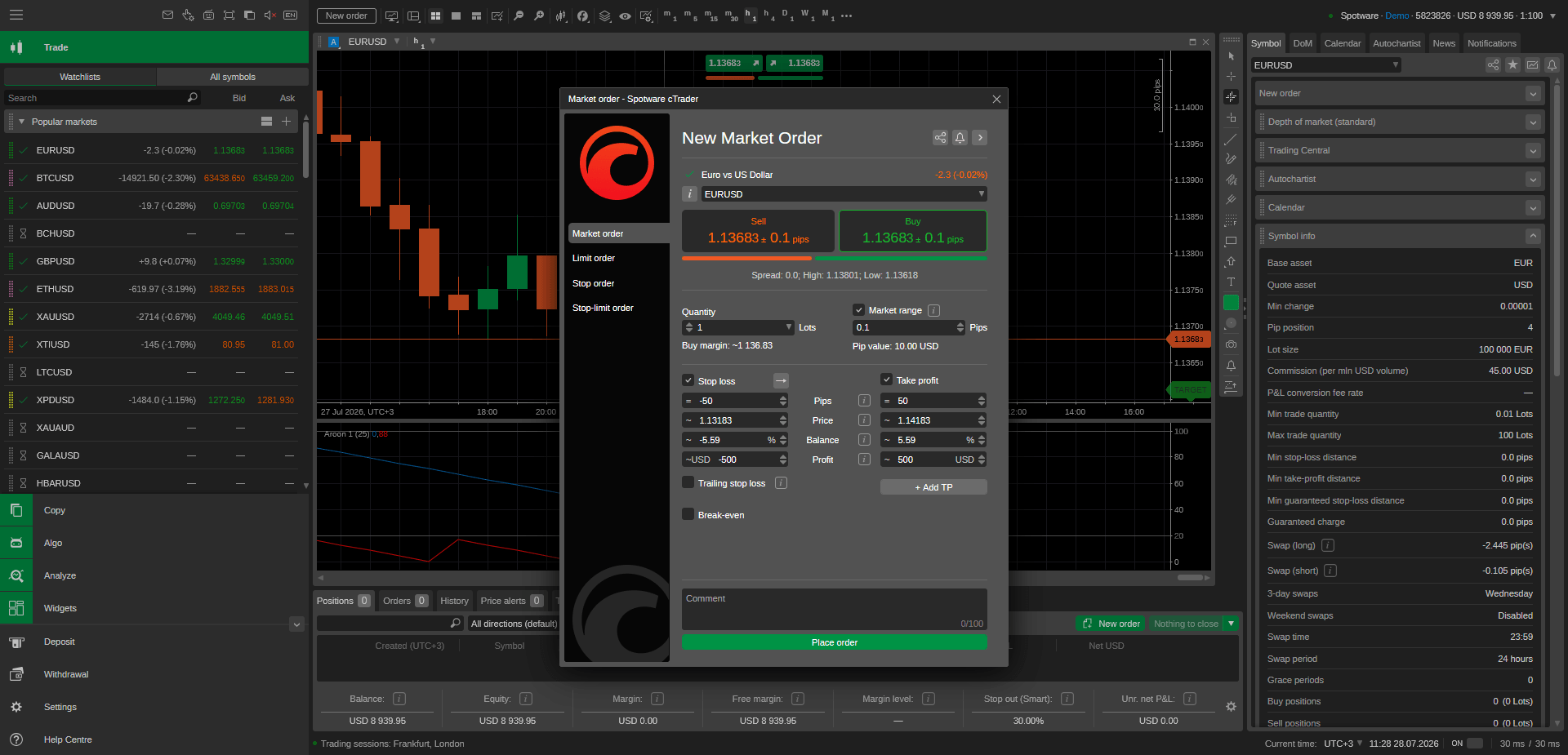
- Buy Market: By placing buy market orders, our team instructed cTrader to open a long position as soon as possible at the best available ask price. We used this order type to achieve immediate entry. The main caution is that the final execution price can differ from the last quote shown, which we observed during high volatility or when liquidity is thin.
- Sell Market: We placed sell market orders to open short positions as soon as possible at the best available bid price. Like a buy market order, it prioritizes speed over price control. In fast conditions, slippage resulted in our final fill being less favorable than expected.
Limit Orders
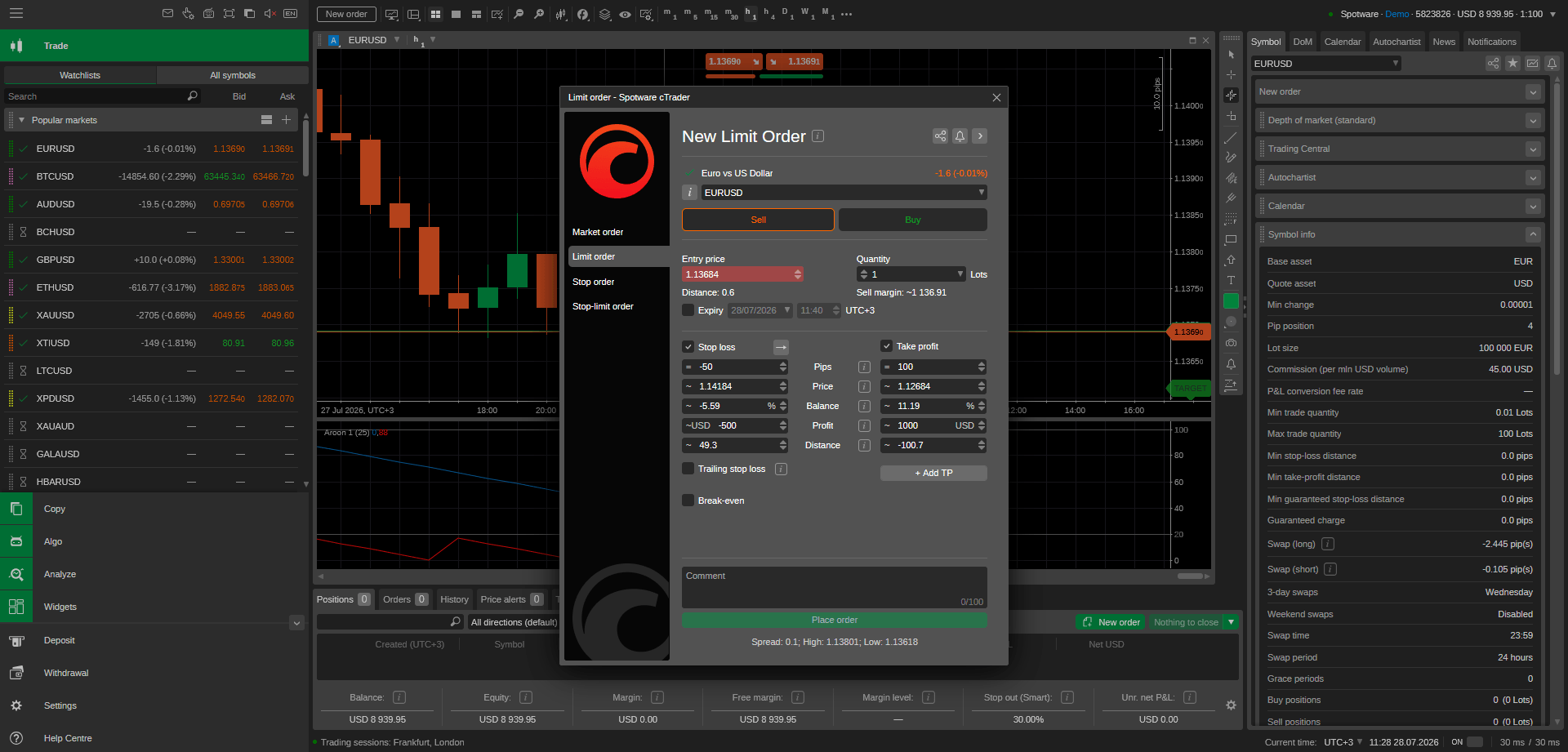
- Buy Limit: A buy limit order is a pending instruction to buy at a lower price than the current market price. During testing, we used it to enter on a pullback rather than chase the current price. The risk with this order type lies in the possibility that the order never fills and the market moves away without you.
- Sell Limit: A sell limit order is a pending instruction to sell at a higher price than the current market price. We used it when we expected an instrument’s price to rise into a resistance area before turning lower. As with any limit order, there is no guarantee of execution.
Stop Orders
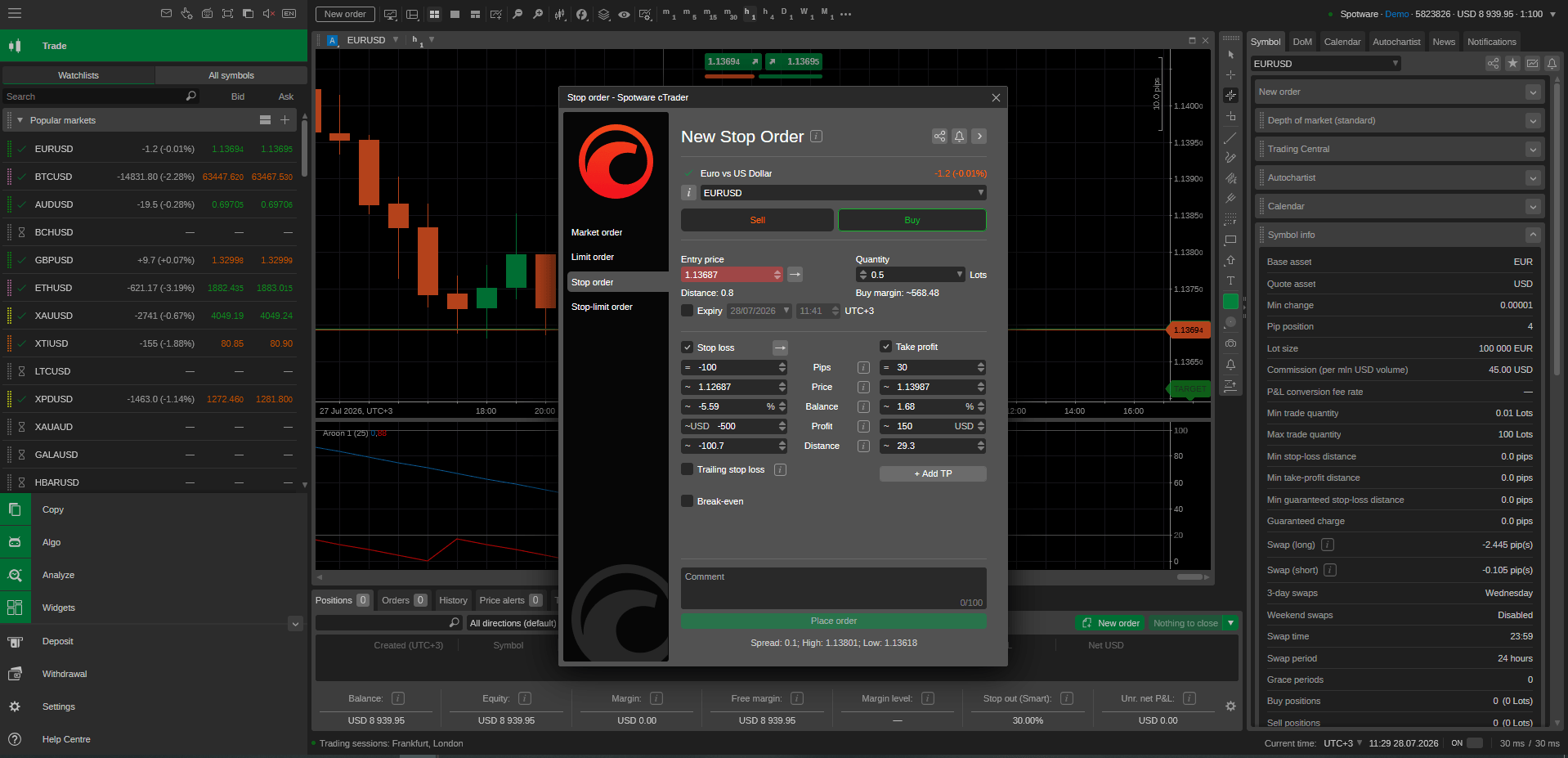
- Buy Stop: A buy stop order is placed above the current market price and is designed to trigger if the price rises to that level. We utilized this order to join upward momentum or a breakout. According to our observations, the main risk is that fast moves can trigger the order at a less favorable price than expected, and false breakouts can reverse quickly after entry.
- Sell Stop: A sell stop order is placed below the current market price and is designed to trigger if the price drops to that level. Our goal when placing these orders during testing was to enter downward momentum. Like a buy stop, it can be vulnerable to sharp moves, slippage, and false breakouts.
- Stop Loss: By placing stop loss orders, we gave cTrader exit instructions to limit losses when markets moved against our positions. For a buy trade, the stop loss is usually placed below the current price; for a sell trade, above it. It is one of the most important risk controls in trading, but in gaps or fast moves, the execution may be worse than the exact level set.
- Trailing Stop: A trailing stop moves your protective stop in the direction of a favorable price move by a defined distance. Its purpose is to help protect gains while allowing the position room to continue. We find this order to be an effective risk management tool, but we must caution that if the trailing distance is too tight, normal price fluctuations may stop you out before the broader move develops.
Other Order Types
- Stop Limit Orders: A stop limit order combines a stop trigger with a limit condition. Once the stop price is reached, the platform submits a limit order instead of a plain market-triggered entry. This gave our reviewers more control over the maximum or minimum acceptable fill price. However, in certain cases our orders did not execute due to a fast market.
- Take Profit: Our testers used take profit orders to close trades automatically once the price reached a favorable target. This order type can help enforce discipline by taking emotion out of the exit decision. However, it is still just a market instruction at the target trigger, so actual fills can vary slightly depending on market conditions and instrument behavior.
Managing Trades, Trading Costs, and Account Information
Open positions are usually listed in Trade Watch with details such as symbol, direction, volume, entry price, floating profit or loss, and any attached stops or targets. This list gives the clearest live overview of your exposure. If you are carrying out more than one trade, check this area regularly instead of relying on memory or chart annotations. In addition, remember that balance is the account value after closed trades, while equity includes the current floating profit or loss on open positions.
Each position will involve certain trading costs. The potential cost types include:
- The Spread: As established, the spread is the difference between the bid and ask price of a given instrument, as determined by market conditions and the broker’s own markups.
- Commissions: This is a service fee charged on top of the spread. Many cTrader brokers offer lower spreads (often as low as 0.0 pips) at the cost of commissions. These accounts are often dubbed “Raw,” and their total costs are typically lower than those of zero-commission accounts.
- Swap Fees: If you keep a leveraged position open overnight and the market moves against you, you may be charged a swap fee. If the opposite happens, i.e., markets move in your favor, you will instead be paid interest by your broker.
- Administrative Fees: Some trading firms offer Islamic accounts that neither charge nor pay interest for positions held overnight. Instead, they charge such clients a fixed administrative fee after a certain grace period.
- Performance Fees (Copy Trading): If you plan on taking advantage of cTrader Copy, your strategy provider will typically charge a performance fee for their services that is based on their performance.
Besides trading costs, there are various account-related charges you may be subject to. These may include withdrawal fees, deposit fees, costs tied to using a VPS, and inactivity fees.
Remember that the exact fee structure is set by the broker and product, not by cTrader itself. Always read the broker’s fee schedule and compare it with what you see on the platform. Costs can materially affect results, especially for short-term or overnight trading.
Margin: Understanding Free Margin and Margin Level
Margin is the amount currently tied up to support those positions. These numbers are central to risk management because they show not just whether you have money in the account, but how much of it is already committed.
Free margin is the portion of account funds not currently tied up in open positions, and margin level is usually shown as a percentage comparing equity to used margin. If the margin level falls too low, the broker may restrict new trades or begin closing positions. If you are not eligible for negative balance protection, excessive leverage can also result in your balance dropping below zero. This is one reason leveraged trading can be dangerous, even when the initial trade size looks small, and why it is generally recommended that novices avoid high leverage ratios.
Reviewing History
Reviewing past performance on cTrader involves examining your order history and deal history. Order history shows the requests you have placed, including market orders, pending orders, modifications, cancellations, and related timestamps. It is useful when you want to confirm whether an order was submitted, changed, or removed. Order history is especially helpful for troubleshooting because it shows the administrative sequence.
Deal history focuses on the actual executions that affected your account. It can show entries, exits, partial fills, and cost components tied to a completed activity. If order history explains the instruction, deal history explains the financial event. Reviewing both together can help you understand exactly what happened during a trade.
cTrader may also allow you to export account data or reports, depending on the version you use. Exports are useful for reviewing performance, keeping records, or sharing a technical issue with the broker’s support team.
Alerts, Notifications and Platform Messages
cTraders supports a range of alerts and notifications that will keep you up to date on instrument pricing, order status, and more.
- Price Alerts: Price alerts let you set a reminder when an instrument’s price reaches a certain level. This can help you monitor setups without staring at the chart all day. Keep in mind that alerts are not trade execution tools unless specifically linked to an automated process.
- Push Notifications: Push notifications send alerts to your mobile device so you can stay informed while you are not actively using the cTrader mobile app or your broker’s cTrader-powered application. To use them properly, you need to ensure that they are enabled in the notification settings of your device. Additionally, you can toggle the setting of each push notification type in the app itself.
- Email Notifications: Some cTrader workflows support email-based notifications through platform or broker settings. Email can be slower and less suitable for urgent trade management than on-screen alerts or push notifications; however, it is advised that you do not rely solely on them, which is why using email notifications can be useful. Make sure your email address is correct and check your spam folders if expected messages do not arrive.
Your broker will never ask you to send your account or personal information through email, nor will it send emails that prompt account action via a link out of the blue. If you receive such an email, do not interact with it and contact the broker’s customer support team directly through the channels shown on its official website.
- Platform Notifications: Platform notifications can include order confirmations, order rejections, connection warnings, update prompts, and account-related notices. Get into the habit of reading them fully, as a short message can explain why a trade did not open, why an order was canceled, or why a feature is unavailable on your account.
- Managing Broker Messages: Brokers may send messages through the platform about maintenance windows, trading-hour changes, account verification, or market-specific restrictions.
- Using the Events Log: The events log records technical and operational activity such as connection changes, login attempts, order events, and platform warnings. If something behaves unexpectedly, the log is often the first place to check. It can also help support teams diagnose a problem more quickly because it provides a timestamped record of what the platform experienced.
Customising cTrader
cTrader offers a suite of customization tools that allow users to organize their workflow on the platform as they see fit. Trading settings, for example, can include QuickTrade, confirmation prompts, default volumes, and execution preferences.
The platform’s interface has also been translated into 20+ languages, including but not limited to French, Japanese, Turkish, Spanish, Italian, and Indonesian, allowing a plethora of traders to use the platform in their native language. This setting can be found in the main menu on the left on all major versions of the platform.
The above, in addition to the platform’s clean interface, makes the process of customizing cTrader relatively straightforward. If you are not sure where to start, however, we offer an overview of cTrader’s main customization options and how to make the space comfortable to use if you are a beginner.
Customizing Charts
You can change candle style, grid visibility, and other visual elements. Clear visuals matter more than most beginners expect. A chart that is easy to read reduces fatigue and speeds up recognition of important levels, especially if you are new to trading, so choose a simple layout.
cTrader also supports setting up default chart preferences, which let you decide the chart type, common timeframe, and basic display settings of all newly created charts. This saves time and helps keep the workflow consistent, making it easier for traders who are still learning by making charts comparable from one session to the next instead of forcing you to adapt to a different visual setup each time.
Creating Custom Workspaces
A workspace is the broader arrangement of panels, charts, watchlists, and tabs across the platform. Watchlists, in particular, can be created to allow traders better access to the symbols, and you can rename them, select the instruments a given watchlist includes, and change their placement in the interface. Good watchlist management can serve as a form of risk control, as it limits distractions and can help you stay focused on a limited number of symbols that you are prepared to monitor properly.
You might create one workspace for short-term monitoring and another for slower, more thorough analysis. It is best to name them clearly, as confusing layouts can cause mistakes, especially if one is linked to a demo account and another to a live account.
In addition, we also advise that you save your workspace regularly. Depending on your login method and version, settings may sync automatically or remain device-specific. Either way, it is wise to check that important layouts, templates, and preferences can be restored. Good organizational habits can save a lot of rework after an update or reinstall.
Managing Sounds and Notifications
Sound alerts and notification preferences can be tuned so that the platform gives useful signals without becoming distracting. It is reasonable to mute non-essential sounds, but keep warnings for trade execution and order rejection, or connection loss.
Missing a routine chime is not important. Missing a disconnect or order error during live trading can have more serious consequences, however.
cTrader Algo and Automated Trading
cTrader Algo (also known as cTrader Automate) is the platform area for creating, testing, and running algorithmic trading tools. It is designed for traders who want to build or use rule-based systems rather than trade everything manually. In most cases, this involves strategies and indicators written in C#. Even if you do not code, you should understand what an automated tool is allowed to do before using it.
What cBots Are
cBots are automated trading programs for cTrader. A cBot can monitor the market, generate signals, open trades, modify positions, be utilized for backtesting if you use the desktop version of cTrader, and close them based on its coded rules. You can create cBots if you are an advanced user, or install cBots by going to the Algo section of the platform and opening the cTrader Store. There, you will find a wide range of user-created cBots, along with indicators, plugins, and other products.
Some cBots are paid, while others are available for free. Once you have found a cBot you are interested in, you can install it. On the web version, doing so will integrate the bot into cTrader’s interface. To use it, select “Start cBot,” which results in a local or cloud instance depending on your platform, and it is possible to start additional instances. Duplication of an instance is possible as well. If you wish to stop, select “Stop cBot.”
In addition to the above method, it is also possible to install a cBot through an algo file. Simply tap or double-click the file (depending on your platform), and select cTrader when you are asked which app or program to open it with. Then, select Upload, and your cBot will be ready to use.
The types of parameters you can customize include the symbol, time period, volume, stop loss, take profit, indicator type, MA type, slow periods, and more. You can also save the parameters to a .cbotset file, which you can use to apply the same parameter settings to another instance. Alternatively, if you no longer wish to use a given instance, you can delete it.
What Custom Indicators Are
cTrader has a suite of built-in indicators that are included in its platform version by default, and their code is non-customizable. Alternatively, traders can use custom indicators, which are add-ons that extend the platform’s analytical tools.
Some indicators only display information tied to the markets, while others may be used as inputs by cBots. Unlike cBots, however, you cannot use indicators for backtesting.
What cTrader Plugins Are
Plugins are applications that grant users access to additional features. Like cBots and indicators, you will find downloadable plugins on cTrader’s store, and you can also install them via algo files.
However, they also differ in key ways: Plugins are generally user interface enhancements or tools that can place orders and perform other actions, depending on their functionality and the permissions they are granted. They can only be run locally, meaning you will not be able to use them in mobile apps and cTrader Web. Furthermore, plugins are not compatible with backtesting.
Introduction to Backtesting
Backtesting checks how a strategy would have behaved on historical data. It is useful for filtering out obviously weak ideas, and it can be used on the cTrader software versions that can be installed on computers running Windows or macOS.
Keep in mind that while backtesting can be a key tool for determining the viability of a given strategy, it has limits. Historical performance depends on the data, assumptions, and settings used, and real execution can differ from historical modeling. Essentially, good results in backtesting are not definitive proof that a strategy will work well when applied during live trading.
Backtesting is also utilized for optimizing cBots. To access this feature, navigate to the Optimize tab after selecting an instance of a given cBot. Optimization settings and parameters include, but are not limited to, starting capital, commission, MA type, and fixed value. You can also set different criteria for the cBot’s optimization, for example, whether to maximize net profit or minimize equity drawdown.
Optimization can improve understanding of a strategy, but it also creates the danger of curve-fitting, where the system becomes tailored to old conditions and loses usefulness in new ones. Thus, just like regular backtesting, you should exercise caution when analyzing the results.
Risks of Automated Trading
One of the key advantages of automation has to do with removing the emotional aspect of trading. Essentially, it reduces the risk of making hasty trading decisions based on factors such as sunk-cost fallacy, overconfidence, excessive caution, and the like.
Still, that does not mean automated trading does not come with its own potential pitfalls. Normal market risks plus risks associated with your software and connectivity still apply. Moreover, cBots’ speed of execution can result in them repeating certain mistakes faster than you could. Sudden volatility, bad code, and server issues can make for disastrous results, especially when combined with high leverage. Thus, it is crucial that you do not see automated trading as risk-free.
Testing Automation on a Demo Account
Any new cBot or custom indicator should be tested on a demo account first and monitored closely. Demo testing helps you catch obvious bugs, logic errors, and unrealistic assumptions without risking real funds.
As always, you should remember that live trading can behave differently from demo trading. Once you move on from the demo, it is advised that you begin with the smallest reasonable exposure and careful supervision of how a cBot is behaving.
cTrader Copy Overview
cTrader Copy is the platform’s copy trading area, where investors can allocate funds to strategies run by strategy providers. Instead of placing every trade manually, the investor allows the strategy’s trades to be mirrored in their own account according to the copy setup.
cTrader Copy involves two market participants:
- Providers: Strategy providers are the traders or systems offering the strategy, and they control how trading is conducted. They also determine the strategy conditions, such as the minimum investment, performance fee, management fee, and volume fee.
- Investors: Investors are the users allocating funds to a given provider’s strategy. They can determine the amount of funds they wish to invest, whether to continue following a strategy, and the like.
When searching for a new strategy, you can set filters such as the account type, ROI, strategy age, whether the strategy can be used by demo traders, the minimum number of live investors, and the investor and provider funds. At the time of writing, cTrader’s platform features over 800 strategies offered by 200+ providers.
In broad terms, you copy trade by choosing a strategy, reviewing its settings and history, and allocating funds. Then, the platform mirrors qualifying trades into your account. The exact allocation logic can vary, but the idea is that your results follow the provider’s trading activity proportionally within the chosen setup. Both profits and losses are reflected in your own allocated balance.
You can stop copying, reduce or increase allocation, or adjust settings depending on the platform workflow. Before making changes, check the strategy’s terms to understand what will happen to any open copied positions. In some cases, you may be able to close them immediately; in others, you may choose how they are handled. Always read the options carefully before confirming.
Reviewing Strategy Performance, Suitability, and Costs
Before you start copy trading, it is crucial to examine a strategy’s characteristics and compare them with other strategies. You can search for strategies by applying the filters we outlined in the previous section, and once you select a strategy, cTrader showcases the following parameters:
- ROI
- Win rate
- Profit factor
- Profitability percentage
- Strategy Age
- Active live investors
- Max drawdown
- Starting and current balance
- Equity
Of course, you should also decide if the strategy’s required minimum capital requirement and the utilized leverage ratio are suitable for your trading needs.
Fees are another crucial factor. Depending on the strategy, you may be required to pay a performance fee of up to 30%. Management fees, meanwhile, are capped at 10%, while volume fees can start at $0 per million or reach $10 per million.
To summarize the process of finding and deciding whether you should follow a strategy:
- Go to the Copy section of cTrader and apply your preferred filters.
- Check exactly how long the strategy has been running.
- Review drawdown and other key factors.
- Determine if you can meet the minimum investment requirement and whether the leverage ratios and fees are appropriate.
Understanding Risk
Copy trading can create a false sense of safety because someone else is making the trade decisions. While it reduces the risk of you making emotionally charged decisions or mistakes due to inexperience, that does not completely reduce the possibility of losses. Strategies can suffer large drawdowns, change behavior, stop working, or take risks you did not notice at first. Concentrating too much money into one copied strategy or copying a highly leveraged provider can lead to significant loss of capital.
Moreover, remember that a newer strategy with a sharp rise can look impressive, but its lack of a meaningful track record makes it far less reliable than an established strategy. Even if you are looking at a strategy that has been around for years, remember that past performance does not guarantee future results. Copied trades may also not match the provider perfectly because of timing, price differences, and account-specific factors. Thus, you should always exercise caution when using a given strategy.
cTrader Mobile App Overview
cTrader’s official mobile applications are available on Google Play and the App Store. When you first install the app, you will be prompted to allow notifications and log in with your cTrader ID.
Once done, you will be greeted by the Watchlist category in the Trade tab, which is where you monitor selected instruments and their current quotes. It is also where you can create a new watchlist, add or remove symbols, and place orders. Essentially, it enables you to manage your trades on mobile.
Besides the Watchlist area, cTrader’s Trade section interface is largely organized in the following menus:
- Positions: Here you can view each of your positions and open new ones.
- Orders: Another trade management area. This is where you can view and place orders.
- Price alerts: This allows you to create price alerts on various instruments.
- History: The History section displays completed trading activity and can help you review what happened after a session ends. Use it to confirm when positions closed, what the realized result was, and whether charges such as swaps or commissions were applied. It is also helpful when comparing your manual notes to actual account results.
- Transactions: This provides an overview of your deposits and cashouts.
Algo and Blotter
In addition to the Trade tab, the cTrader app features two additional tabs at the bottom of the interface. The first one is dubbed Algo, and it is where you can search for and manage cBots, indicators, and plugins.
Blotter, meanwhile, is cTrader’s hub for market analysis, where you can view financial news, calendar events, Trading Central insights, and more. It also houses the Autochartist tool. Additionally, you will be able to view broker messages and cTrader ID account events in this tab.
Main Menu and Settings
The Main Menu button is located at the upper left of the app’s interface. It is where you usually manage your trading accounts and your profile, make deposits, withdraw funds, and more. It is also where you will find the settings menu, which allows you to change your language, timezone, set up your alerts, choose whether your assets are displayed in units or lots, and set up your Quick Trade preferences.
Spend a few minutes here before you trade on mobile. This is where you can often confirm whether notifications are active, whether the app saves login information, and which account is selected by default.
Mobile Notifications
Mobile notifications can cover a range of account and trading events. To receive notifications, ensure that they are not blocked by silent mode and battery-saving settings.
As established, they also need to be enabled in the notification settings of your phone and the alerts settings of your cTrader app. You can navigate to them by opening the app, tapping the cTrader logo at the top left corner, opening Settings, and selecting the Alerts tab. There, you can choose to disable or enable the following alert types:
- Take profit
- Stop loss
- Break-even triangle
- Pending order filled
- Stop out (50%)
- Deposits/withdrawals
- Email statements
- Price alerts
- Daily equity
- Margin calls (150%, 100%, and 80%)
The above alerts can also be sent to you through email, but this setting is disabled by default.
Common cTrader Problems and Fixes
While cTrader has a relatively good reputation in terms of platform stability, you may still come across certain issues on occasion. In many cases, it may be necessary to get in touch with your broker’s customer support team or ask for assistance on cTrader’s community forums, although if you go with the latter, remember that you should never install software from non-official cTrader sources, and that you must never provide your personal or account data to others.
Many problems, however, can be resolved through troubleshooting. Below, you will find a range of potential issues and their possible fixes.
cTrader Will Not Install
If cTrader will not install on your computer, the cause is often a blocked installer, a corrupted download, lack of device permissions, or a system compatibility issue. It is also possible that you do not have enough space for the program on your device.
Delete the file and check if you have sufficient space. If the answer is yes, download it again from your broker or cTrader’s official website, and check whether security software blocked part of the installation. If you are on a company-managed device, local IT restrictions may be the real problem.
For mobile users who are struggling with downloading or installing the app, first ensure that you have downloaded the app from Google Play, the App Store, or the APK file that can be downloaded from cTrader’s official website. It is best that you avoid APK files from third-party sources. If you do utilize your respective device’s app store, Google or Apple will typically tell you what the issue is. More often than not, it is a lack of space, which means you may need to delete files or other apps before you can download and install cTrader.
cTrader Will Not Open
If the platform is installed but will not open, try restarting the computer, checking for pending updates, and confirming that the app is not already stuck in the background. A failed update, damaged local settings, or a graphics-related issue can also cause launch problems. Reinstalling from the official source may be necessary if the problem persists.
Login Error
A login error usually means incorrect credentials, the wrong broker or environment, or an account issue on the broker’s side. Double-check the email case and your password. If you are certain that you have forgotten your password, you could perform a password reset. Doing so involves clicking “Forgot password?” and inputting your email so cTrader can send you the password reset link. Then, simply create a new password and log in.
Broker Account Not Showing
If your broker account is not visible in cTrader, the account may not be linked correctly, may not be approved yet, or may be tied to a different login than the one you used. Confirm that the account exists in the broker’s portal and that it is specifically a cTrader-enabled account. If needed, log out and try logging in again. If the account is still not visible, contact your broker’s customer support team.
No Connection Error
A no connection error can result from local internet problems, firewall blocking, VPN issues, broker maintenance, or temporary server disruption. First, confirm that your device has stable internet access outside cTrader, and disable your VPN if necessary. Then restart the platform and review any broker notices.
Charts Not Loading
When charts do not load, check whether the platform is connected, whether the symbol is actually available on your account, and whether the selected timeframe is requesting data that the session has not loaded yet. A restart can help refresh chart data. If only one symbol is affected, the issue may be that instrument’s availability or session state rather than the whole platform.
Symbols Missing from Watchlists
If symbols are missing, they may have been removed from the watchlist, hidden by a filter, renamed by the broker, or unavailable for your specific account. Search the full instrument list before assuming a symbol has disappeared entirely. Also, remember that brokers sometimes use suffixes or different contract names, so the instrument may still exist under a slightly different label.
Finally, if the issue concerns a symbol you have not traded before, check if your broker or account supports it. Some brokerages have a limited selection of instruments, while others restrict symbol availability based on account type. If you cannot find the symbol anywhere, it may mean that it is simply not available to trade for you or the broker’s client base as a whole.
Trade Button Disabled
A disabled trade button can mean the market is closed, the selected account is read-only, you do not have enough available margin, or the account is not fully active. It can also happen if you are looking at a symbol that is not currently tradable on your account. Check account status, symbol information, and current market session before retrying.
Market Closed Message
A market closed message usually means the instrument is outside its trading session, even if other markets are open. This is common on weekends, holidays, daily session breaks, and some symbol-specific trading windows. Do not keep resubmitting orders repeatedly. First, confirm the instrument’s trading hours and whether your broker sent a maintenance or holiday notice.
cBot Not Working
If a cBot is not working, possible causes include disabled automation, compile errors, missing permissions, wrong symbol or timeframe, unsupported parameters, or logic flaws in the cBot itself. Start with the basic checks: does it compile, is automation enabled, and is it attached to the intended market context? If the bot came from an outside source, treat it cautiously and test only on a demo account until you understand it.
cTrader Security Tips
cTrader employs a range of security measures that ensure the robustness of its software. However, the safety of your account and devices is equally reliant on you not sharing your details with others, taking caution when installing software, and more. Below, you will learn all about the most important security tips that you should keep in mind if you plan on using cTrader.
Downloading Only from Trusted Sources
Use only the official cTrader website, your broker’s verified portal, Google Play, or the Apple App Store. A legitimate-looking installer from an untrusted source is still a security risk. Trading software has access to sensitive workflows, so if in doubt, stop and re-check the source before installing anything.
Trusted sources include:
- cTrader Website: You can download and install cTrader for Windows and Mac devices by visiting the platform’s official website. Here, you will also find links to the web platform and the Android and iOS apps. An official APK is also available to download on this page.
- Official Broker Portals: On the cTrader website, you can find all brokerages that have partnered with cTrader and offer the platform to their clients. Reputable brokers typically provide links to all of the cTrader software that they support. To determine whether a broking firm can be trusted, check its licenses and confirm that the said licenses and a link to the broker’s website are included in the respective regulator’s register. Trusted regulators include the FCA, CySEC, and ASIC, to name a few. First and foremost, a trading firm should be licensed by the regulatory entity that oversees trading markets in your jurisdiction.
Protecting Your cTrader ID
Your cTrader ID should have a strong, unique password that is not reused for email, social media, or your broker login. Do not share your cTrader ID or password with anyone claiming to need them for “setup help.” Genuine support can assist in addressing issues without asking you to hand over account control.
Protecting Broker Login Details
Your broker login controls access to the actual trading account, so it deserves the highest level of care. Do not store it in plain text files, send it by chat, or share it with signal sellers or remote assistants. If your broker offers two-factor authentication, make sure to enable it.
Avoiding Fake Brokers and Cloned Websites
Some scam sites imitate real brokers or create lookalike websites that mention popular platforms like cTrader to appear legitimate. A cTrader logo on a page does not prove the broker is real. Verify the domain carefully, use contact details from official records, and be skeptical of websites promising unusually fast profits or pressuring you into opening an account for the sake of limited-time offers. Additionally, make sure to check the list of supported brokers available on cTrader’s website.
Using cTrader on Shared Devices
Shared devices make saved passwords, open sessions, and local data exposure serious security risks. If you must use such a device, avoid saving credentials, use incognito windows, log out fully after every session, and clear browser sessions and cookies.
Managing Saved Passwords
Saved passwords can be convenient, but it is generally best to avoid them as they pose a security risk should your browser be targeted. Instead, it is better to use a reputable password manager. On shared or unsecured devices, it is always best to never save login credentials.
Avoiding Unsafe cBots and Add-Ons
Do not install cBots, indicators, or add-ons just because someone claims they produce reliable profits. Unknown files can contain bad code, poor strategy logic, or hidden security risks. If you cannot review the source or understand what the tool does, it is advised that you refrain from downloading and using it. Furthermore, avoid giving unknown add-ons access to a live account. We should also stress that even if you download a cBot or indicator from cTrader’s official store, it is still best that you try it out in demo trading first to get a clearer idea of its performance.
Keeping cTrader Updated
Updates can improve security, compatibility, and stability. Running an old version may leave you exposed to known bugs or connection issues. Update through the platform, official site, app stores, or your broker’s verified portal. Before major changes, it is sensible to confirm that important templates, workspaces, and custom tools are backed up and recoverable.
cTrader Glossary
Bid and Ask
The bid (sell) is the highest price the dealer is willing to pay for a given asset, while the ask (buy) is the lowest price the dealer is willing to sell an asset for. If you are a trader, you buy at the ask and sell at the bid prices.
Spread
The spread is the difference between the bid and ask prices. It is a basic transaction cost factor and can widen or narrow depending on the instrument, time of day, and market conditions.
Lot Size
Lot size is a common way to describe trade volume. In many markets, especially forex, one lot refers to a standard contract size, but the exact size can vary by product and broker.
Pip
A pip is a common unit of price movement in trading, especially in forex, and it corresponds to the fourth decimal of the spread. It stands for “percentage in point” and represents the smallest movement of the exchange rate of a currency pair.
Balance
Balance is the account value after closed trades only.
Equity
Equity is balance plus or minus the floating profit or loss of current open positions.
Margin
Margin is the amount of account funds currently required to support open positions.
Free Margin
Free margin is the amount still available for additional exposure or to absorb losses before restrictions increase.
Market Order
A market order aims to execute immediately at the best available price.
Pending Order
A pending order waits for a price to reach a specified level before attempting execution.
Stop Loss and Take Profit
A stop loss is an exit intended to limit downside, while a take profit is an exit intended to lock in gains at a target. Neither guarantees an exact fill in all market conditions.
Watchlist
A watchlist is a custom group of instruments you monitor inside the platform. It helps organize markets and reduces the need to search the full symbol list repeatedly.
cBot
A cBot is an automated trading program for cTrader. It can analyze markets and place or manage trades according to coded rules, which means it can help or harm quickly depending on its quality and settings.
cTrader ID
A cTrader ID is the platform-level login used to access certain cTrader services and account connections. Using cTrader requires that you have a cTrader ID whose email corresponds to the email of your trading account at a given broker. One cTrader ID can be attached to multiple broking accounts.
cTrader Copy
cTrader Copy is the copy trading area of the platform, where investors can allocate funds to strategies run by strategy providers.
About the Editorial Team